 Adobe InDesign
DataInk for Adobe InDesign
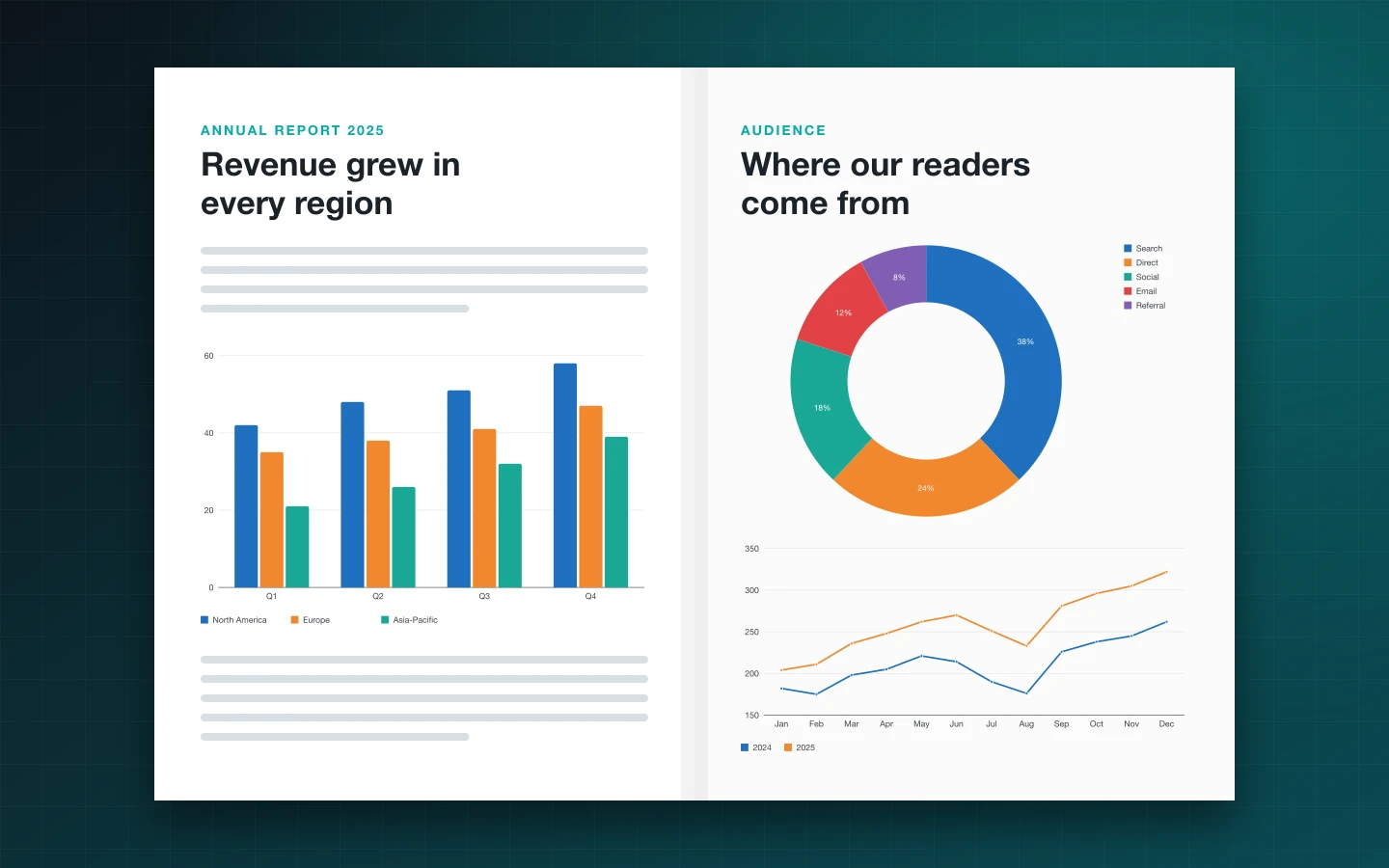
Draw charts as native InDesign objects: real paths, real text frames, your swatches and your paragraph styles. Type or paste the figures, import a spreadsheet or pick a table in your layout, and DataInk builds the chart on the page. Change a figure later and update it in place.
- 13 native chart types
- Your swatches and paragraph styles
- Charts linked to InDesign tables
- One-time purchase, no subscription
Installs from Adobe Exchange · opens in a new tab
- Works in
- Adobe InDesign
- InDesign 2025 (20.0) or later
- Price
- $99
- one-time purchase
- Support
- From the developers
- Updates included
Charts that behave like the rest of your layout
No pasted images, no round trips through Illustrator or Excel. DataInk draws every bar, slice, line and label as an InDesign object you can select, restyle and print.
Native vector objects
Bars are rectangles, lines are paths, labels are live text in text frames. Everything is grouped, editable and sharp at any size, in print and in PDF.
Your styles, not ours
Colours come from DataInk object styles, a single colour in tints, or any swatch group of your document, CMYK or spot. Text follows DataInk paragraph styles or the styles you choose.
Charts from InDesign tables
Click in a table and turn it into a chart. The chart stays linked: when the figures in the table change, update it with one click or let it follow automatically.
Excel, CSV and paste
Paste from Excel, Numbers or Google Sheets, or import XLSX, XLS, ODS, Numbers, CSV and TSV files, choosing the sheet in multi-sheet workbooks.
A real data editor
Edit figures in the panel grid or open the large spreadsheet-style editor, with keyboard navigation, rows and columns to add or remove, and a swap of rows and columns.
Live preview with magnifier
See the chart in the panel with your document's colours, zoom on any part with the magnifier, or open a large preview before inserting.
Legends as InDesign tables
Place the legend under or beside the chart, or as a real InDesign table whose cells, padding and type you style like any other table.
Presets for the whole team
Save a chart's look as a preset, apply it to the next chart, and export presets to a file your colleagues import.
Stored in the document
Each chart keeps its data and settings inside the InDesign document. Select it months later, on another computer, and carry on editing.
From install to result in a few clicks
- 1
Bring your data
Type or paste figures, import an Excel or CSV file, or click in a table of your layout.
- 2
Pick a chart and style it
Choose one of 13 chart types and set colours, labels, axes and size with a live preview.
- 3
Insert and keep it current
Insert the chart on the page. Select it later to change figures or options and update it in place.
13 chart types, drawn natively
Pick a chart type to see its options, when to use it, editorial tips and a sample of the data it expects.
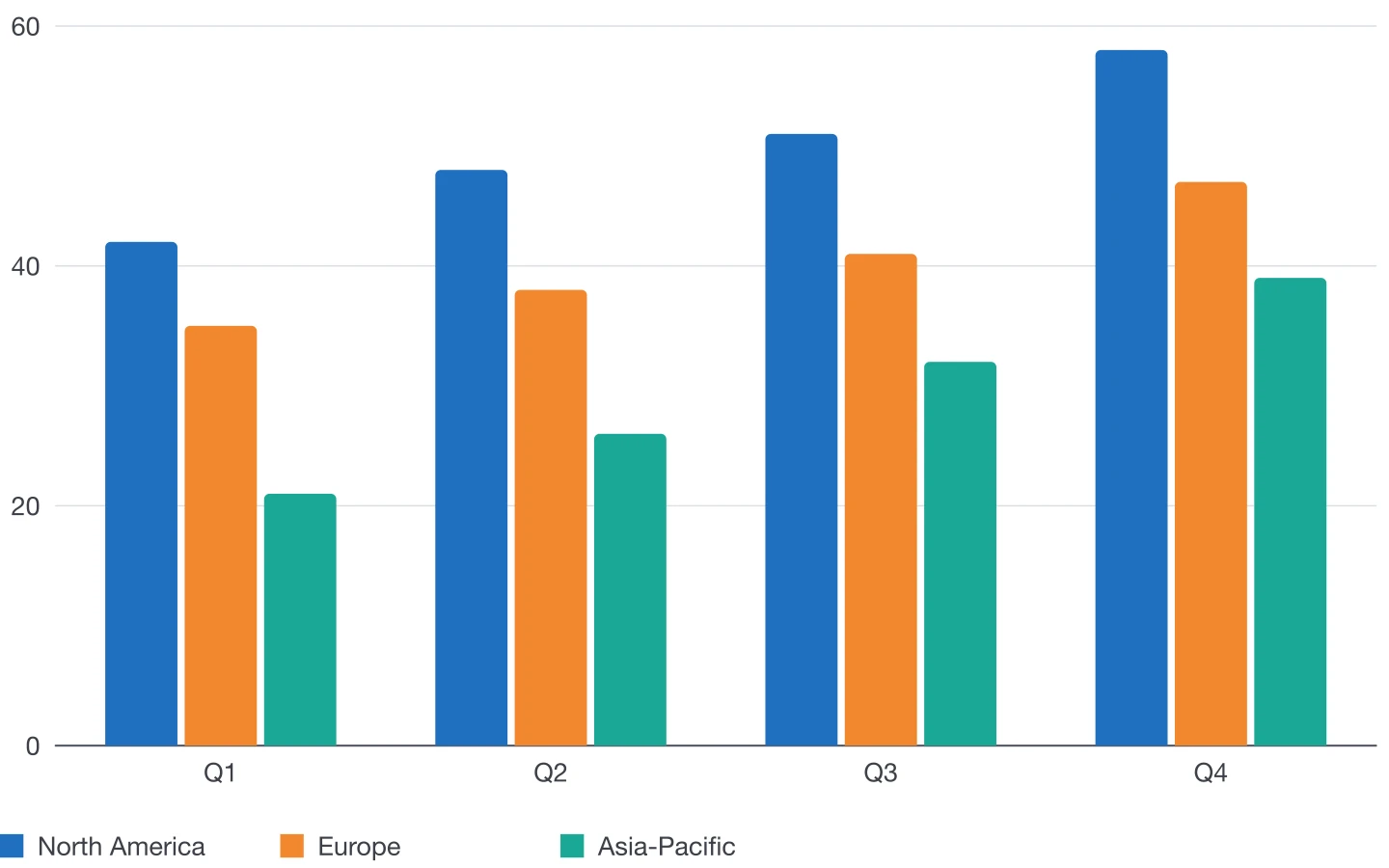
Column chart
Compare values across categories or periods with vertical bars.
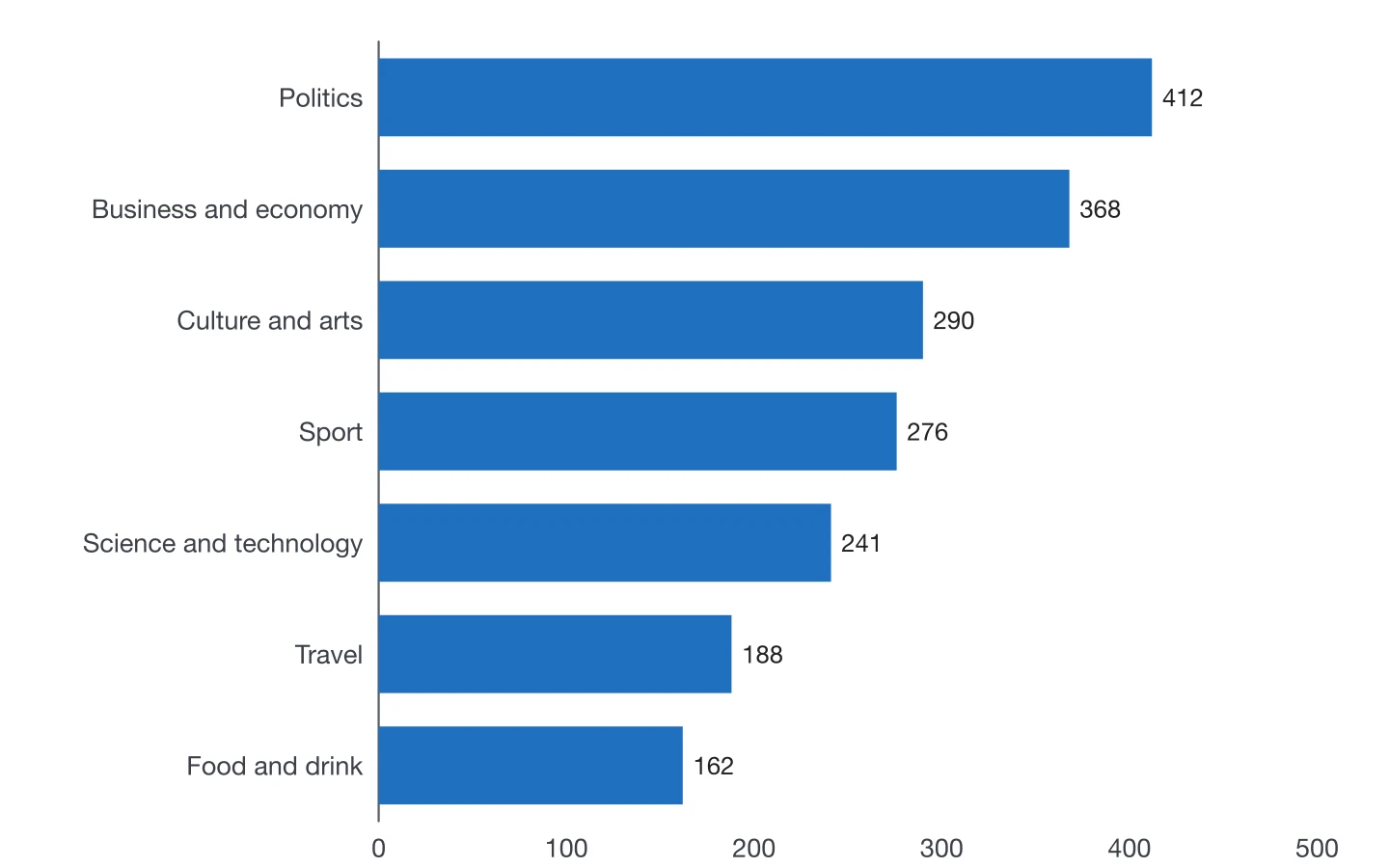
Bar chart
Horizontal bars for rankings and long category names.
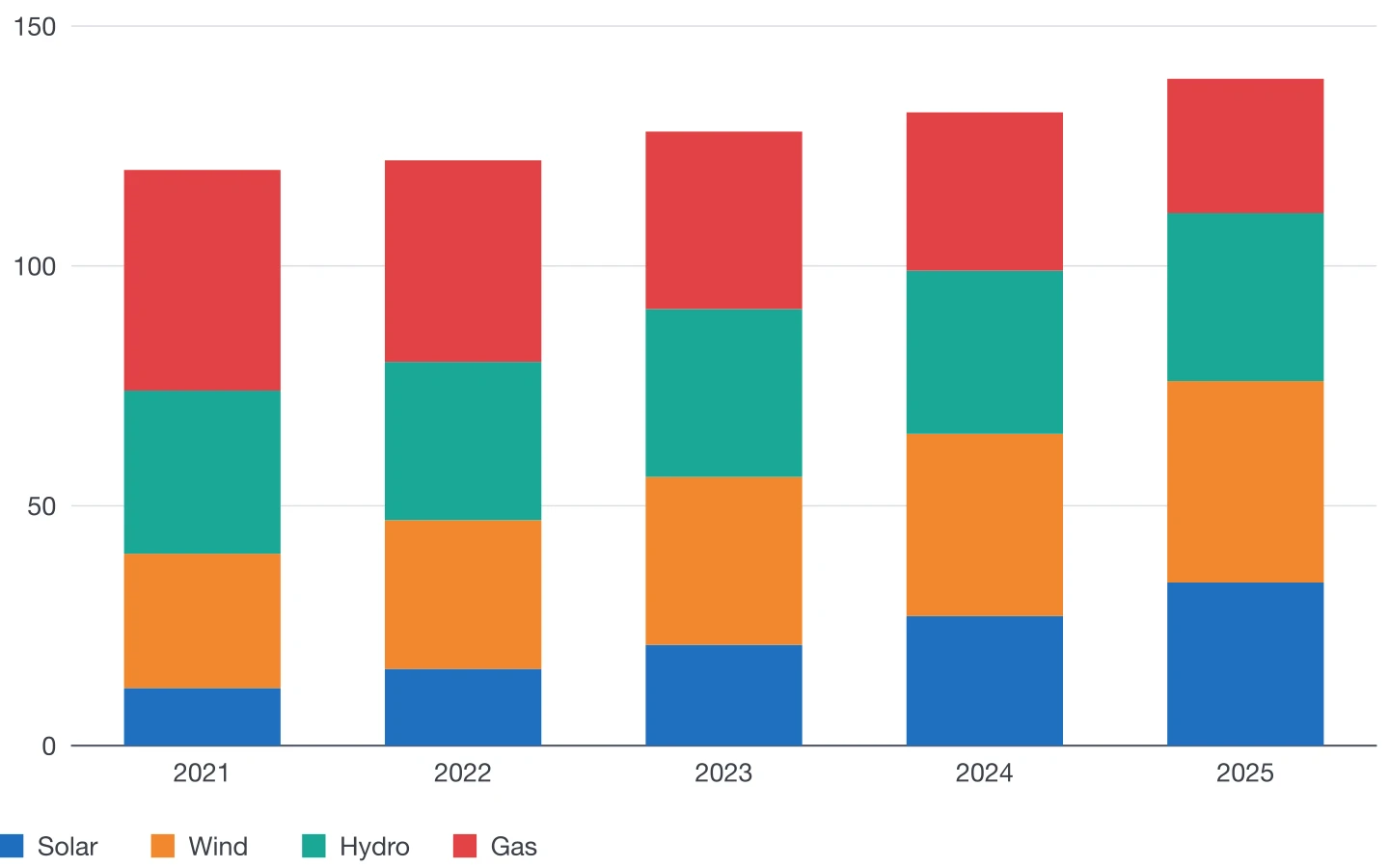
Stacked column chart
Totals and their composition in one set of columns.
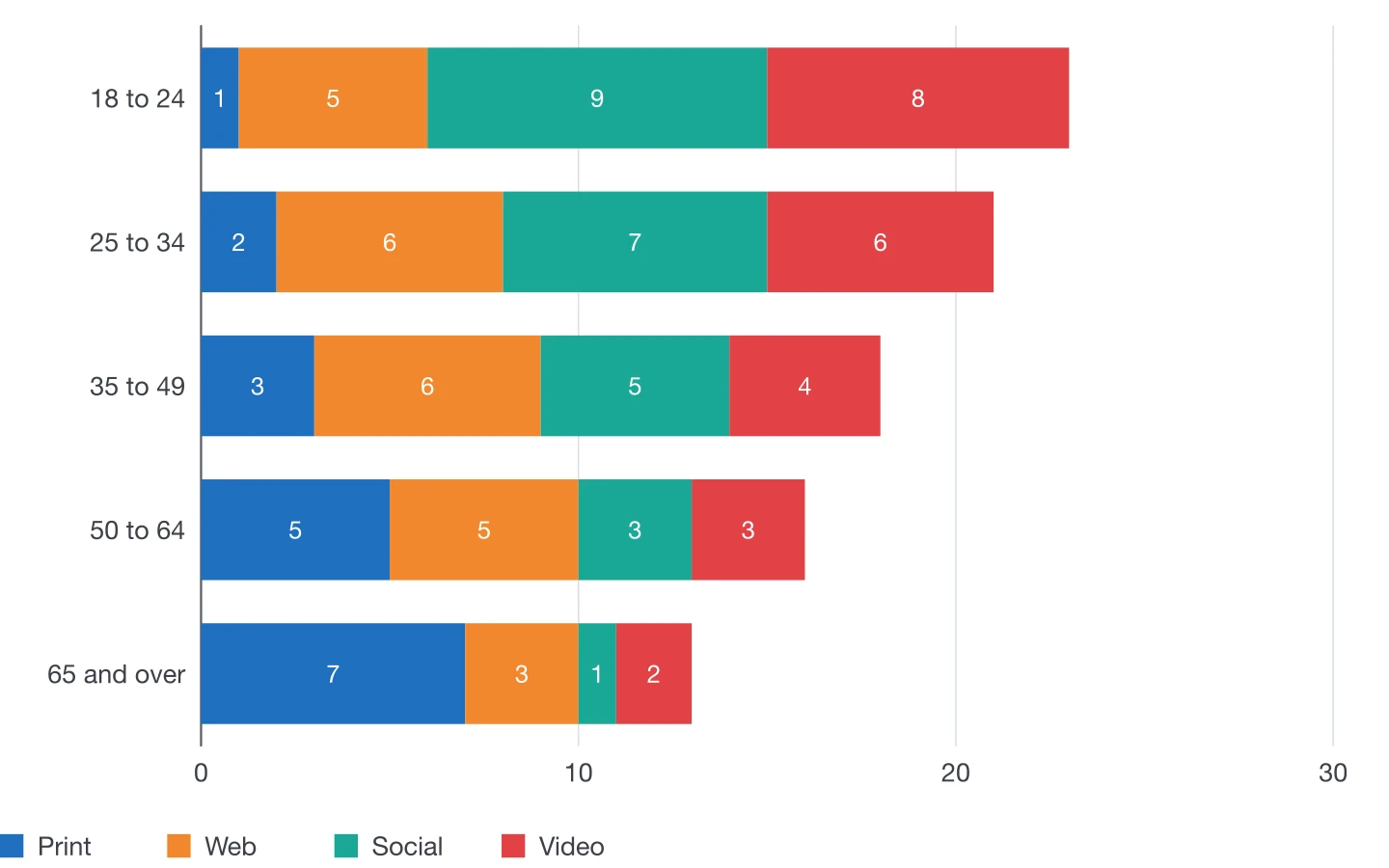
Stacked bar chart
Horizontal stacks for composition across many groups.
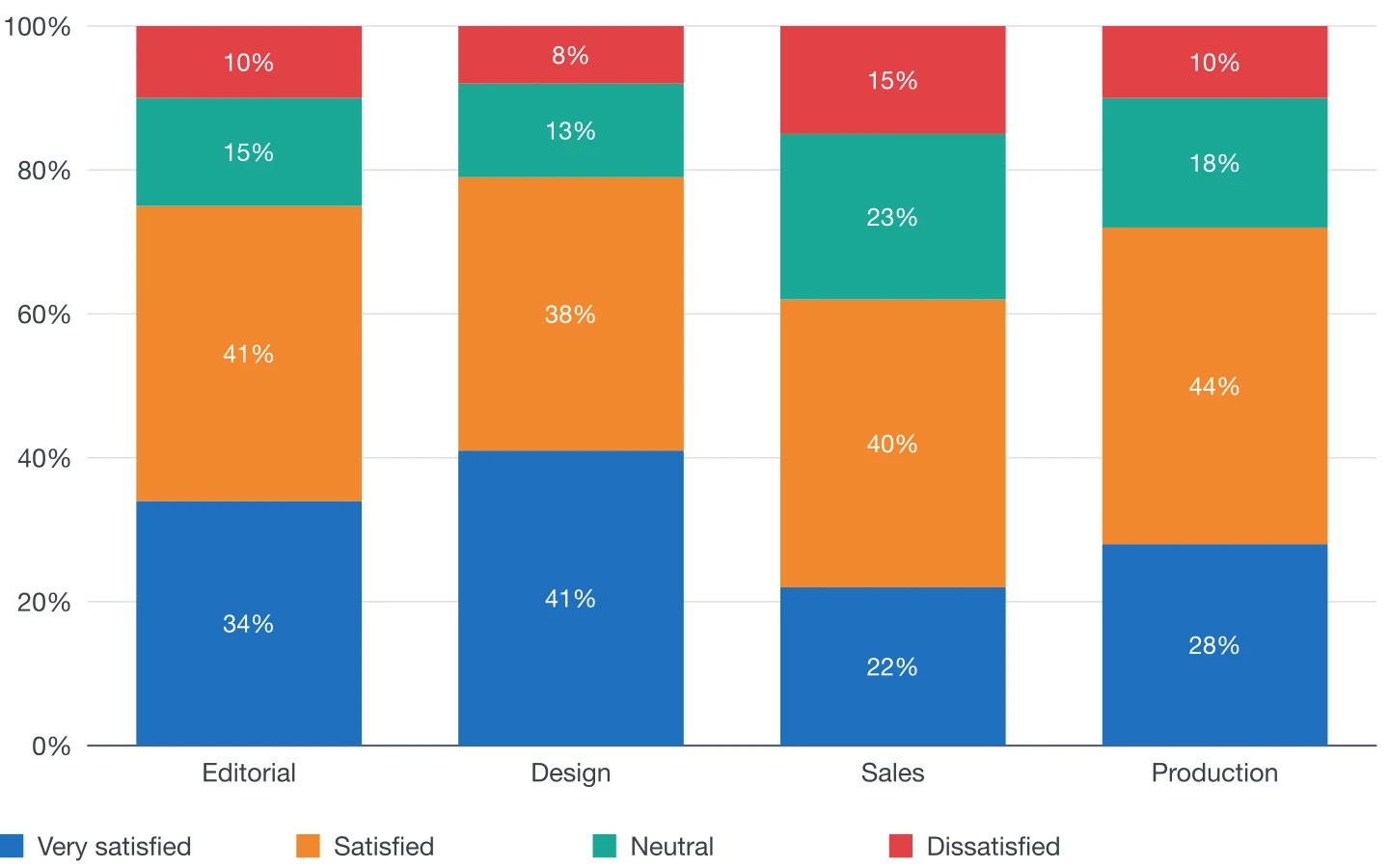
100% stacked chart
Shares of a whole, compared across categories.
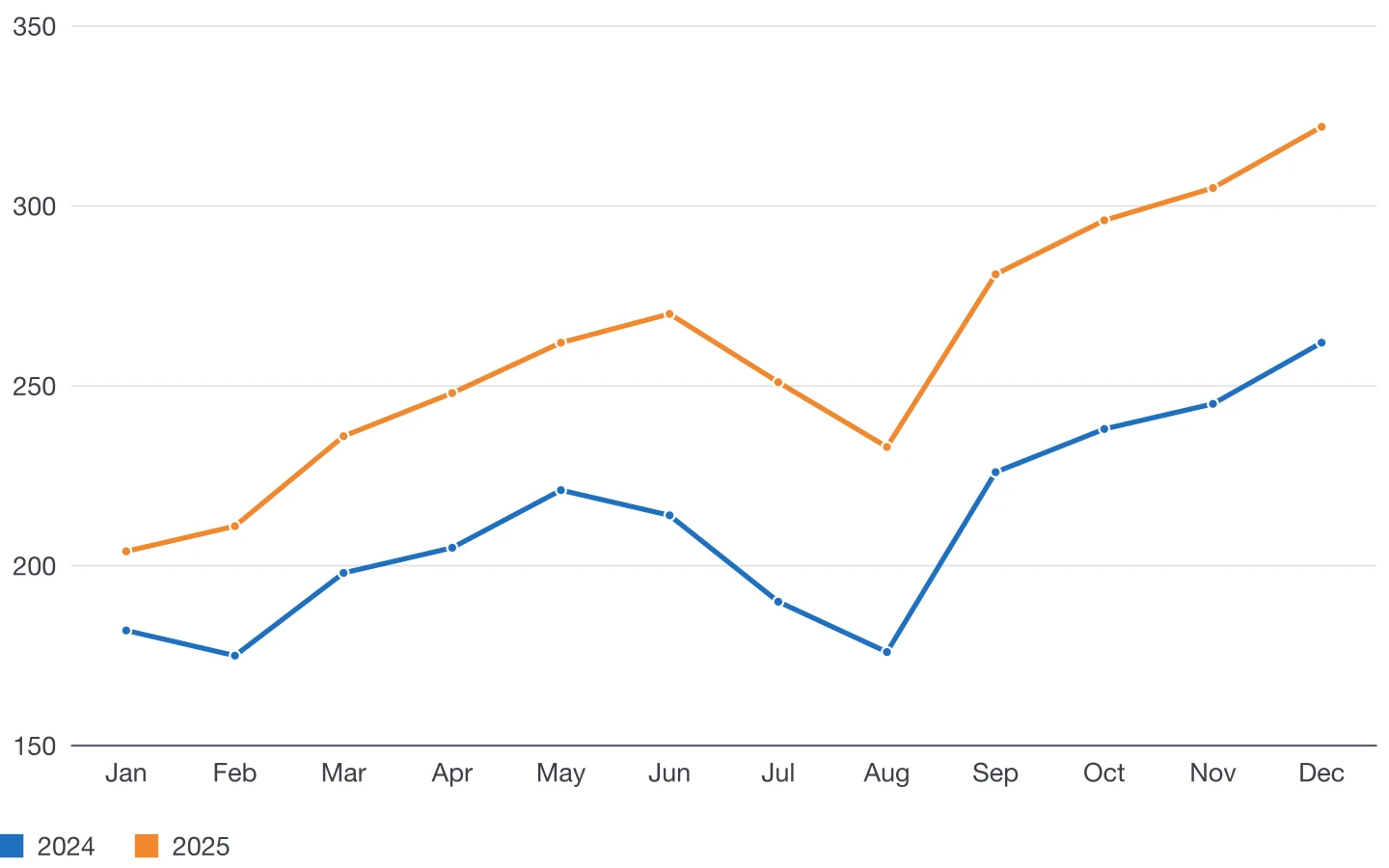
Line chart
Trends and change over time.
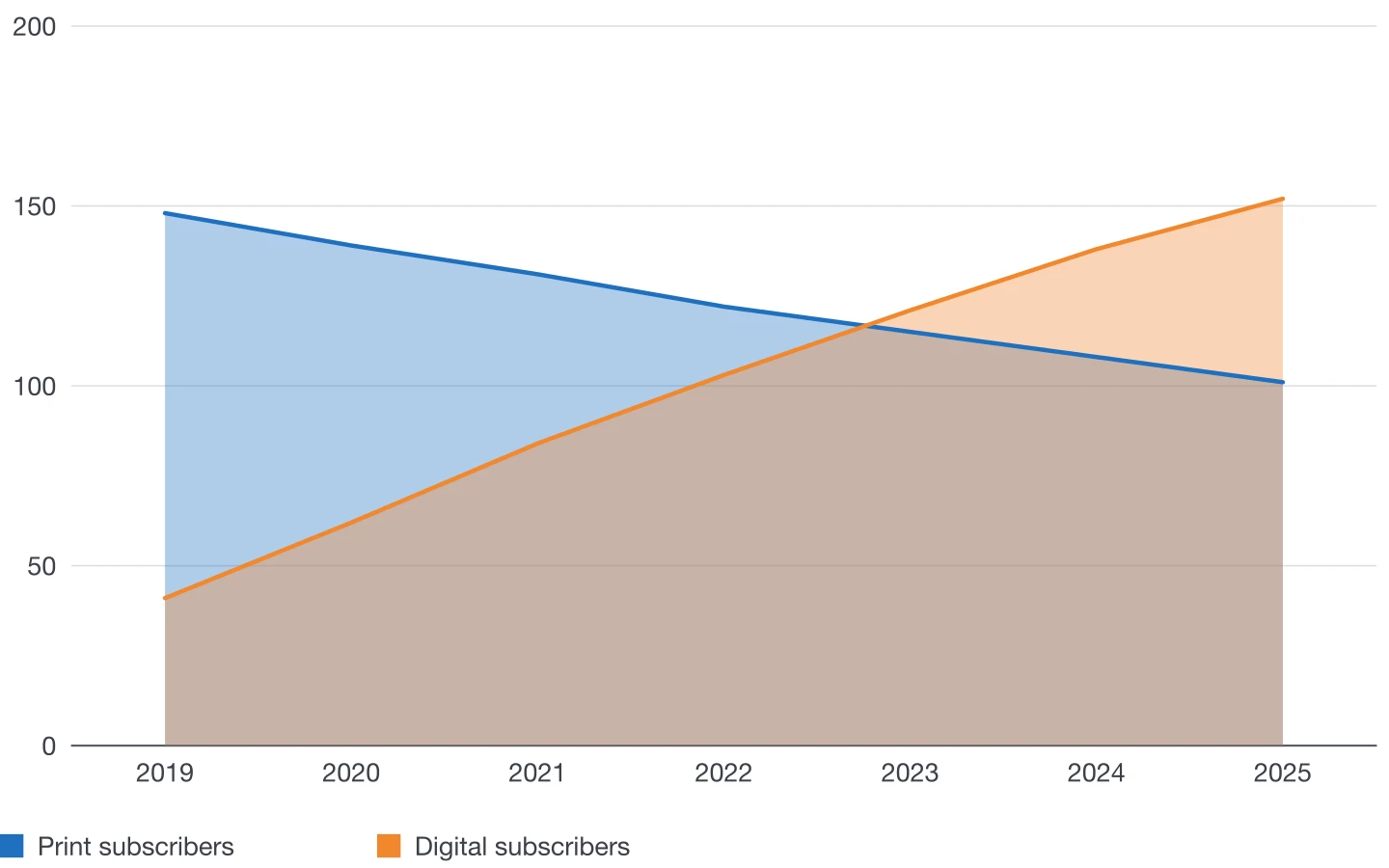
Area chart
Volume and its change over time.
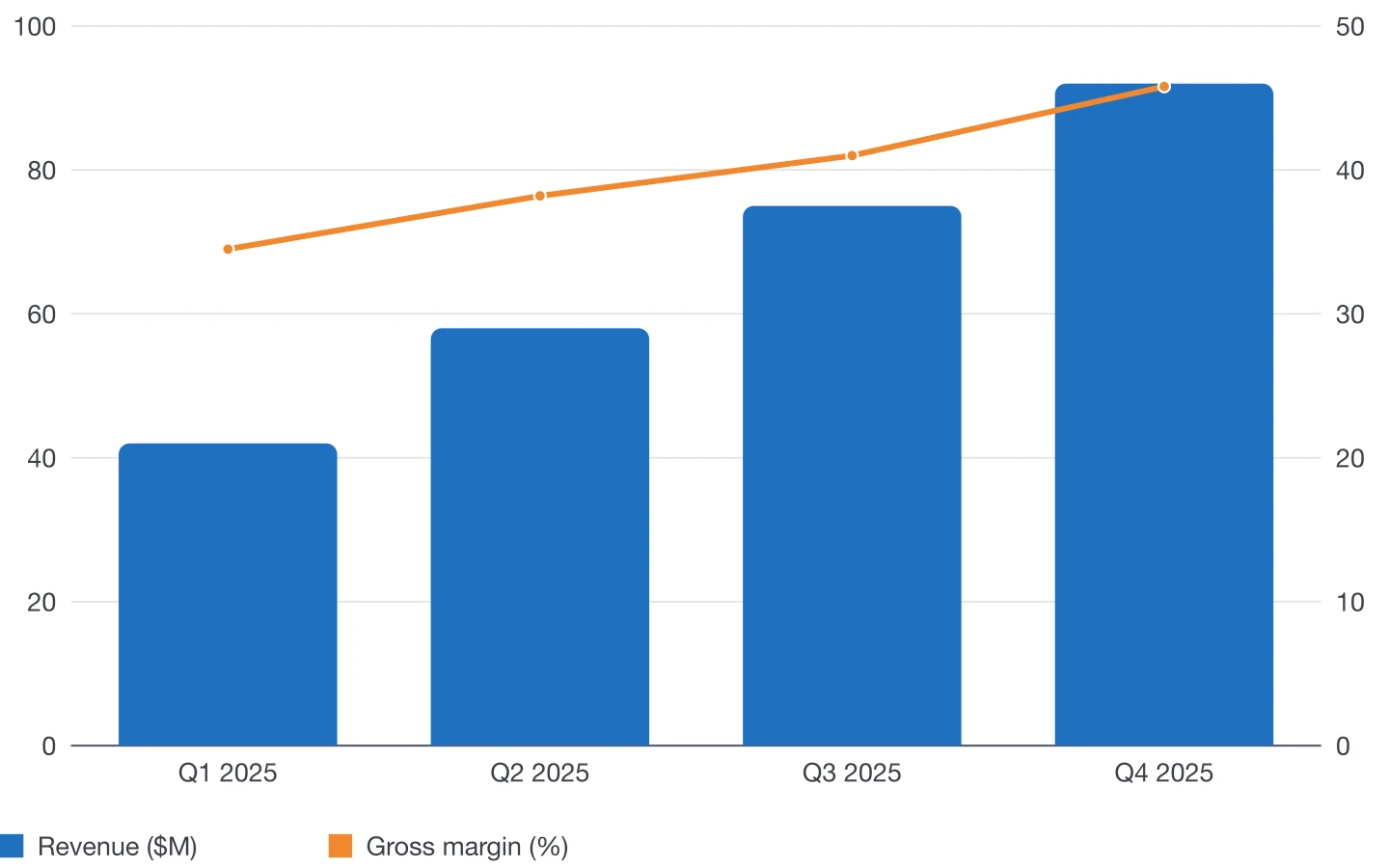
Combo chart
Columns and lines together, with a second axis.
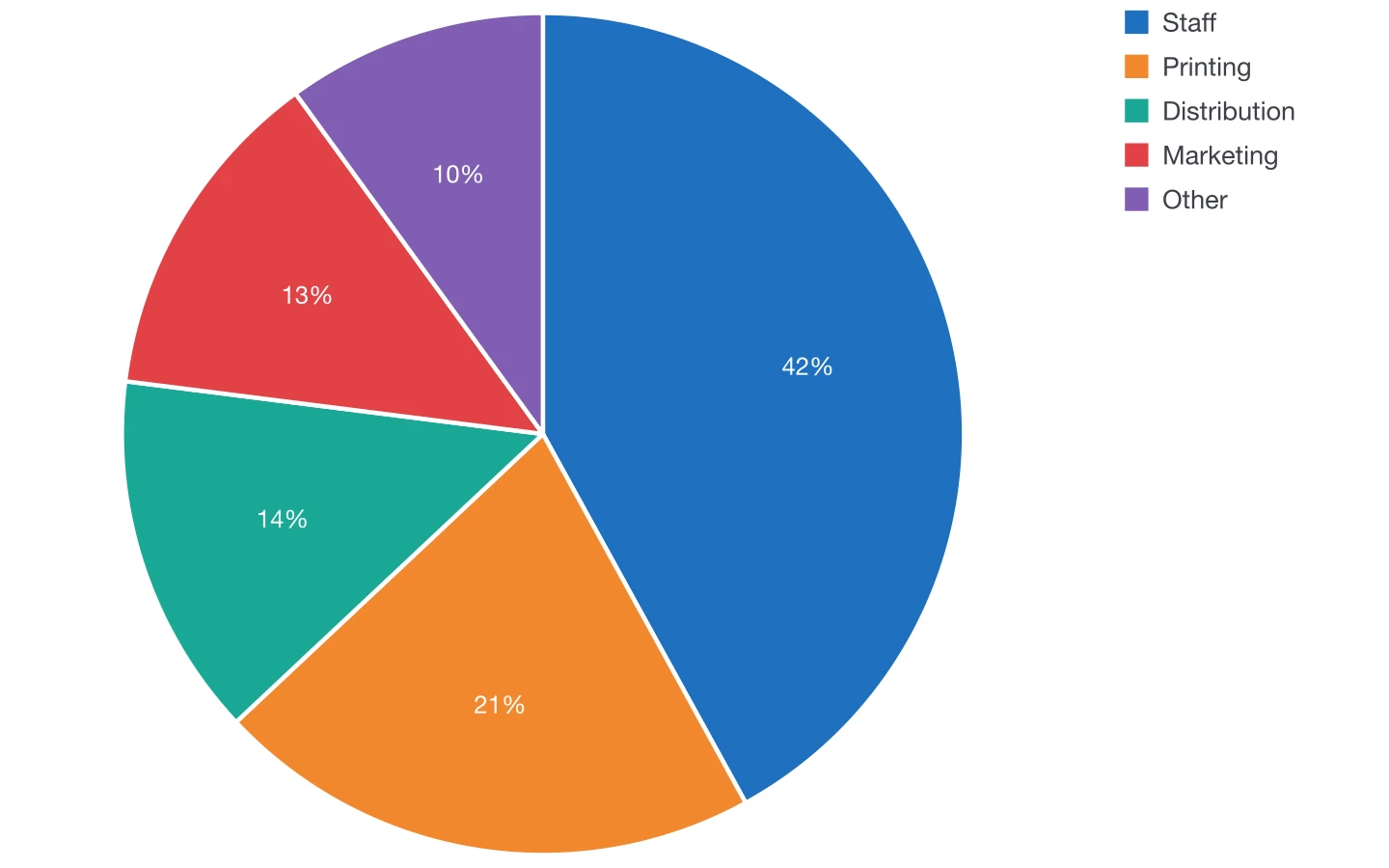
Pie chart
Parts of one total.
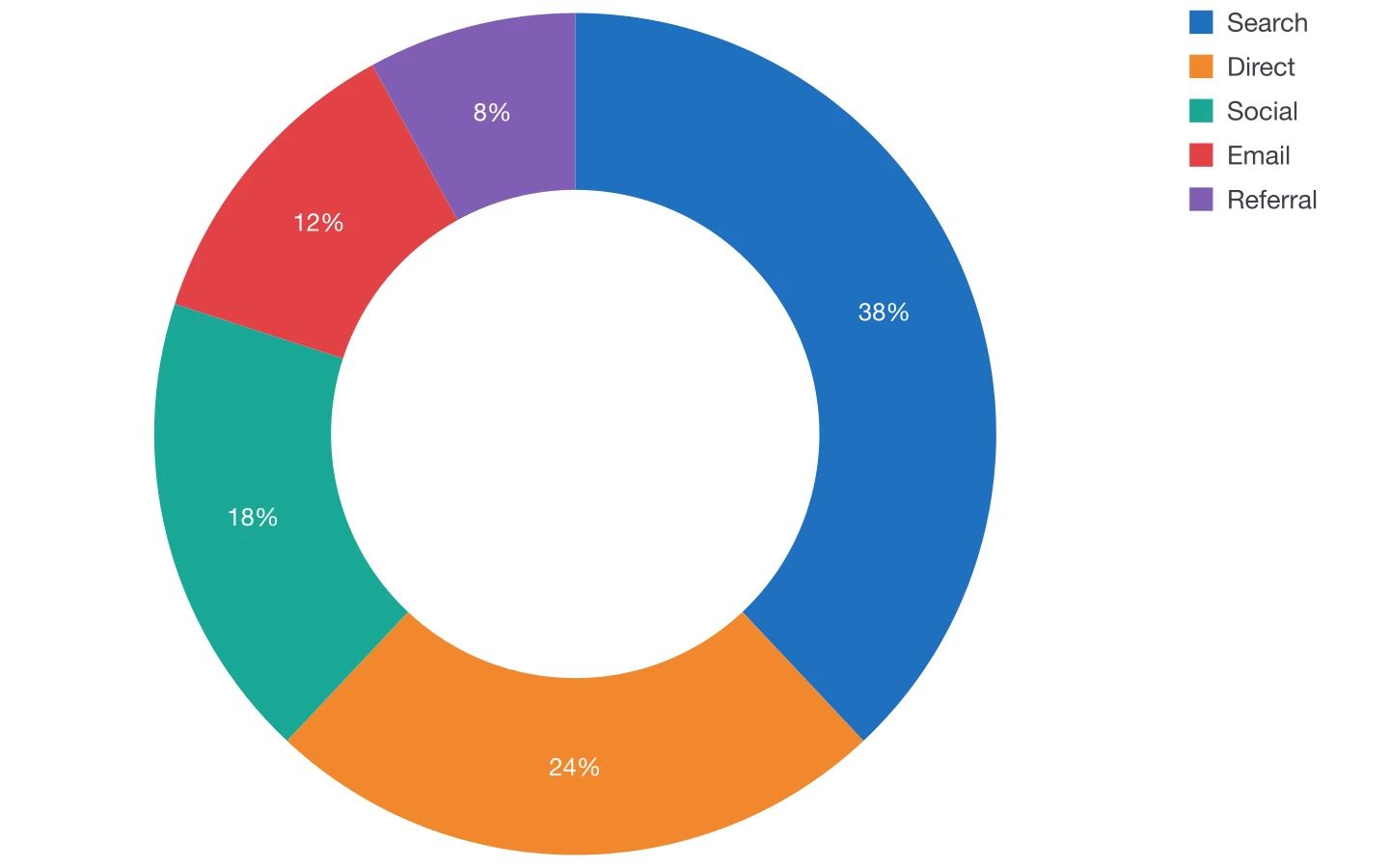
Doughnut chart
A pie with room in the middle for a key figure.
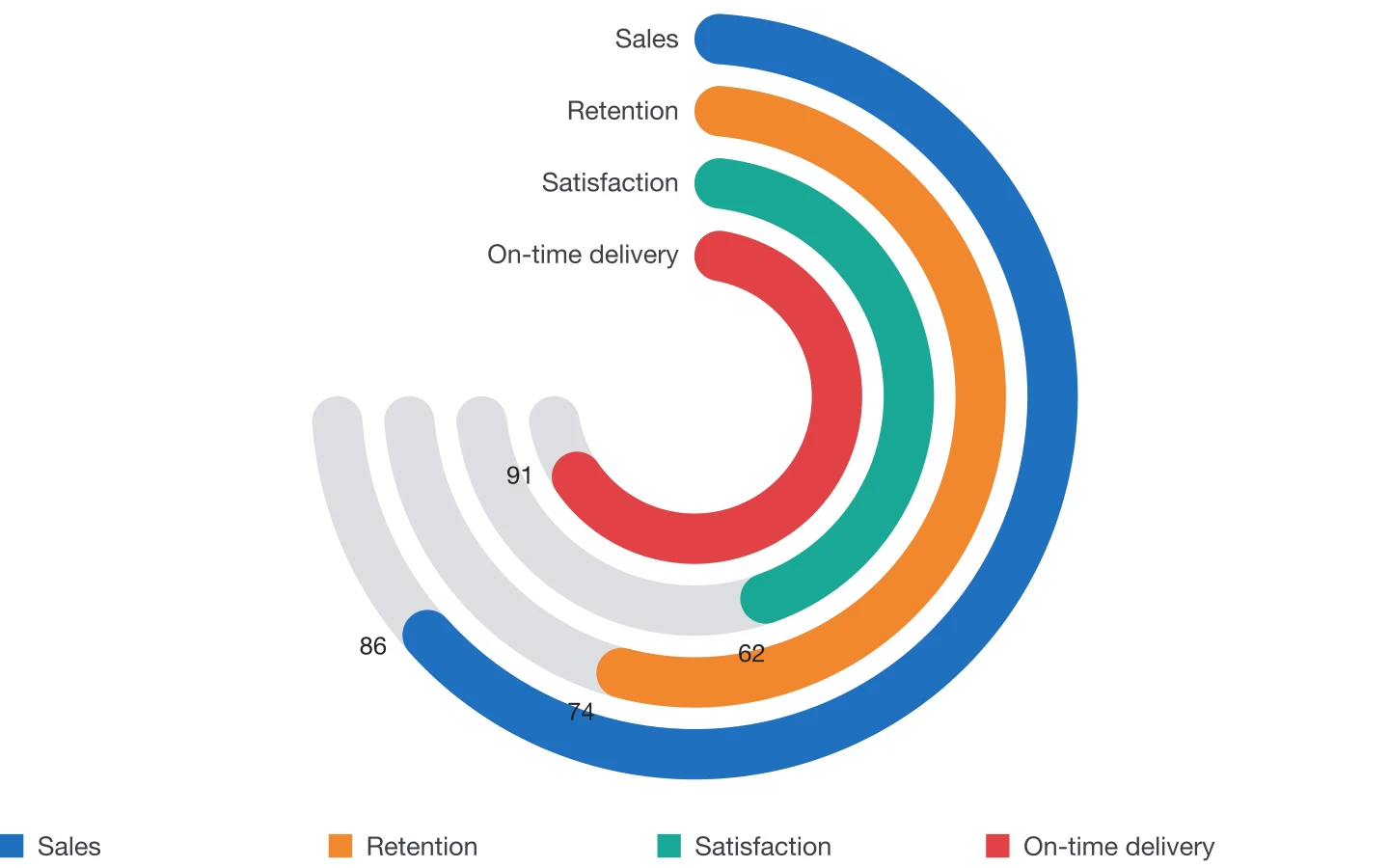
Radial bar chart
Concentric rings for progress and scores.
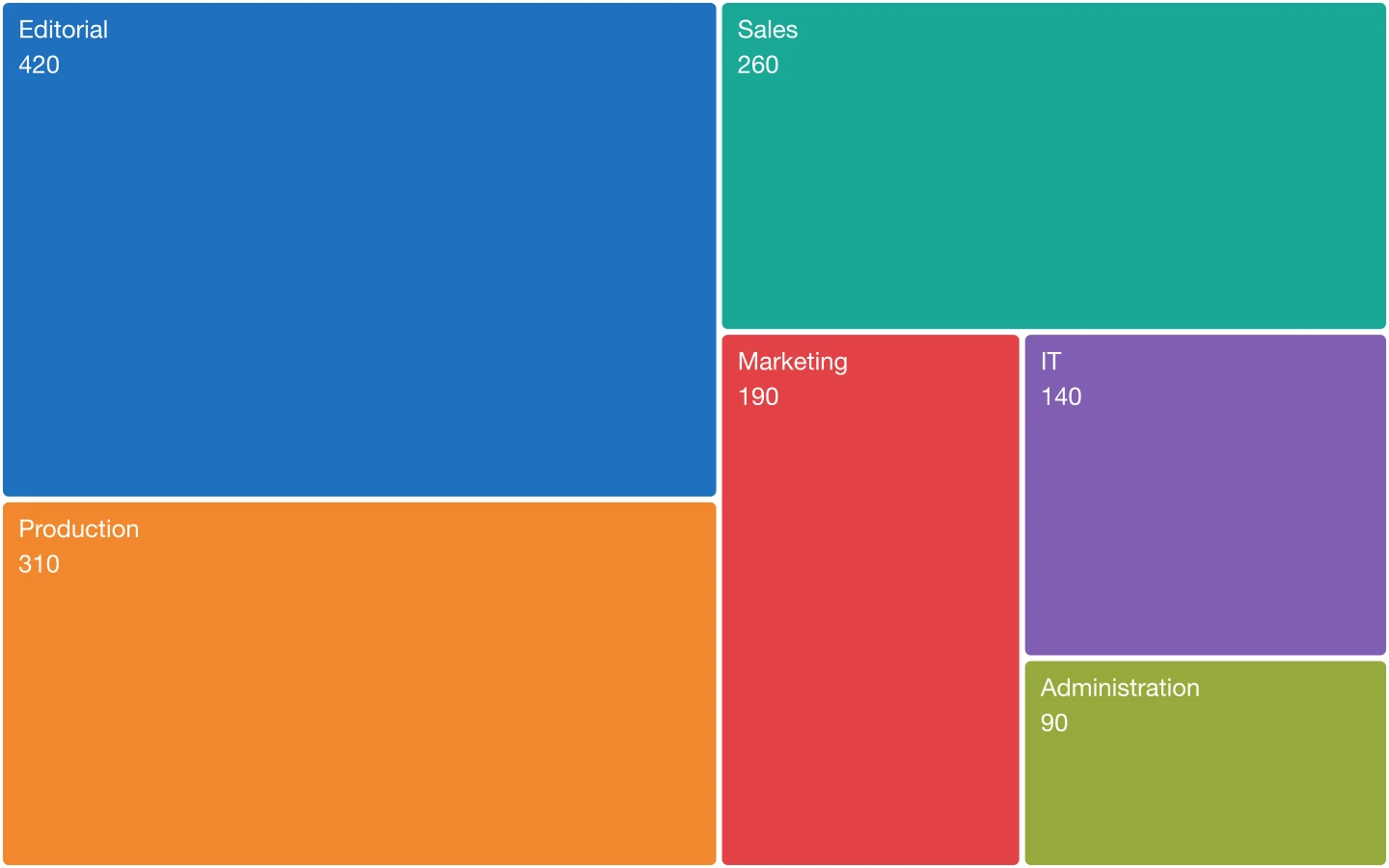
Treemap
Rectangles sized by value, filling the whole frame.
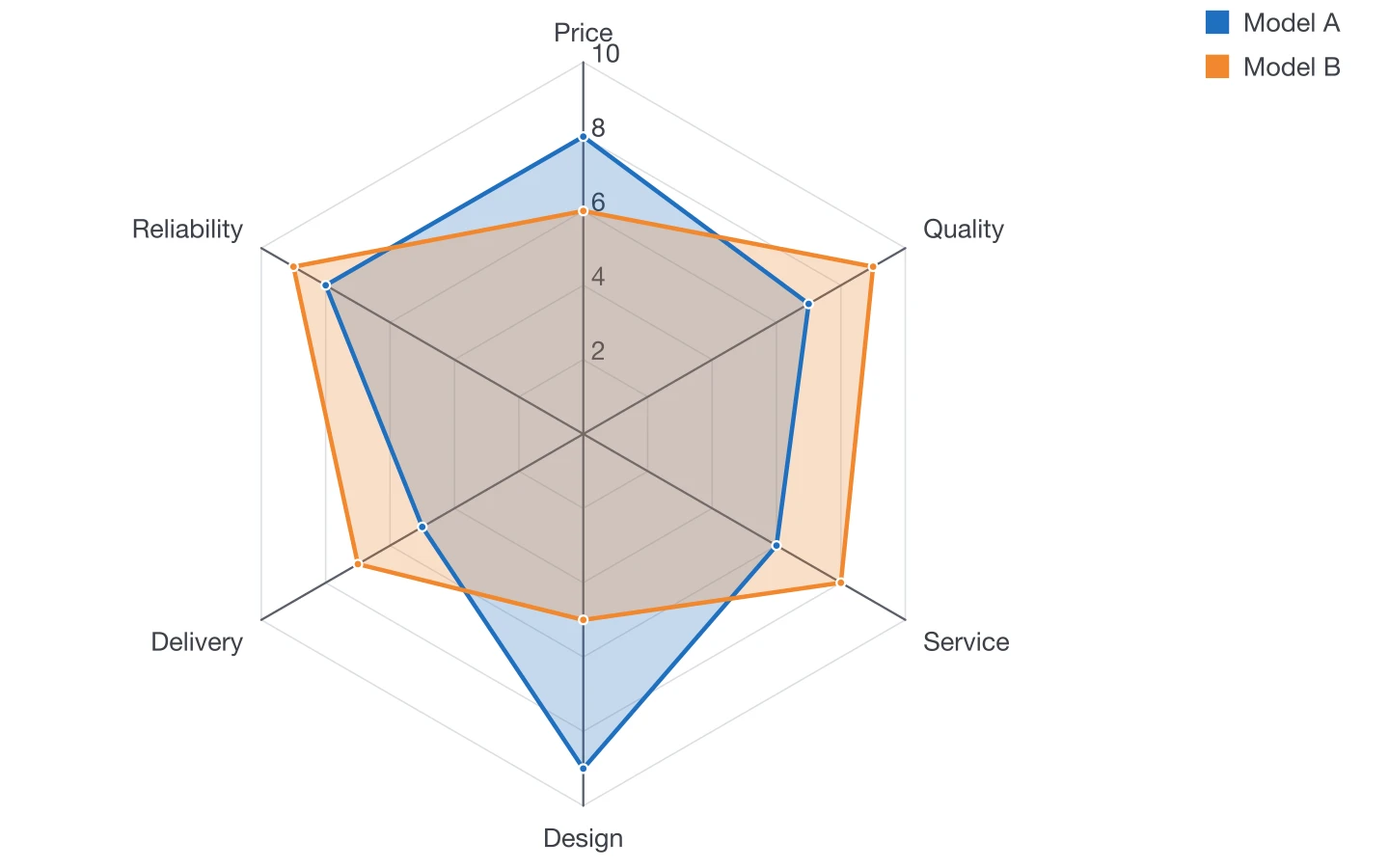
Radar chart
Profiles across several criteria.
Designed around real layouts
Annual reports, magazines and brochures have tables, style guides and late changes. DataInk was designed around them.
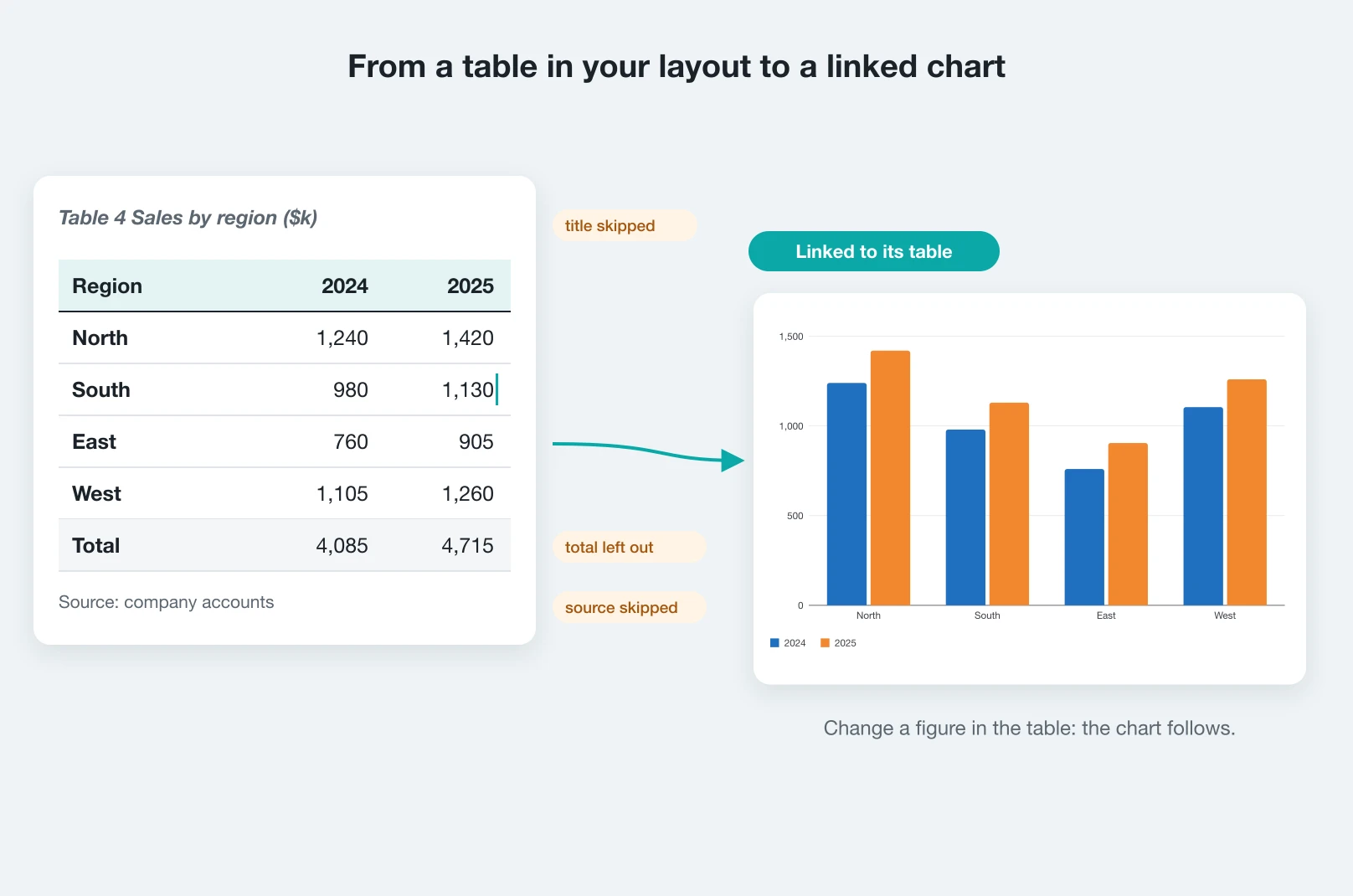
Turn InDesign tables into charts
Put the cursor in a table and choose Use table data. DataInk reads the table as a reader does: header rows become series names, title rows, notes and source lines are left out, footnote marks are removed, and totals can be skipped.
The chart stays linked to its table. When the figures change, the panel tells you and updates the chart with one click, or automatically. Choose which columns to chart, or read the series by row.
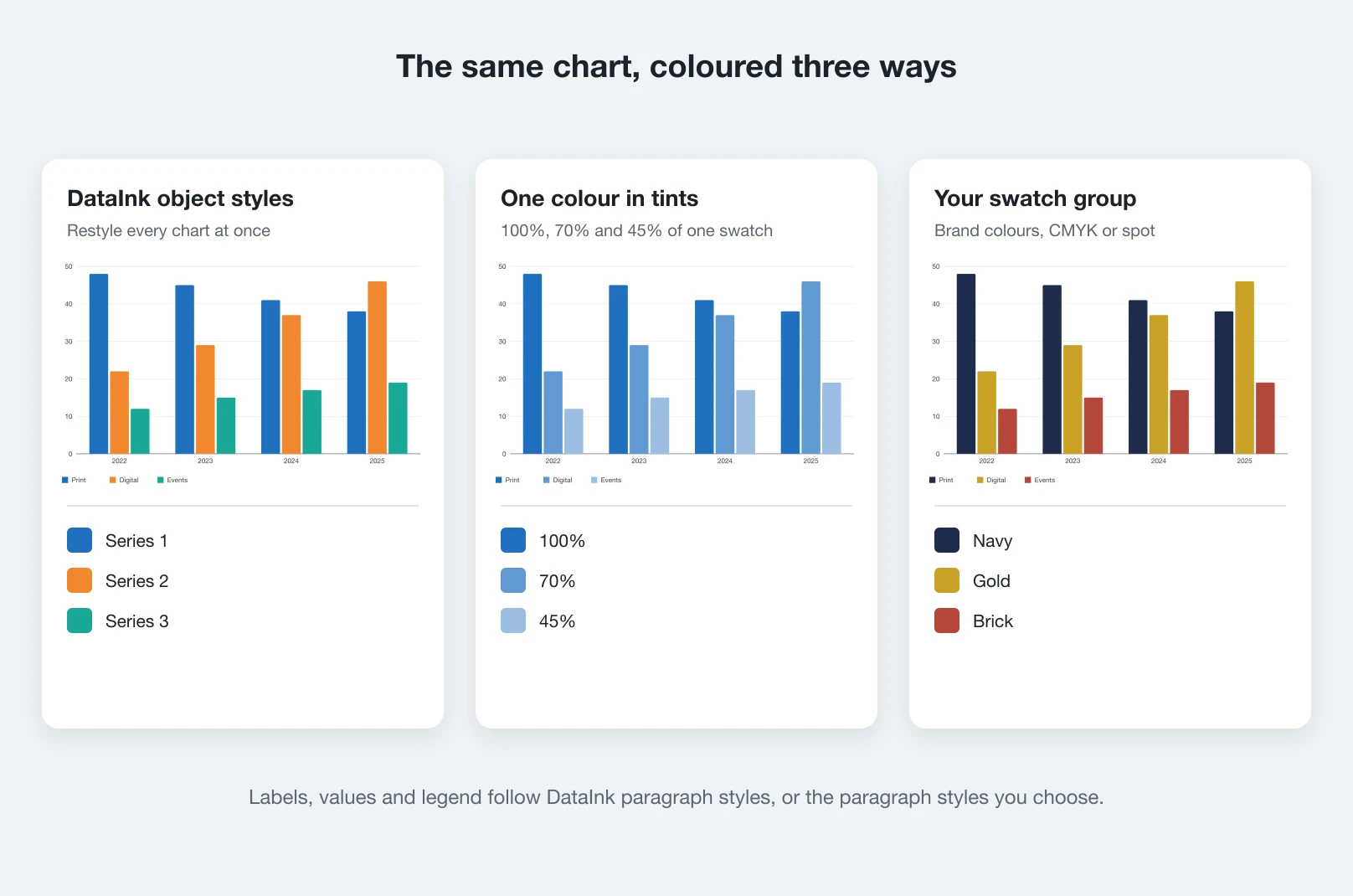
Your colours, your type
Charts use DataInk object and paragraph styles created in your document, so restyling every chart of a report takes a change to one style.
Prefer your brand palette? Colour the chart from any swatch group, CMYK or spot, or from one colour in tints for a monochrome look. Map labels, values and legend to your own paragraph styles.
Every piece is an InDesign object
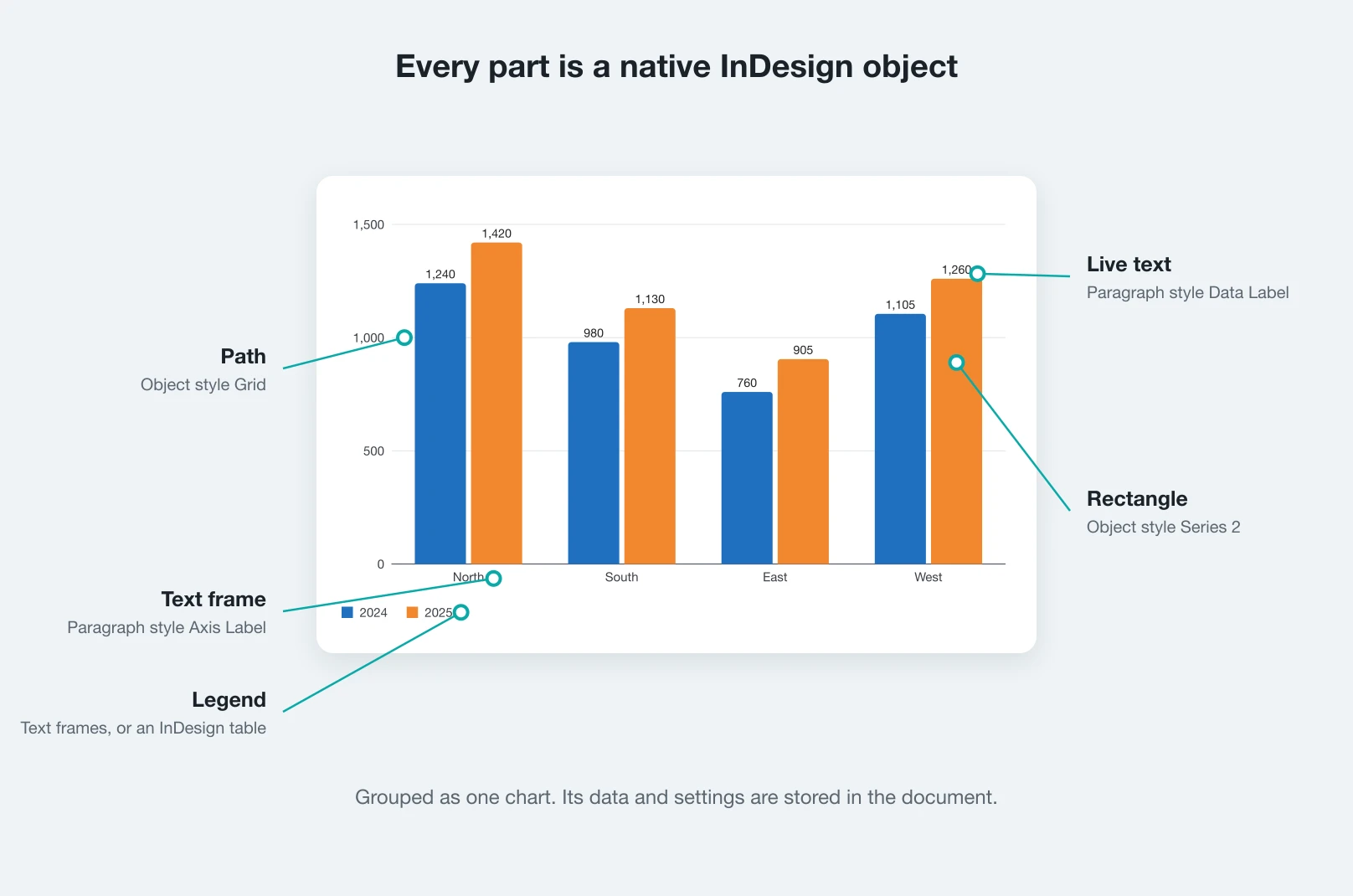
No placed PDF, no embedded image. Columns are rectangles, lines and slices are paths, labels are live text. Select any part with the Direct Selection tool to adjust it, and export to PDF or print like the rest of the page.
The chart's data and settings are stored in the document. Anyone opening it without DataInk still sees and prints the chart.
Built for production work
Annual and financial reports
Dozens of consistent charts built from the report's own tables, updated when the figures change.
Magazines and newspapers
Charts that follow the publication's styles and fonts, ready for print and digital editions.
Agencies and brand teams
Brand swatch groups and shared presets keep every client chart on guideline.
Books, research and education
Clear figures for textbooks, studies and white papers, in the document's own typography.
Frequently asked questions
Are the charts real InDesign objects?
Yes. Bars and tiles are rectangles, lines and slices are paths, labels are text frames and the legend can be an InDesign table. The chart is grouped and every part can be selected, restyled and printed.
Can I edit a chart after inserting it?
Yes. Select the chart: DataInk loads its data and settings in the panel. Change figures or options and update it in place.
Where can the data come from?
From the panel grid or the large data editor, the clipboard (Excel, Numbers, Google Sheets), XLSX, XLS, ODS, Numbers, CSV and TSV files, or a table in your InDesign document.
Does the chart follow changes to its InDesign table?
Yes. A chart made from a table stays linked to it. DataInk notices when the figures change and updates the chart on request or automatically, keeping your choice of series.
Does DataInk use my colours and fonts?
Yes. Charts are styled with DataInk object and paragraph styles in your document, or with any swatch group and your own paragraph styles. CMYK and spot colours stay as they are.
Do colleagues need DataInk to open my files?
No. Charts are ordinary InDesign objects, so the document opens, prints and exports everywhere. DataInk is only needed to edit a chart through the panel.
Can a team share chart settings?
Yes. Save a chart's look as a preset and export presets to a file that colleagues import.
Which languages does the panel speak?
English, French, German, Spanish, Italian, Brazilian Portuguese, Dutch, Polish, Swedish, Japanese, Simplified Chinese and Korean. Numbers can be formatted in 14 locales.
Is it a subscription?
No. DataInk is a one-time purchase of $99, on Adobe Exchange or on Gumroad.
Which InDesign versions are supported?
Adobe InDesign 2025 (version 20.0) or later.
Make your next chart in InDesign
Buy DataInk once, on Adobe Exchange or Gumroad, and draw every chart of your layout natively, in your own styles.
Need a feature it does not have yet?
We wrote this plugin, so we can extend it, connect it to your systems or build a private version for your team.
Talk to the developersMore from Lingway

Tables Extractor for Adobe InDesign
Extract tables from PDFs and scans into editable InDesign tables.
View Product
WP-Exporter: InDesign to WordPress
Publish InDesign articles to one or many WordPress sites.
View Product
Nano Banana Studio for Adobe Photoshop
Generate and edit images with Google Gemini inside Photoshop.
View Product