 Chart typePercentages
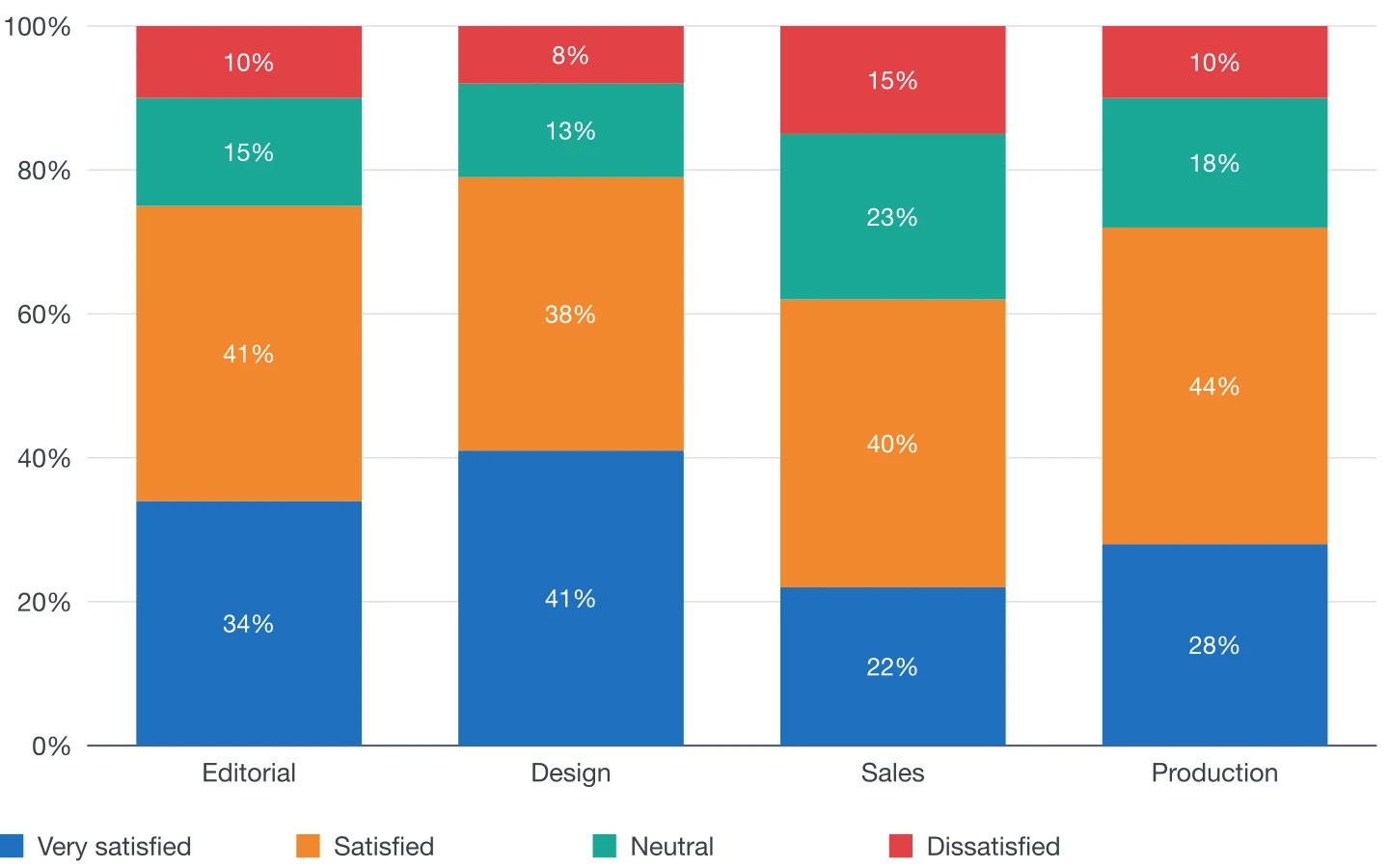
100% stacked chart
Shares of a whole, compared across categories.
Every column is brought to 100%, so readers compare shares rather than amounts. Axis and values are shown as percentages automatically.
Plugin options
Options for this chart
- 1
Value labels
Each share as a percentage inside its segment.
- 2
Group gap and rounded ends
Column width and rounded tops, as for the other column charts.
- 3
Numbers
Decimals and the number format of your language for the percentages.
Also available for every chart
- Colours and styles
- DataInk object styles, one colour in tints or a swatch group of your document; your own paragraph styles for axis labels, values and legend.
- Legend
- Below or beside the chart, or as an InDesign table you style like any other.
- Numbers
- Number format of 14 locales, decimals, prefix and suffix (€, %, kg), compact numbers (12K).
- Size
- Width and height in your document's unit, or fit a frame you drew beforehand.
- Data
- Panel grid, large data editor, paste, Excel and CSV import, or a linked InDesign table.
- Presets
- Save the look, reuse it, and share it with your team as a file.
Editorial guide
When to use it
Typical use
Survey answers, market shares or any mix where the proportions matter more than the totals.
Better avoided
When the totals differ a lot and that difference is part of the story: the chart hides it.
Layout tips
- Order answers from positive to negative so the eye reads a scale.
- Use a diverging set of swatches: warm for one end, cool for the other.
- State the base (number of answers) in the caption.
Data structure
Sample data
Enter the raw figures or counts: DataInk converts each column to percentages of its own total.
Paste a table like this one, import it from Excel or CSV, or click in an InDesign table with the same layout.
| Department | Very satisfied | Satisfied | Neutral | Dissatisfied |
|---|---|---|---|---|
| Editorial | 34 | 41 | 15 | 10 |
| Design | 41 | 38 | 13 | 8 |
| Sales | 22 | 40 | 23 | 15 |
| Production | 28 | 44 | 18 | 10 |
Other chart types
Make your next chart in InDesign
Buy DataInk once, on Adobe Exchange or Gumroad, and draw every chart of your layout natively, in your own styles.
Get DataInk for InDesign