Tables Extractor for Jira & Confluence
Turn tables locked in scanned PDFs and images into real tables in Jira and Confluence. Upload the file, preview what was extracted, and insert it into an issue description, a comment or a Confluence page.
- Jira descriptions and comments
- Confluence macro
- PDF, PNG, JPG and TIFF with page selection
- 10 free trial credits
Designed for teams who work in Jira and Confluence
Stop rebuilding tables by hand. Tables Extractor preserves structure and formatting while giving you editable tables ready to use in your Atlassian tools.
Jira Issue Descriptions
Import tables straight into Jira issues
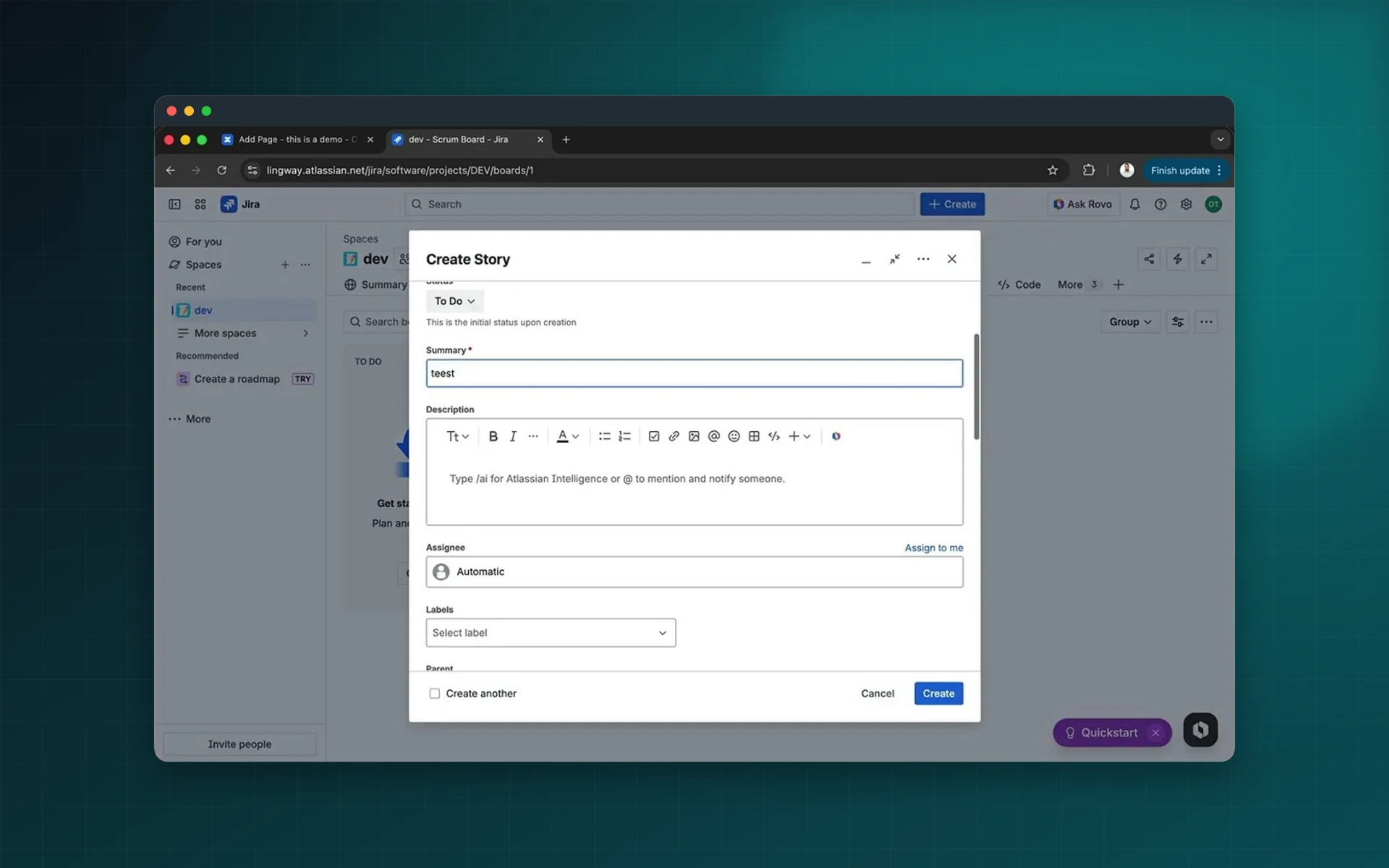
Extract tables from scanned documents and add them to issue descriptions. Refresh the page after insertion to see the formatted result.
- Keep headers, rows, and alignment intact
- Ideal for requirements, specs, and imported reports
- Works with any Jira project and issue type
Jira Comments
Attach extracted tables as comments
Add table data from external documents as structured comments on any Jira issue. Great for sharing extracted data during reviews, QA, or sprint planning.
- Quick way to share tabular data in context
- Keeps discussion and data in one place
- Refresh the page to see the formatted table
Confluence Macro
Embed extracted tables directly in Confluence pages
Use Tables Extractor as a Confluence macro to import and render tables inline. Perfect for documentation, knowledge bases, and team wikis.
- Runs natively as a Confluence macro
- Tables render inline on the page
- Ideal for reports, reference data, and imported docs
PDF & Image Support
Extract from PDFs and common image formats
Upload scanned PDFs, PNGs, JPGs, or TIFFs and get clean, structured tables ready for Jira or Confluence.
- Supports multi-page PDFs with page selection
- Handles common image formats (PNG, JPG, TIFF)
- OCR-powered extraction for scanned documents
Turn scanned documents into structured tables in seconds
Tables Extractor connects to your Jira and Confluence instances, letting you upload PDFs or images, extract tables using OCR, and insert them directly into your workflow — no copy-paste, no reformatting.
Jira — Add Tables to Descriptions and Comments
Extract tables from uploaded PDFs or images and insert them directly into Jira issue descriptions or comments. After inserting, refresh the page to see the formatted table in place. Ideal for importing report data, specs, or reference tables into tickets without manual entry.
Confluence — Run as a Macro
Tables Extractor runs as a Confluence macro. Add the macro to any page, upload your file, and the extracted table renders inline. Perfect for embedding reference tables, financial data, or imported documentation into your team's knowledge base.
Preview Before You Insert
Review extracted tables before placing them so you can confirm structure, headers, and alignment — no surprises in your Jira issue or Confluence page.
Subscription-Based Monthly Credits
Credits are allocated monthly based on your Atlassian Marketplace subscription tier — from 100 credits for small teams up to 10,000 for large organizations. Each page processed consumes one credit. Start with 10 free trial credits, no subscription needed.
Built for Teams on Atlassian
Credits are pooled at the site level so your entire organization shares a single balance. Designed for project managers, analysts, and documentation teams who live in Jira and Confluence and need a fast way to bring tabular data from external documents into their workflow.
See Tables Extractor in Action
Watch how Tables Extractor lets you upload a scanned PDF, preview the extracted tables, and insert them directly into Jira issues and Confluence pages — all in seconds.
Frequently asked questions
Which files can I extract tables from?
Scanned and multi-page PDFs, and PNG, JPG and TIFF images.
Where can I insert the tables?
In Jira issue descriptions and comments, and in Confluence pages through a macro.
How do credits work?
Each page processed uses one credit. Credits are allocated monthly according to your Atlassian Marketplace subscription tier, from 100 to 10,000, and shared across your site.
Is there a free trial?
Yes. You start with 10 free trial credits and no subscription.
Can I check the result before inserting it?
Yes. Every extracted table is shown in a preview so you can check structure, headers and alignment first.
Try Tables Extractor and save hours on every document
Extract tables from scanned PDFs and images directly into Jira and Confluence. Start with 10 free trial credits, then subscribe via Atlassian Marketplace for monthly credit allocations scaled to your team size.