 Chart typeGrouped series
Column chart
Compare values across categories or periods with vertical bars.
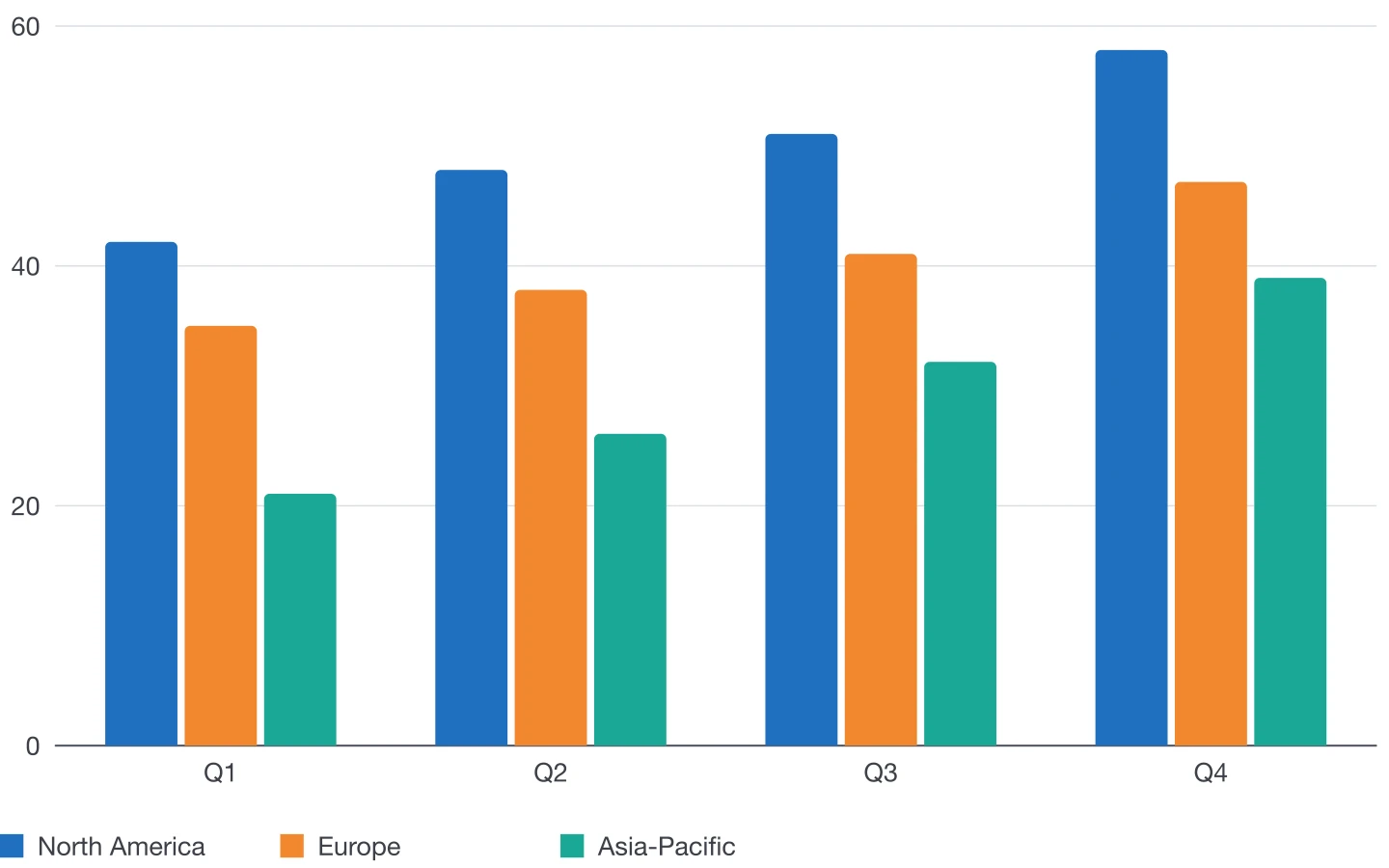
The classic way to compare amounts: one column per category, and one colour per series when you compare several. DataInk draws each column as a rectangle with the series' object style, and every axis label and value as live text.
Plugin options
Options for this chart
- 1
Rounded ends
Round the top of each column, from square to fully rounded, in proportion to the column's width.
- 2
Group gap and bar gap
Space between groups of columns and between the columns of one group, as a percentage of their width.
- 3
Value labels
Show each figure outside the column, inside its end or inside its base. Labels inside use a light paragraph style of their own.
- 4
Category labels
Keep category names horizontal or set them diagonal or vertical when they are long.
- 5
Axis and gridlines
Gridlines automatic or every 3, 5 or 10 steps, tick marks, axis line, grid and axis weights, and a fixed minimum or maximum for the scale.
Also available for every chart
- Colours and styles
- DataInk object styles, one colour in tints or a swatch group of your document; your own paragraph styles for axis labels, values and legend.
- Legend
- Below or beside the chart, or as an InDesign table you style like any other.
- Numbers
- Number format of 14 locales, decimals, prefix and suffix (€, %, kg), compact numbers (12K).
- Size
- Width and height in your document's unit, or fit a frame you drew beforehand.
- Data
- Panel grid, large data editor, paste, Excel and CSV import, or a linked InDesign table.
- Presets
- Save the look, reuse it, and share it with your team as a file.
Editorial guide
When to use it
Typical use
Comparing amounts between a handful of categories or periods: sales by quarter, budgets by department, results by region.
Better avoided
More than about 12 categories or long names: use a bar chart. Long continuous time series read better as lines.
Layout tips
- Start the value axis at zero: a cut axis exaggerates differences.
- Order categories meaningfully: by time, or from largest to smallest.
- With value labels on every column, consider turning gridlines off.
Data structure
Sample data
The first column holds the categories (quarters here). Each further column is a series and gets its own colour.
Paste a table like this one, import it from Excel or CSV, or click in an InDesign table with the same layout.
| Quarter | North America | Europe | Asia-Pacific |
|---|---|---|---|
| Q1 | 42 | 35 | 21 |
| Q2 | 48 | 38 | 26 |
| Q3 | 51 | 41 | 32 |
| Q4 | 58 | 47 | 39 |
Other chart types
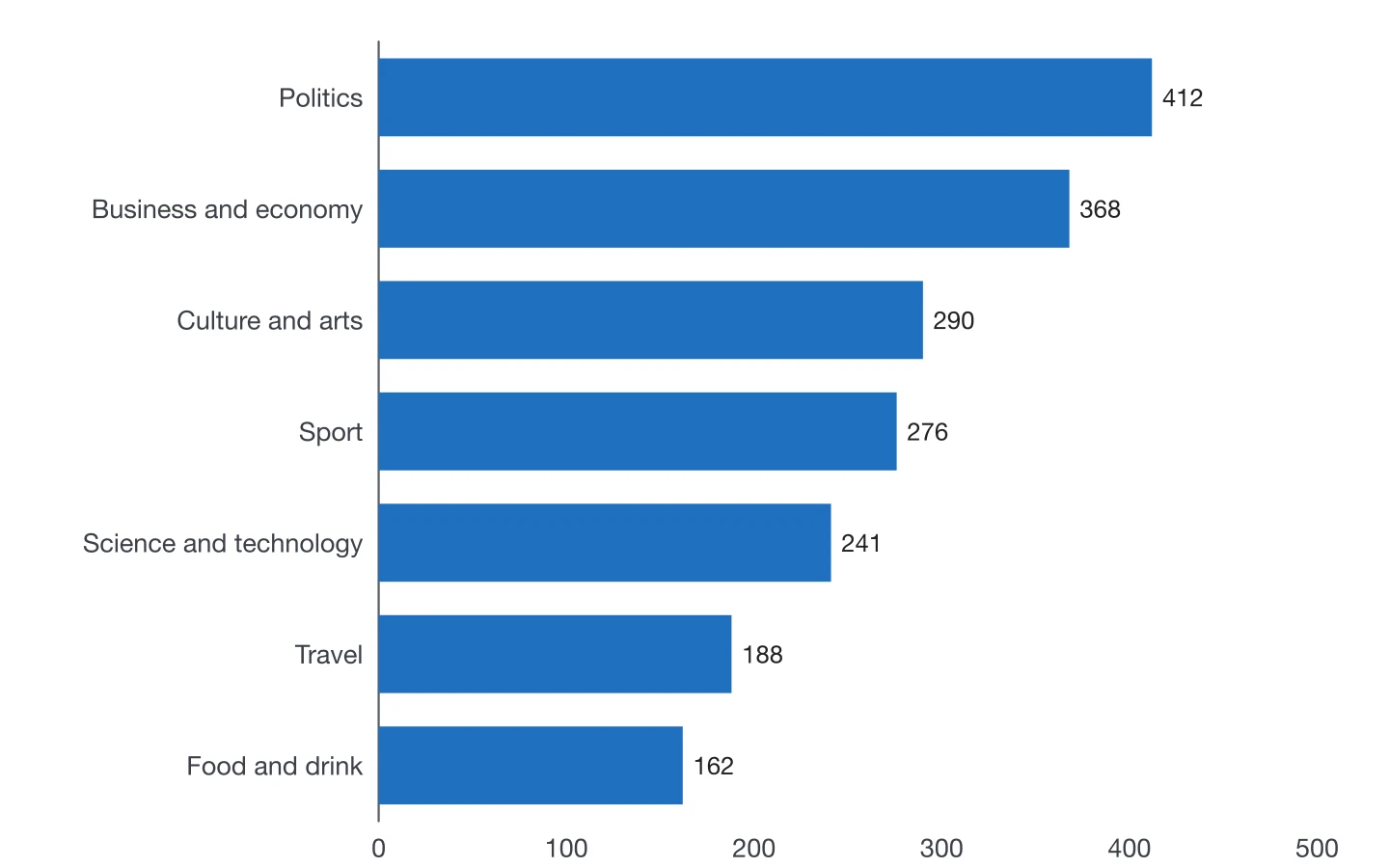 Bar chartHorizontal bars for rankings and long category names.
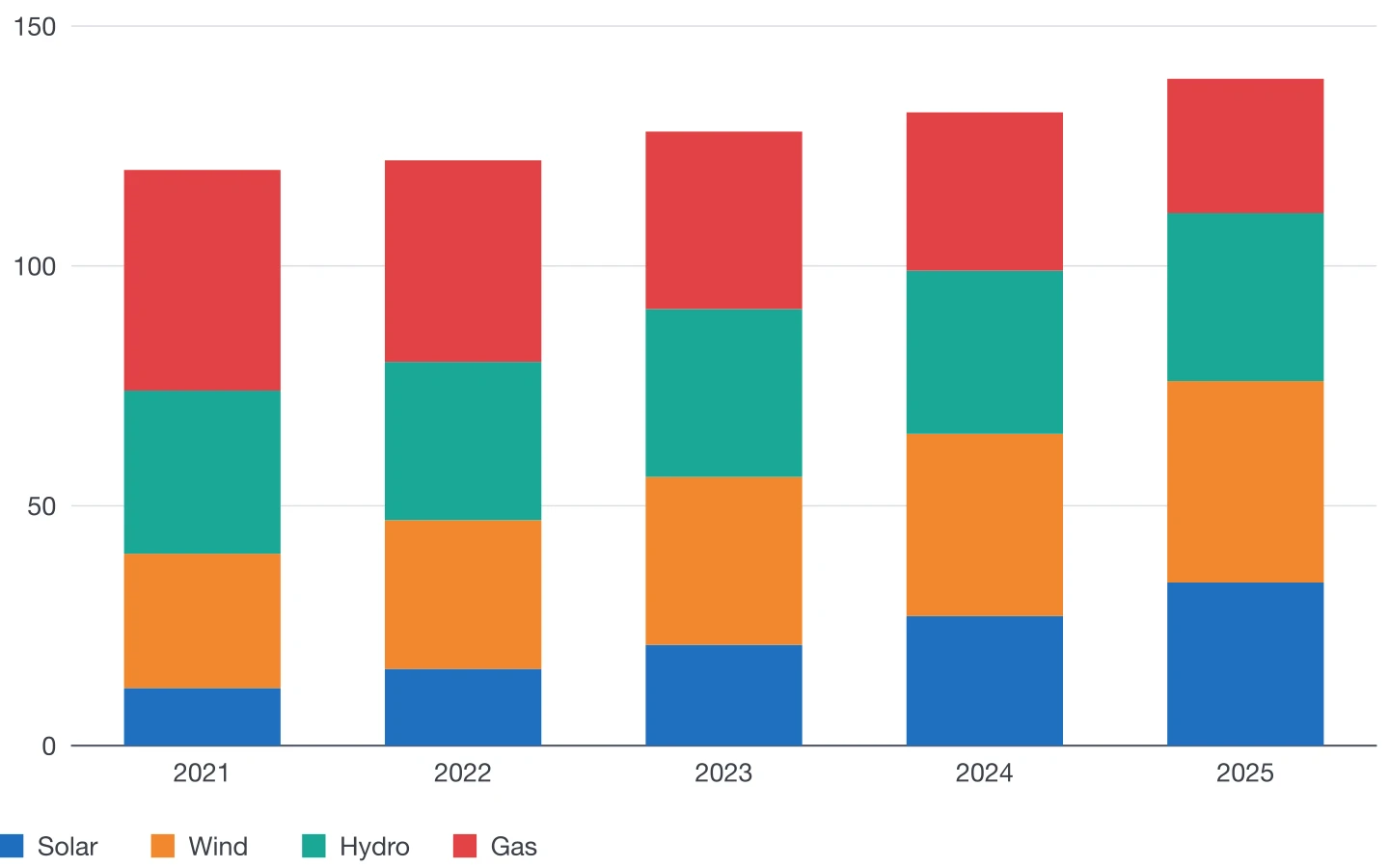 Stacked column chartTotals and their composition in one set of columns.
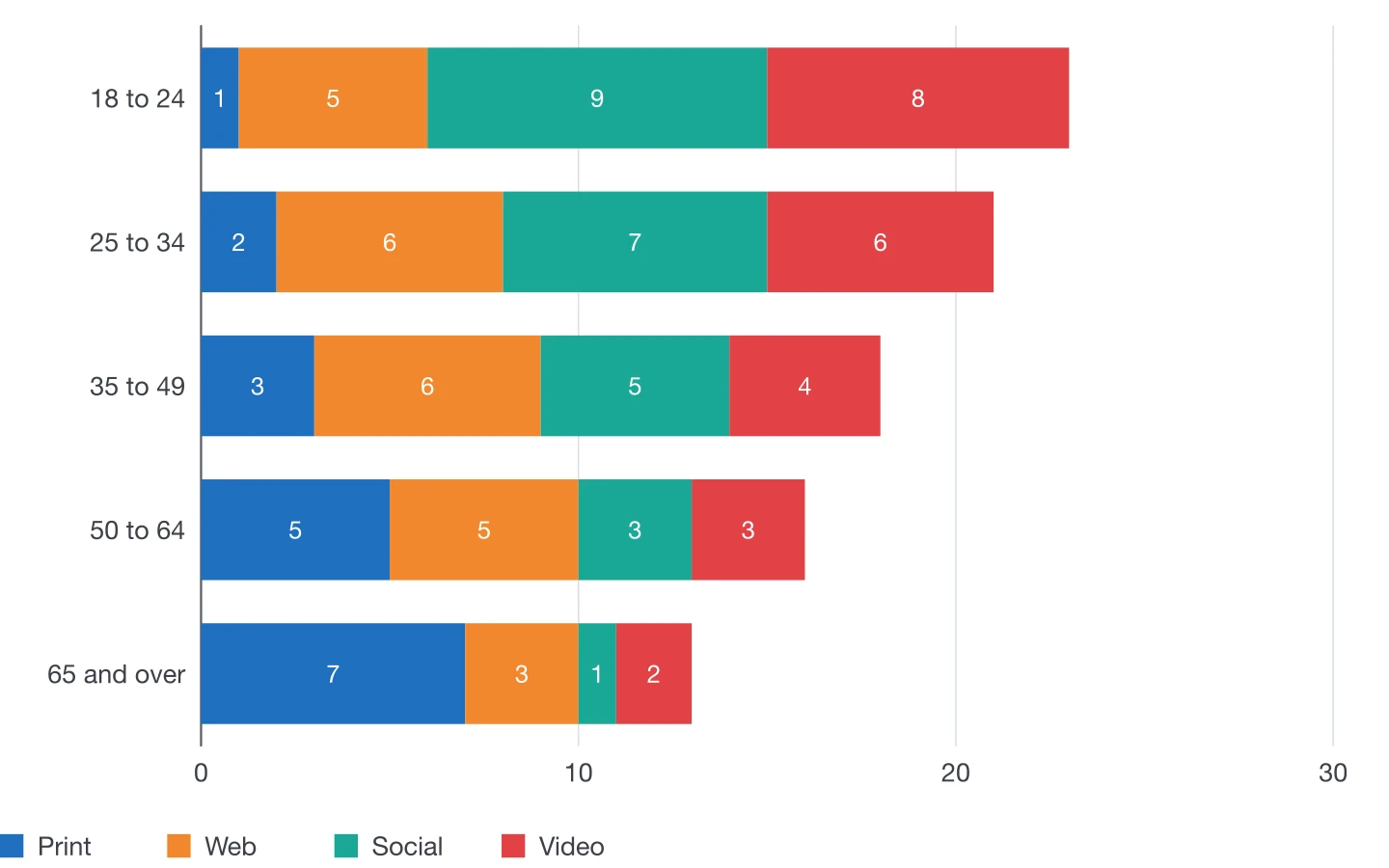 Stacked bar chartHorizontal stacks for composition across many groups.
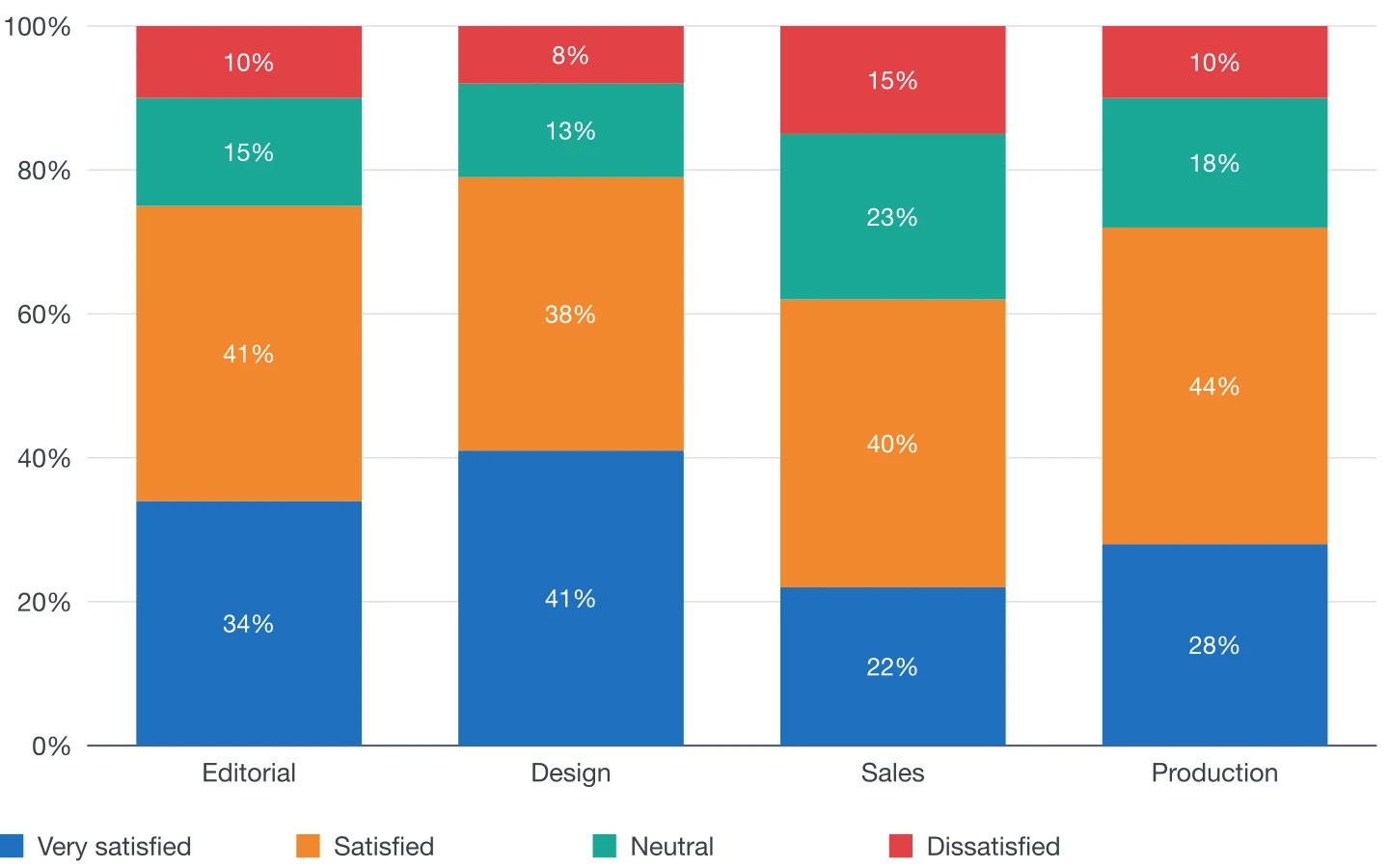 100% stacked chartShares of a whole, compared across categories.
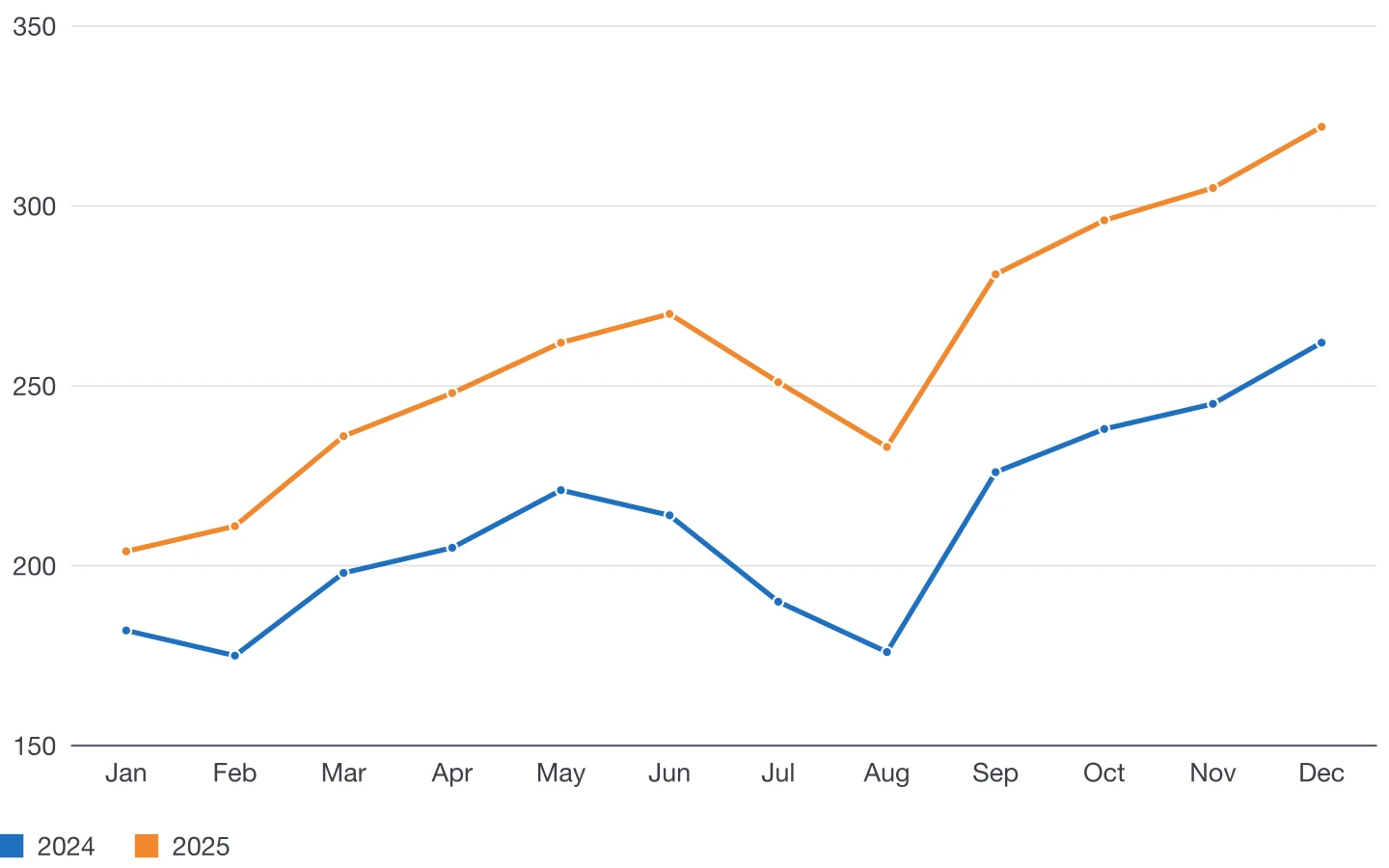 Line chartTrends and change over time.
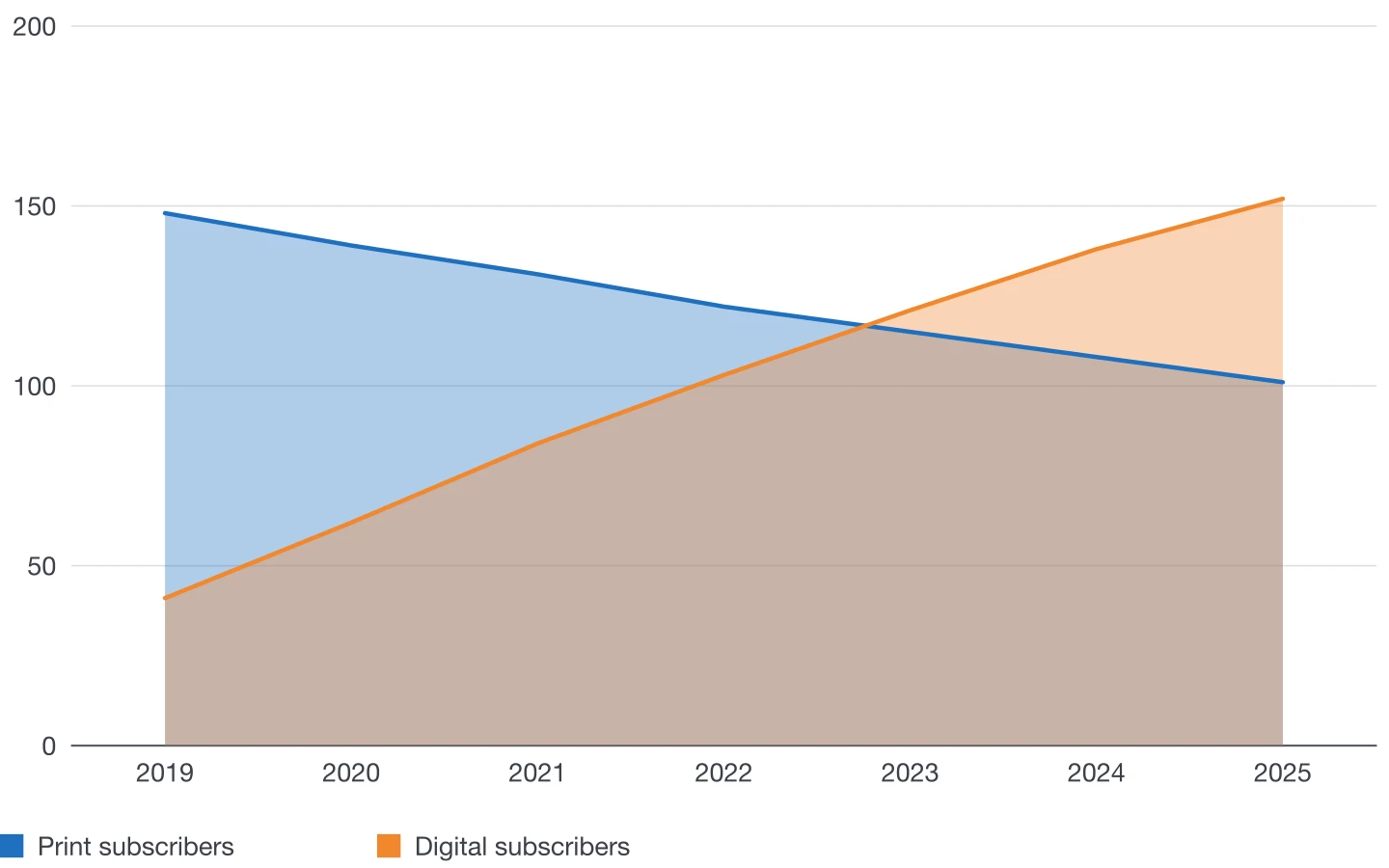 Area chartVolume and its change over time.
Make your next chart in InDesign
Buy DataInk once, on Adobe Exchange or Gumroad, and draw every chart of your layout natively, in your own styles.
Get DataInk for InDesign