How to Create a QR Code in Adobe InDesign: Three Ways
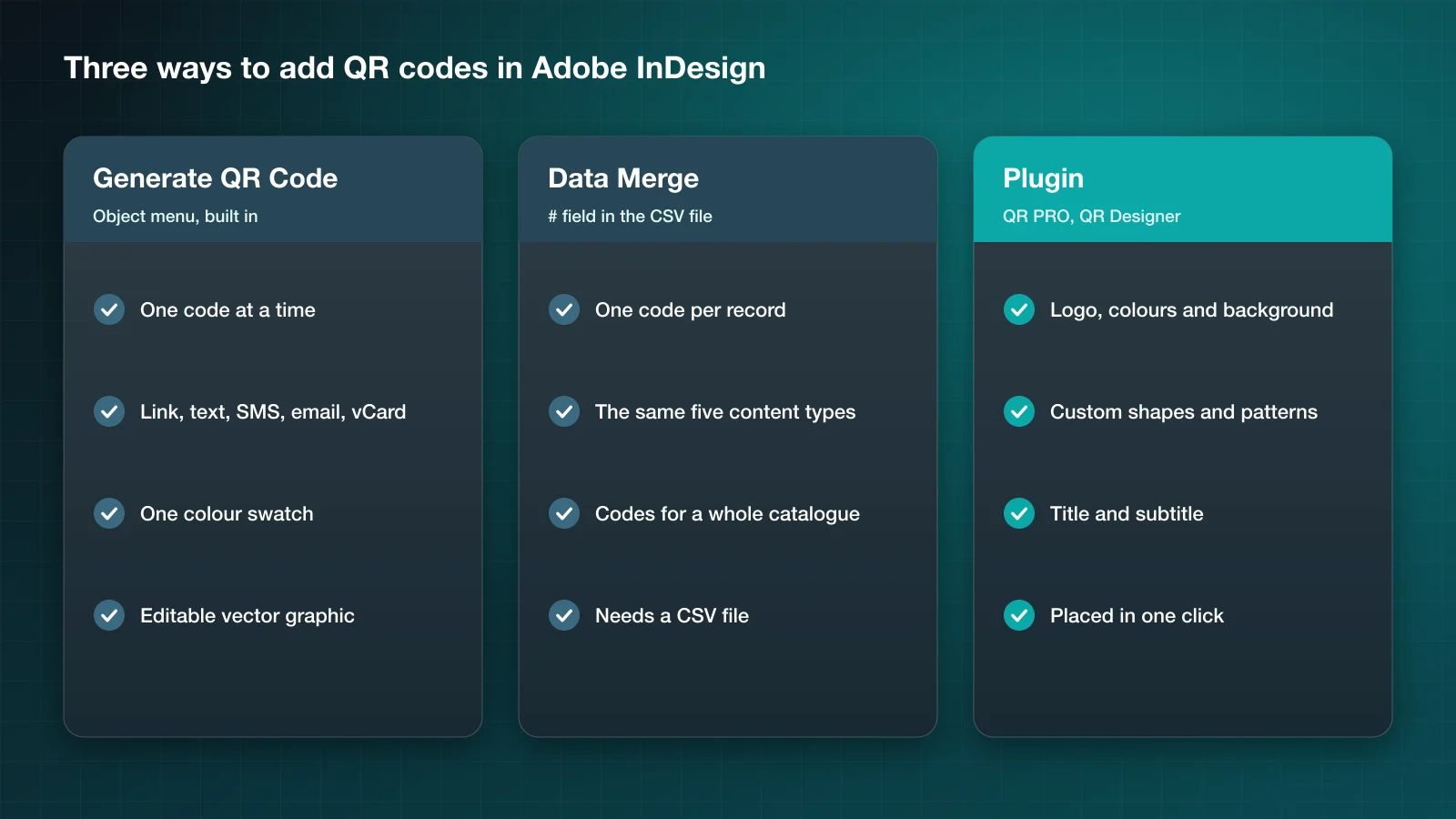
A QR code on a poster, a menu or a product sheet takes readers straight from paper to a web page. Adobe InDesign can make one without any other software, and it can make hundreds from a spreadsheet. When the code must carry a logo or brand colours, a plugin does the rest. Here are the three ways, and when to use each.
Method 1: Object > Generate QR Code
The built-in generator is enough for a single code.
- Choose Object > Generate QR Code.
- In the Content tab, pick a Type: Web Hyperlink, Plain Text, Text Message, Email or Business Card. Fill in the fields.
- In the Color tab, pick a swatch. The default is black on a transparent background.
- Click OK, then click to place the code at its default size of 30 × 30 mm, or drag to draw a frame of the size you want.
The code is a vector graphic, so it stays sharp at any size. To change it later, select it and choose Object > Edit QR Code. You can give its frame a fill, a stroke or rounded corners like any other frame.
Method 2: one code per record with Data Merge
For badges, tickets, labels or a catalogue where every item needs its own link, let Data Merge build the codes from a spreadsheet.
- In the spreadsheet, add a column whose name starts with a #, such as
#QR. - Fill in one value per row. Plain text goes in as it is. A web link is written
URL:https://www.example.com/product/0012. - Save the sheet as CSV UTF-8 and select it in Window > Utilities > Data Merge.
- Drag the
#QRfield onto a frame in the target document, then create the merged document or PDF.
The same five types work here: plain text, web links, text messages, emails and business cards, each written in its own format in the CSV.
Method 3: branded codes with a plugin
The built-in codes are square, one colour, with no logo. When the code is part of the design, a plugin gives you more:
- QR Studio for Adobe InDesign places the code as a CMYK vector PDF at an exact size in millimetres, with your logo, six dot styles, brand kits and a built-in scan check. $19 once.
- QR PRO for Adobe InDesign adds your colours, a logo, a background, a title and a subtitle, and places the code in one click. One-time purchase.
- QR Designer for Adobe InDesign adds custom module shapes, patterns and an embedded logo, with high-resolution output for print.
- Next Barcode Suite for Adobe InDesign creates QR codes alongside EAN-13, UPC, ISBN, GS1-128, Data Matrix and 159+ other formats, as vector artwork.
Designing the code in Illustrator instead, for packaging or a logo file? Illustrator has no QR tool of its own: QR Studio for Adobe Illustrator adds one, and how to make a QR code in Adobe Illustrator compares the options.
Make sure it scans
Most QR codes that fail in print fail for the same few reasons:
- Size. Keep printed codes at least about 2 cm wide, and larger for posters read from a distance.
- Contrast. A dark code on a light background. Light codes on dark backgrounds and low-contrast brand colours scan badly on many phones.
- Quiet zone. Leave a clear margin around the code. Do not let text or images touch it.
- Short content. A long URL makes a denser code. Use a short link that you control, so you can change its destination after printing.
- Test the proof. Scan the printed proof, not the screen, with two or three different phones.
Which method to use
| Situation | Best method |
|---|---|
| One code on a poster or a menu | Object > Generate QR Code |
| One code per person, ticket or product | Data Merge with a # field |
| A code with a logo and brand colours | A QR plugin |
| QR codes and retail barcodes in the same job | Next Barcode Suite |
Sources
Frequently asked questions
Does Adobe InDesign have a QR code generator?
Yes. Object > Generate QR Code creates a vector QR code for a web link, plain text, a text message, an email or a business card. You can change its colour and edit it later with Object > Edit QR Code.
Can I put a logo in an Adobe InDesign QR code?
Not with the built-in generator, which makes a single-colour code. A plugin such as QR PRO or QR Designer adds a logo, colours, a background and custom shapes while keeping the code scannable.
How do I create many QR codes at once in Adobe InDesign?
Use Data Merge. Add a column whose name starts with # to your CSV file, fill one value per row, and drag that field onto a frame. Each merged record gets its own QR code.
Fahd Jlif is part of the team at Lingway, which makes plugins for Adobe InDesign, Illustrator, Photoshop and After Effects. LinkedIn