How to Use Data Merge in Adobe InDesign with an Excel File
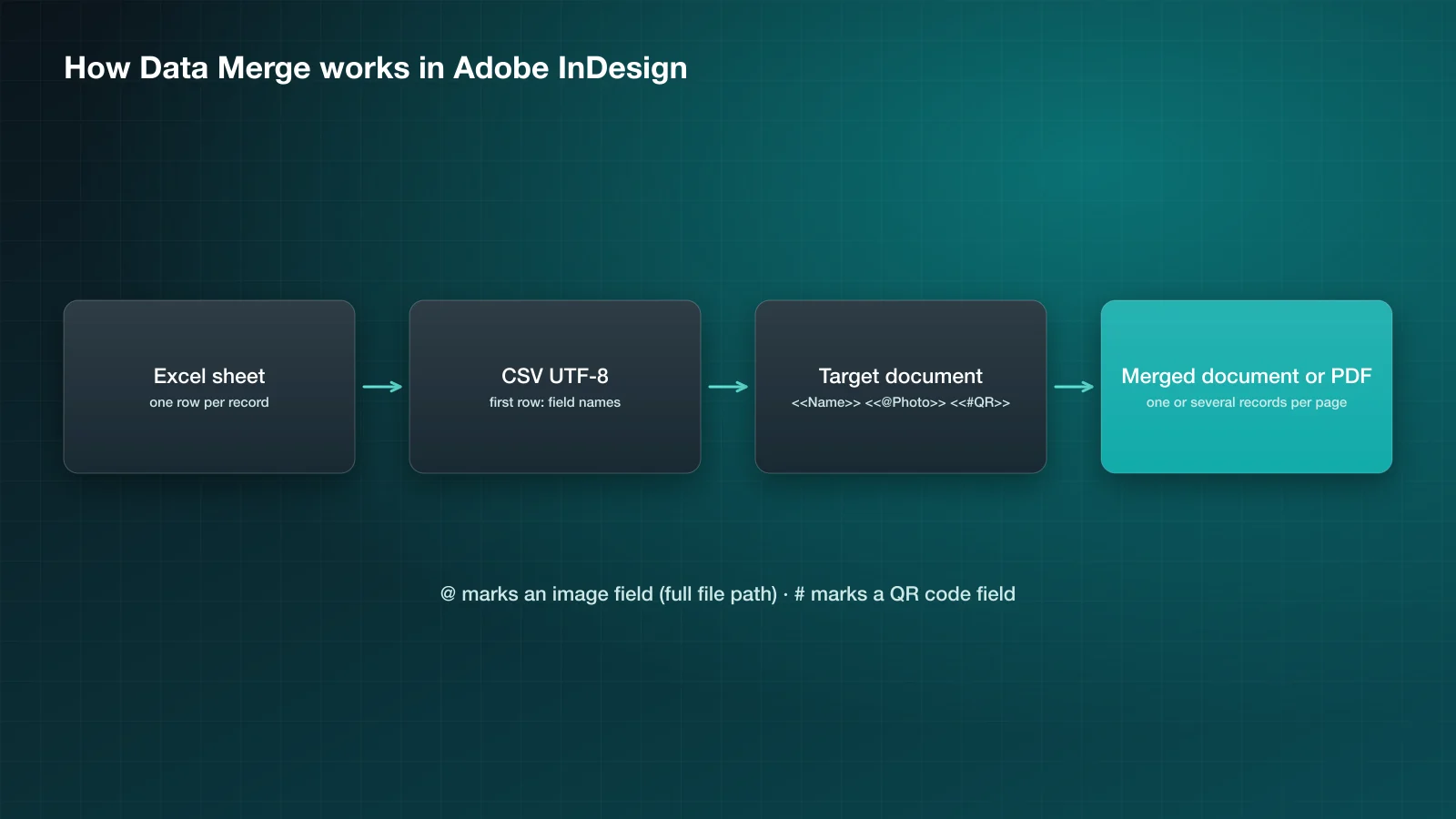
Name badges, labels, certificates, product sheets and catalogue pages share one thing: the same design, repeated with different data. Adobe InDesign has a tool for exactly that, Data Merge. It takes a spreadsheet and a template page, and creates one version of the page for every row. The catch is that it does not open Excel files. Here is the whole process, from the spreadsheet to the merged PDF.
1. Prepare the spreadsheet
Data Merge reads the spreadsheet as a table of records (rows) and fields (columns):
- The first row holds the field names. Keep them short and without special characters:
Name,Company,Price. - One row per record. No merged cells, no blank rows in the middle, no subtotals.
- Image fields start with @. A column named
@Photoholds the full path of an image file for each record, for example/Users/anna/Catalogue/images/0012.jpgon a Mac. - QR code fields start with #. A column named
#QRholds what each code should contain. A web address is written asURL:https://www.example.com. - Codes stay as text. Excel turns
0012into12. Format code and postcode columns as Text before typing or pasting.
2. Save it as CSV UTF-8
Adobe InDesign reads comma-delimited (CSV), tab-delimited (TXT) or semicolon-delimited text files, not .xlsx workbooks. In Excel, choose File > Save As and the CSV UTF-8 (Comma delimited) format. UTF-8 keeps accented letters, other alphabets and symbols intact.
Two details save time later:
- Excel saves only the active sheet as CSV. Put the data on the first sheet, or save each sheet separately.
- A value that contains a comma must be inside quotation marks. Excel adds them for you when it saves the CSV. If you write the file by hand, add them yourself.
3. Set up the target document
Open or create the layout that every record will share: the target document.
- Open Window > Utilities > Data Merge.
- From the panel menu, choose Select Data Source and pick your CSV file. The fields appear in the panel.
- Click in a text frame and click a field name to insert it. It appears as a placeholder such as
<<Name>>. Style it like any other text: the merged text keeps that formatting. - For images, draw a graphics frame and drag the
@field onto it. For QR codes, drag the#field onto a frame. - Tick Preview at the bottom of the panel and step through a few records. Long names and missing images show up here, before you create anything.
4. Merge the records
From the Data Merge panel menu, choose Create Merged Document for a new Adobe InDesign document, or Export to PDF to go straight to a PDF.
- Records: all of them, one, or a range.
- Records per Document Page: Single Record gives one page per row, for certificates or product sheets. Multiple Records fills each page with as many records as fit, for labels and badges. The Multiple Record Layout tab sets the margins, the spacing and whether records fill rows or columns first.
- Generate Overset Text Report With Document Creation lists every record whose text did not fit. Turn it on.
- Alert When Images Are Missing warns you about wrong image paths.
Multiple Records has limits: the data fields must sit on a single page of the target document, and all placeholders must be the same size.
5. When the data changes
Edit the spreadsheet, save the CSV again, then choose Update Data Source from the Data Merge panel menu and merge again. Data Merge always creates a new document. It never updates pages you have already merged and edited by hand.
Common problems
| Problem | Likely cause |
|---|---|
| Accented letters turn into odd symbols | The CSV was not saved as UTF-8 |
| All data lands in one field | The file uses a delimiter other than comma, tab or semicolon |
| Leading zeros are missing | The column was a number in Excel, not text |
| Images are missing | The @ column holds a file name instead of a full path, or the files have moved |
| Multiple Records is greyed out | Fields sit on more than one page of the target document |
| Text is cut off in some records | A long value overflows its frame: check the overset text report |
What Data Merge does not do
Data Merge builds new pages from records. It is not the tool for:
- Refreshing the prices in a table you have already designed. See how to update an Adobe InDesign table from CSV or Excel, or let Table Refiner update the values in place.
- Barcodes other than QR. EAN-13, UPC, ISBN, GS1-128 or Data Matrix codes need a generator such as Next Barcode Suite.
- Charts. To turn spreadsheet figures into native, editable charts, use DataInk.
For codes with your logo and colours rather than plain black squares, see three ways to create QR codes in Adobe InDesign.
Sources
- Adobe, Data merging overview
- Adobe, Data source files overview
- Adobe, Add QR codes to merged documents
- Adobe, Merge records
Frequently asked questions
Can Adobe InDesign Data Merge use an Excel file directly?
No. Data Merge reads comma-delimited (CSV), tab-delimited (TXT) or semicolon-delimited text files. In Excel, choose File > Save As > CSV UTF-8 and select that file in the Data Merge panel.
How do I merge images with Data Merge?
Start the column name with an @ symbol, for example @Photo, and put the full path to each image file in that column. In the layout, drag the field from the Data Merge panel onto a graphics frame.
Can Data Merge create QR codes?
Yes. Start the column name with a hash symbol, for example #QRCode. Each record then gets its own QR code, which can hold plain text, a web link, a text message, an email or a business card.
Oussama Touzni is part of the team at Lingway, which makes plugins for Adobe InDesign, Illustrator, Photoshop and After Effects. LinkedIn