How to Update an InDesign Table from a CSV or Excel File Without Losing Its Formatting
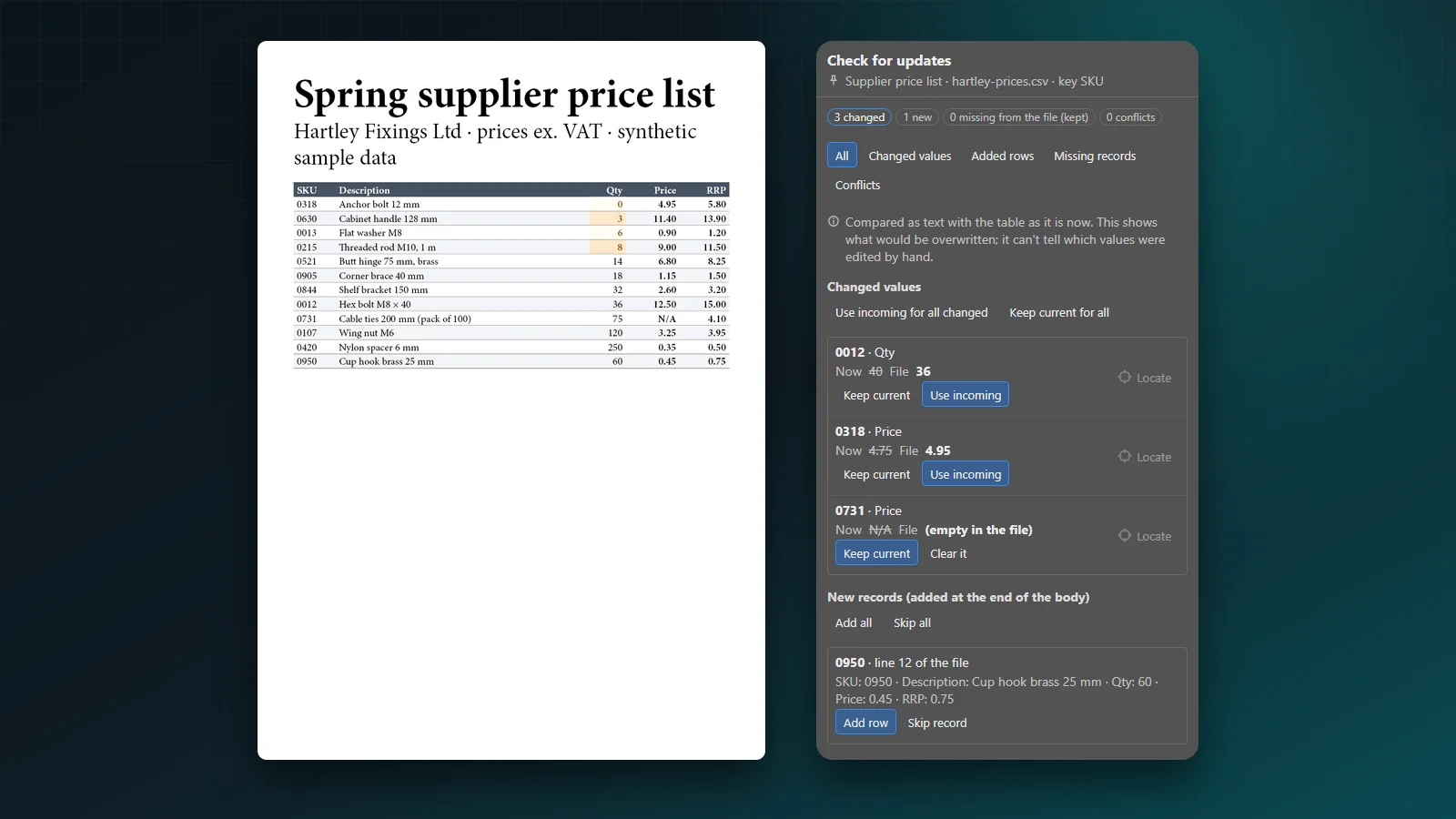
The price list is designed, approved and placed. Then the supplier sends a new spreadsheet: three prices changed, one product added, one discontinued. Retyping is slow and error-prone. Re-importing the file can undo hours of formatting. Here are the options, and what each one costs you.
Prepare the file first
Most problems start in the spreadsheet, not in InDesign. Before any update:
- Keep codes as text. Excel turns
0012into12. Format code columns as Text before typing, or check the CSV in a text editor: the leading zeros must be there. - Agree on decimals. A price of
4.95in one file and4,95in another will not compare. Use the separator your layout uses. - Save as CSV UTF-8. In Excel, choose File > Save As > CSV UTF-8 (Comma delimited) so accented characters and symbols arrive intact.
- Use one row per product and a unique key. A column such as SKU, with no blanks and no duplicates, is what lets any tool match a row in the file with a row in the table.
- Write N/A, not 0. An unknown price and a free product are not the same thing.
Option 1: copy and paste the values
Select the cells in Excel, copy, select the same range of cells in the InDesign table, paste. InDesign fills the cells in place and keeps the cell formatting.
It works when the rows are in exactly the same order and nothing was added or removed. One shifted row and every price below it is wrong, and nothing warns you.
Option 2: place the spreadsheet as a linked table
File > Place an Excel file with Show Import Options ticked, and InDesign creates a table from it. With Preferences > File Handling > Create Links When Placing Text and Spreadsheet Files turned on, the table is linked: when the spreadsheet changes, the Links panel offers to update it.
The catch is formatting. Updating a linked table replaces its content with the file again, and formatting you applied by hand in InDesign is lost. Build the design with a table style and cell styles, so you can reapply it in a few clicks after each update.
Option 3: Data Merge
Window > Utilities > Data Merge creates pages from a CSV file, one record per frame or per page. It is the right tool for producing a catalogue from scratch, not for refreshing the values in a table you have already designed.
Option 4: update the table in place with Table Refiner
Table Refiner connects a CSV or TSV file to a finished table and updates only the values, after showing you every difference.
Every difference is listed before anything is written: changed values, new records, and rows missing from the file.
- Choose the table, open the Data source setting and click Connect file…. For Excel, save the sheet as CSV first.
- Check that each file column is matched to the right table column. The panel matches them by name.
- Choose a row key, such as SKU.
0012and12are different keys. - Click Preview updates. Connecting alone changes nothing.
- For each difference, choose Keep current or Use incoming. Add new records at the end of the table, or skip them. Rows missing from the file are kept unless you choose to remove them.
- Review and apply. The table keeps its look, widths and styles.
Some safeguards matter more than speed:
- An empty value in the file never clears a cell unless you choose so.
- Keys that appear twice are listed as conflicts, never matched by guessing.
- Cells with mixed formatting are left as they are rather than losing their formatting.
When the supplier sends the next file, Check for updates reads it again. If the file has moved, the panel asks you to locate it.
Once the new values are in, check the result: longer prices or names can clip their cells, and a table that grows may need repeating headers and clean page breaks. To turn the refreshed figures into a chart, DataInk draws native InDesign charts linked to the table.
Which option to use
| Situation | Best option |
|---|---|
| A few values, same rows in the same order | Copy and paste |
| The spreadsheet is the master and the table is plain | Linked spreadsheet, with a table style |
| Building many pages from records | Data Merge |
| A designed table that must keep its look | Update in place, matched by a key |
Need prices to flow from your ERP or PIM straight into InDesign, without any file in between? Talk to us. We build custom integrations as well as plugins.
This article is part of our InDesign tables guide, which covers a table from import to print.