Why Text Disappears in InDesign Table Cells, and How to Fix It
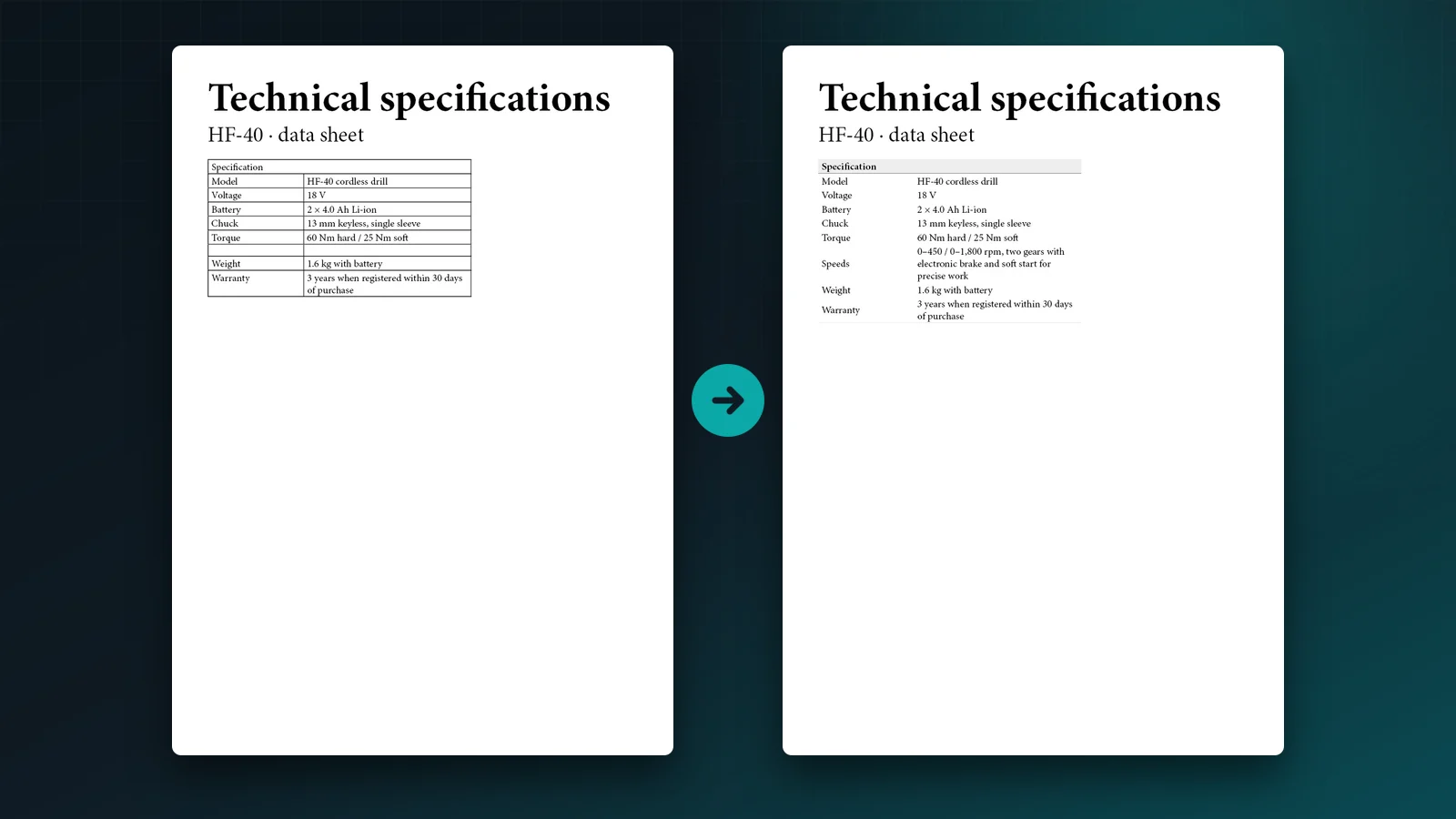
A data sheet looks fine at a glance. Then someone notices that the “Speeds” row reads “0–450 / 0–1,800 rpm, two gears with” and stops. The rest of the sentence is still in the document, hidden below the cell’s edge. InDesign marks it with a small red dot in the corner of the cell, which is easy to miss when you are checking a 40-page catalogue.
Before, the Speeds row is clipped by an exact row height. After, the row grows to fit its text.
The six usual causes
- An exact row height. In Table > Cell Options > Rows and Columns, a row set to Exactly never grows. A second line of text has nowhere to go. This is by far the most common cause, often inherited from an imported table.
- A maximum row height. Rows set to At Least can still have a Maximum in the same panel. Text beyond it is cut off too.
- A column that is too narrow. Narrowing a column makes every cell in it wrap onto more lines, and a row that cannot grow clips the extra lines.
- Large cell insets. Generous top and bottom insets in Cell Options > Text eat into the space for the text itself.
- Text that cannot break. A long product code, a URL or a number with no spaces cannot wrap. It overflows sideways and is hidden.
- An inline graphic larger than its cell. The graphic pushes the text out of view.
Find every clipped cell
Do not hunt for red dots page by page:
- Story Editor. Click in the table and press Ctrl+Y (Windows) or Cmd+Y (Mac). The Story Editor shows each cell’s full content, including the part that does not fit.
- Preflight. Window > Output > Preflight reports overset text with its page. Double-click an entry to go to it, and use the Story Editor alongside it for tables.
- Select by row. Select all rows of a table and look at the row height setting: a mix of Exactly values is a warning sign.
Fix it without shrinking the type
Start with the change that disturbs the layout least:
- Switch the row height to At Least. The row grows to fit its text and the rest of the table moves down. Keep the same minimum height, so short rows look the same as before.
- Raise or remove the maximum height.
- Widen the column, or rebalance the columns. Take room from a column with short values, such as a quantity, and give it to the description.
- Reduce the cell insets in the table style or cell style, not cell by cell.
- Allow long codes to break. Insert a discretionary line break (Type > Insert Break Character > Discretionary Line Break) at a sensible point in a long code or URL.
- Shorten the text when the content allows it.
Avoid scaling the type or tracking it tight in a single cell. Readers notice one cell set smaller than its neighbours.
Find and fix clipped rows with Table Refiner
Table Refiner checks tables for you and explains what it finds.
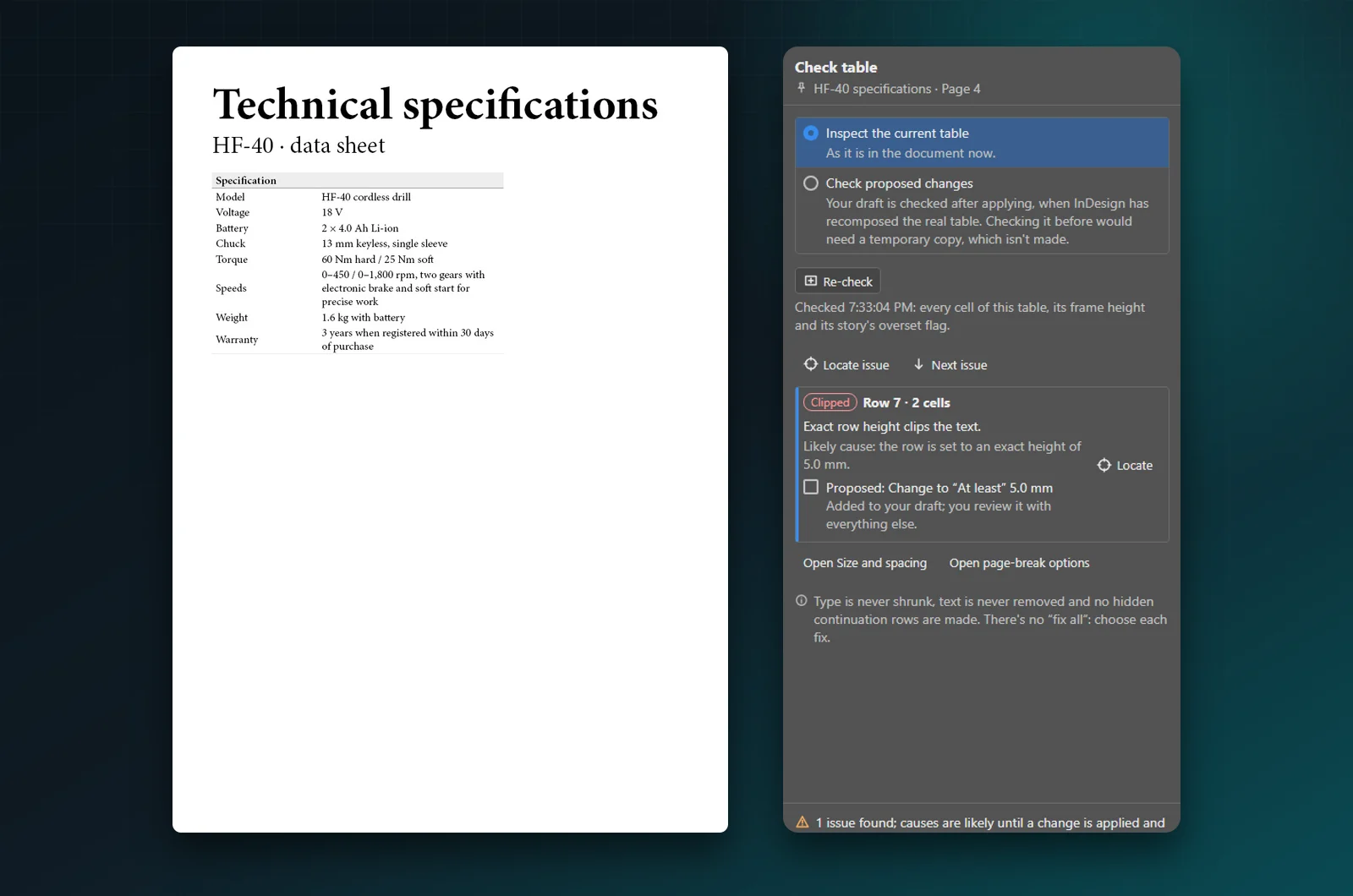
Check table names the row, the likely cause and a fix you can review.
- Choose the table and click the Check table setting, then Check now. Checking only reads the table.
- Each issue names the row and column, says what is wrong and gives the likely cause, for example the row is set to an exact height of 5.0 mm.
- Tick the fixes you want, such as Change to “At least” 5.0 mm, and click Add fixes to draft.
- Review and apply. After applying, the panel checks again and tells you honestly whether everything fits.
It never shrinks type, removes text or adds hidden rows, and there is no “fix all”: you choose each fix. To check a whole document at once, Tools > Check all tables lists every clipped row and overset story, each with Locate and Fix in Edit table….
Values refreshed from a spreadsheet are a common cause of newly clipped rows: see how to update an InDesign table from a CSV file. Tables that run over several pages have their own pitfalls. See how to make an InDesign table run across multiple pages.
This article is part of our InDesign tables guide, which covers a table from import to print.