 Adobe InDesign
Footnoter for Adobe InDesign
Put your notes on the page that cites them. Footnoter takes the endnotes you already have in Adobe InDesign and lays each one out at the foot of its page: run in, in columns, or as sidenotes in the margin. Edit the text, click Lay out notes, and only the pages that changed are redone.
- Run-in, columns or sidenotes
- Made from Adobe InDesign's own endnotes
- Switch off restores the original endnotes
- One-time purchase on Adobe Exchange
Installs from Adobe Exchange · opens in a new tab
- Works in
- Adobe InDesign
- Adobe InDesign 2025 (20.0) or later
- Price
- $49
- one-time purchase
- Support
- From the developers
- Updates included
The notes Adobe InDesign can't lay out on its own
Adobe InDesign's endnotes pile up at the end of the chapter, and its footnotes can't go in the margin, in columns or in a table. Footnoter starts from the endnotes you already have and puts each note on the page of its reference.
Run-in notes
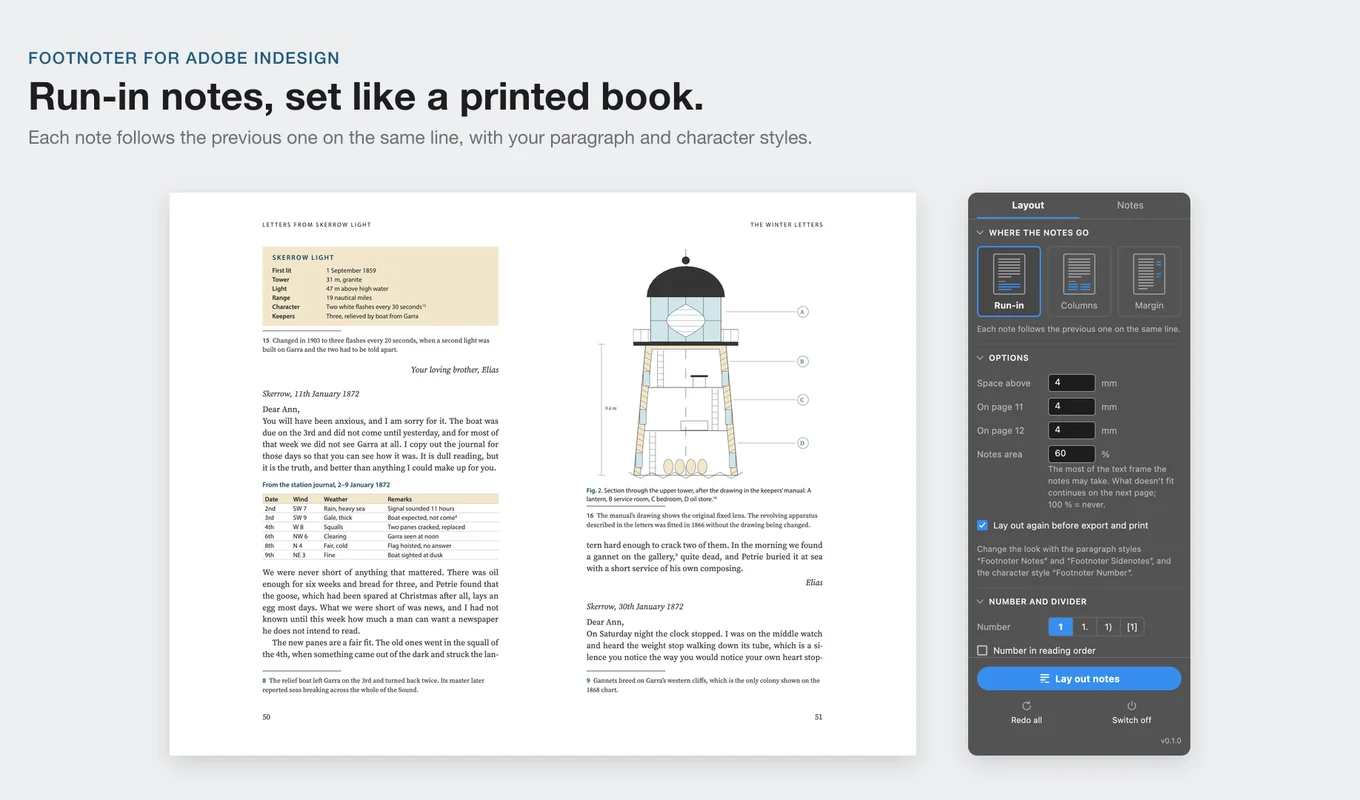
Each note follows the previous one on the same line, as in many printed books, so the notes take as little of the page as possible.
Notes in columns
One to three balanced columns under the text, with short notes sharing a line.
Sidenotes in the margin
In the outside or inside margin, at their reference or stacked, lined up with the text baselines.
Long notes continue
Every note starts on the page of its reference. A long note continues on the next page under its own rule, and you choose how much of the page the notes may take.
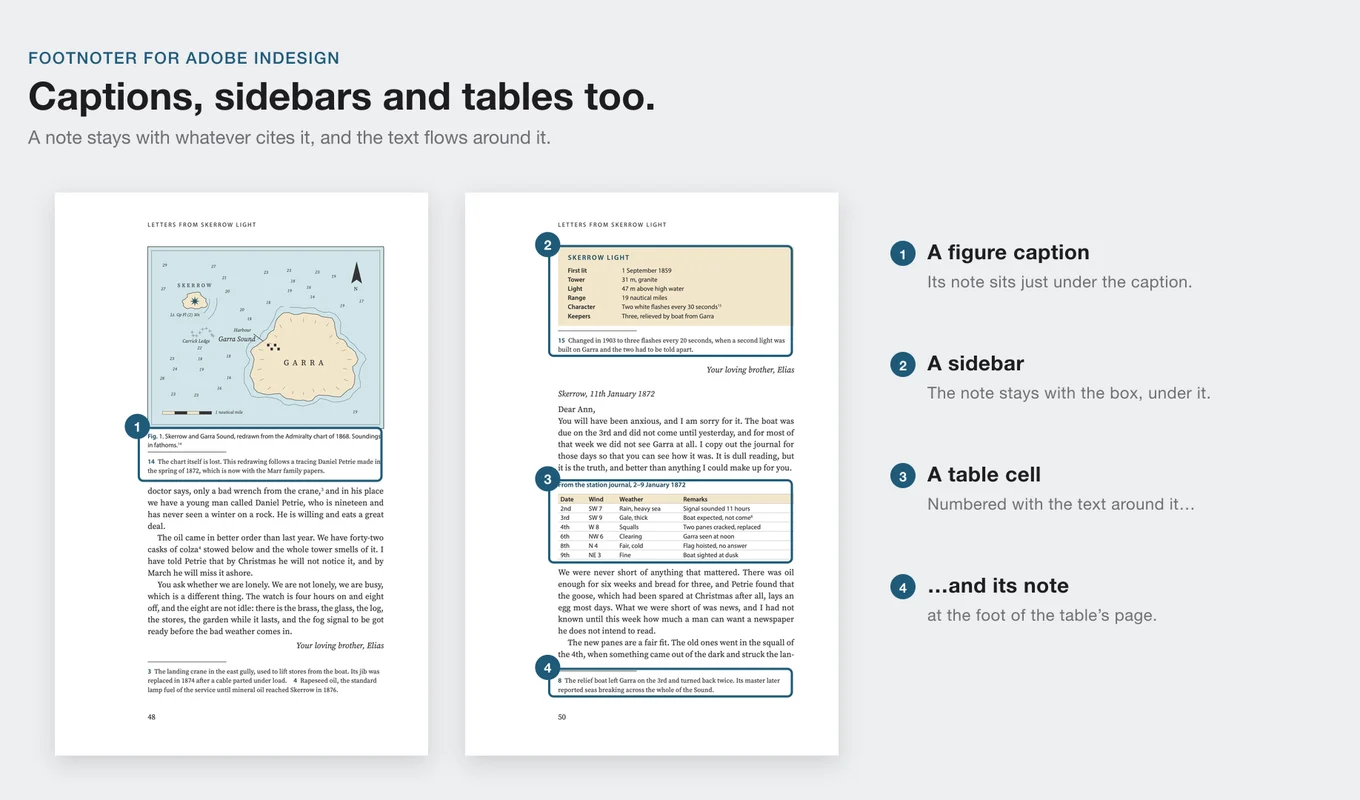
Captions, sidebars and tables
Captions and sidebars keep their notes just under them, with the text flowing around. Notes in table cells go at the foot of the table's page.
Numbers your way
Numbers in reading order, formats 1, 1., 1) and [1], hanging numbers, and a rule or any object of your own as the divider.
Live after edits
Click Lay out notes again after editing: only the pages that changed move. Optionally, notes are laid out again before export and print.
Your own styles
Notes use the paragraph styles Footnoter Notes and Footnoter Sidenotes and the character style Footnoter Number, so you set the look the usual way.
Safe to switch off
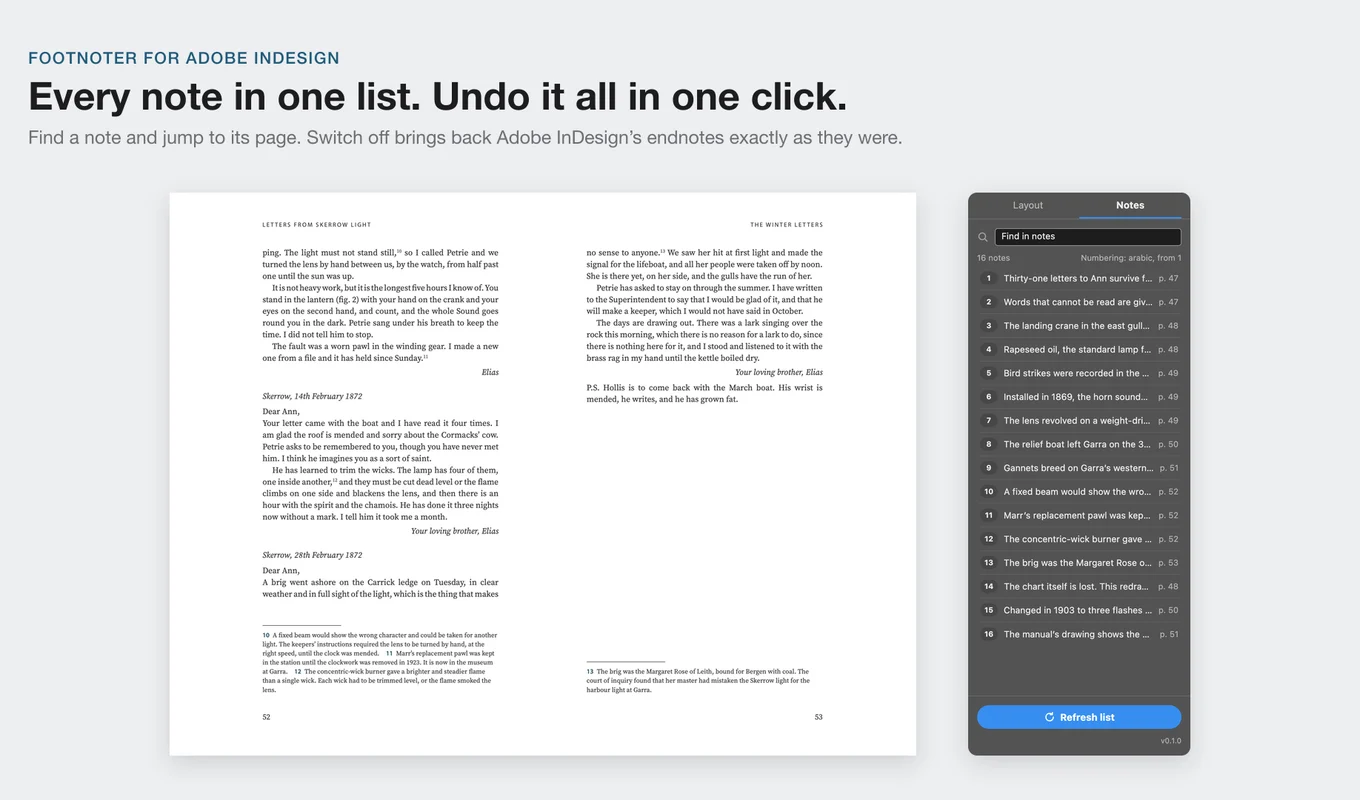
Switch off puts Adobe InDesign's endnotes back exactly as they were. Existing footnotes convert to endnotes in one click, and back on Switch off.
From install to result in a few clicks
- 1
Start from endnotes
Use the endnotes in your document (Type > Insert Endnote), or convert existing footnotes to endnotes in one click.
- 2
Choose a layout
Open Window > Footnoter and pick run-in, columns or sidenotes, with your number format, rule and spacing.
- 3
Lay out notes
Click Lay out notes. Each note lands on the page of its reference. Edit the text and click again to update the pages that changed.
See it inside the app
Built for books, papers and annotated editions
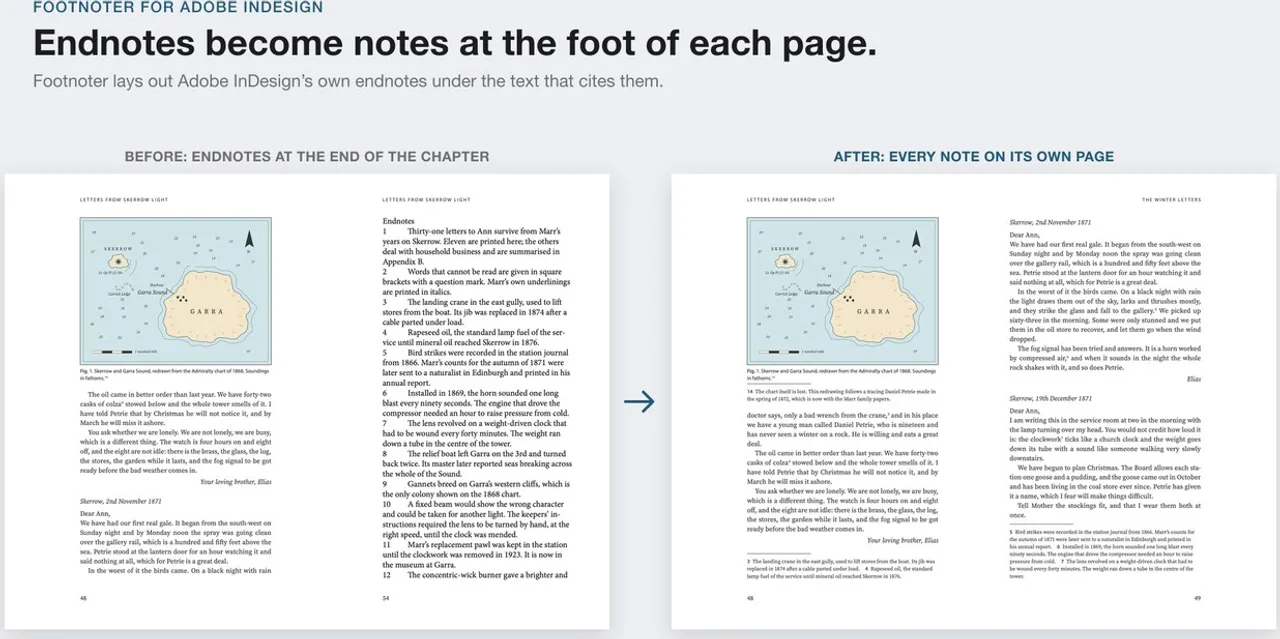
The pages below come from a sample chapter laid out in Adobe InDesign before and after Footnoter. The text is a made-up sample.
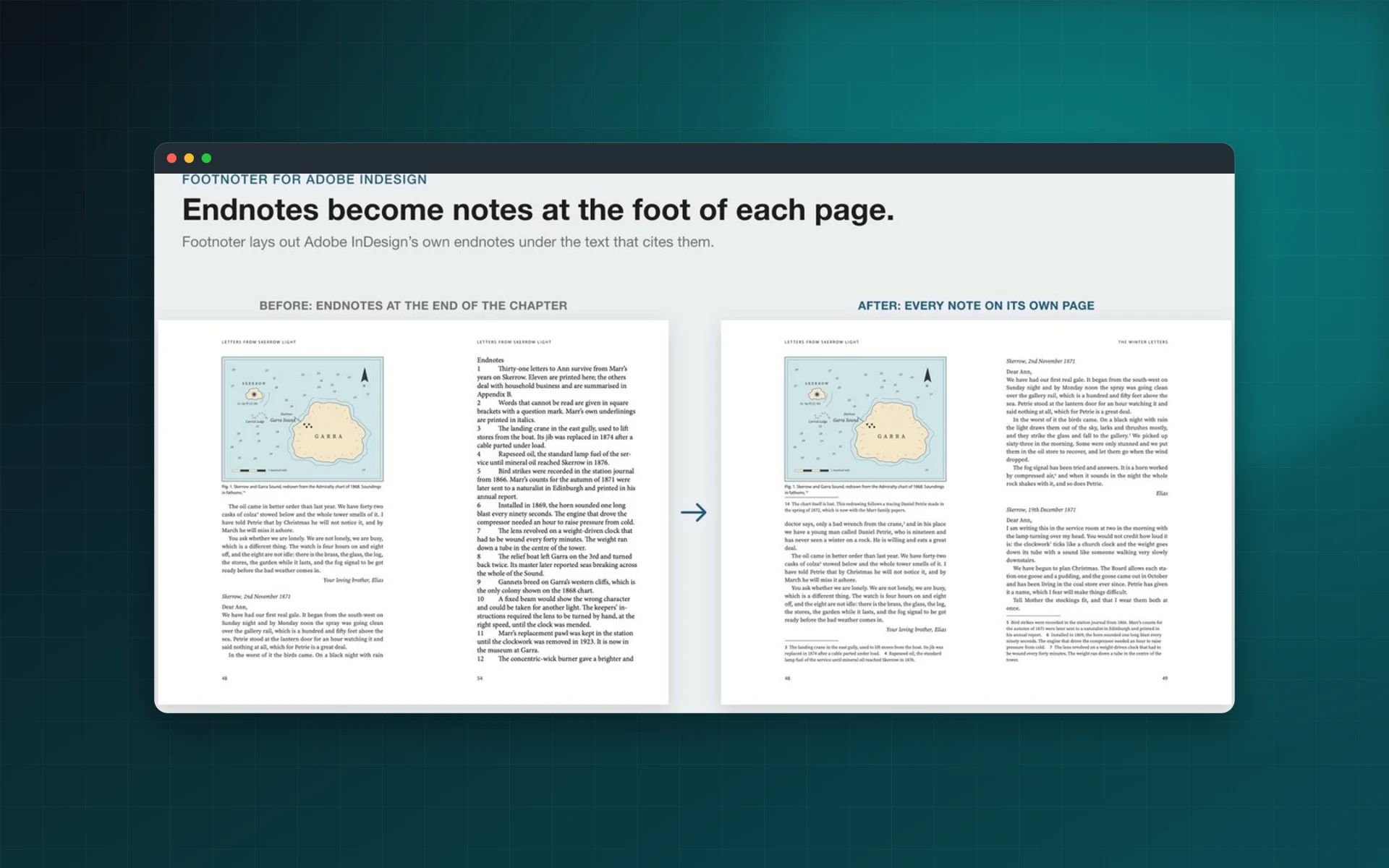
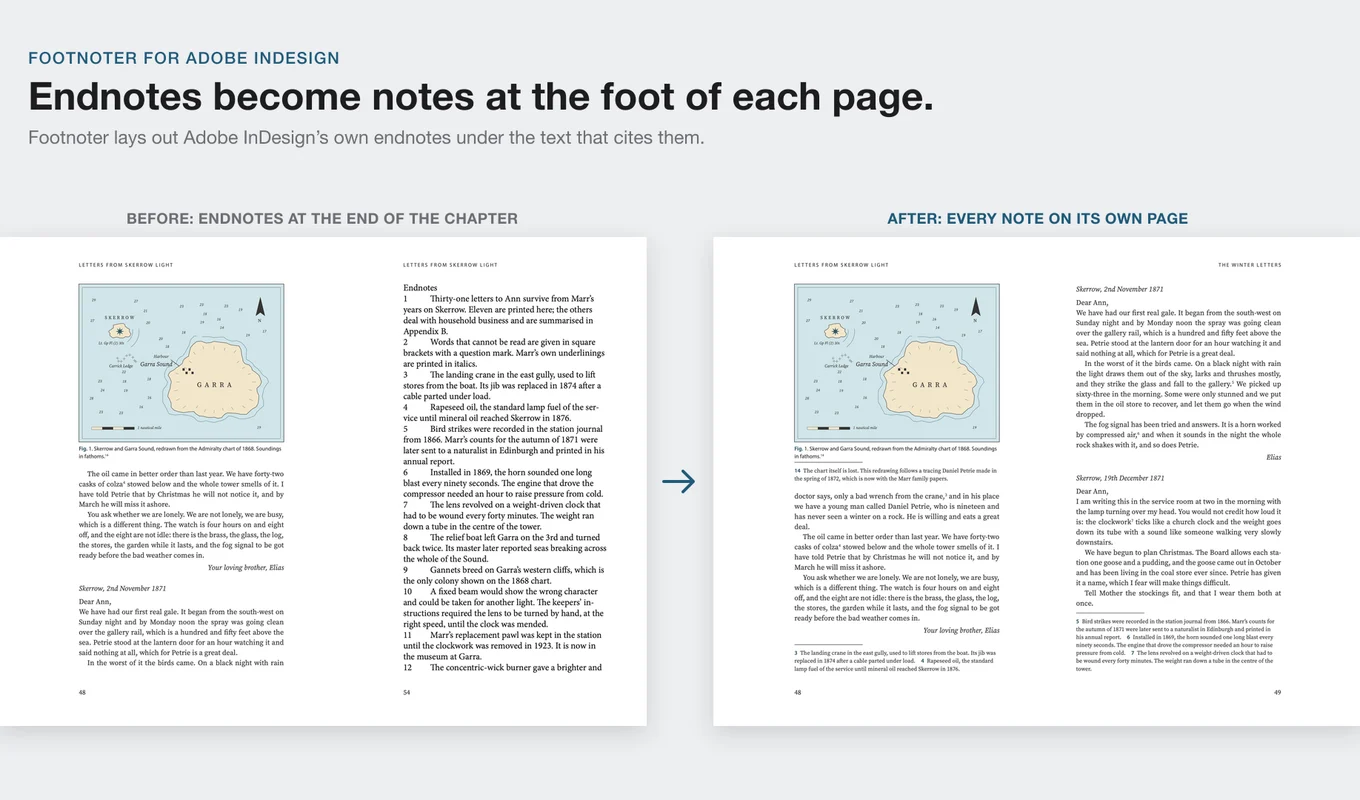
From endnotes to notes on every page
Adobe InDesign collects endnotes at the end of the chapter, so readers flip back and forth. Footnoter lays each one out under the text that cites it, on the same page, and keeps it there when the text reflows.
The notes stay Adobe InDesign endnotes underneath. Switch off puts them back at the end of the chapter, exactly as they were.
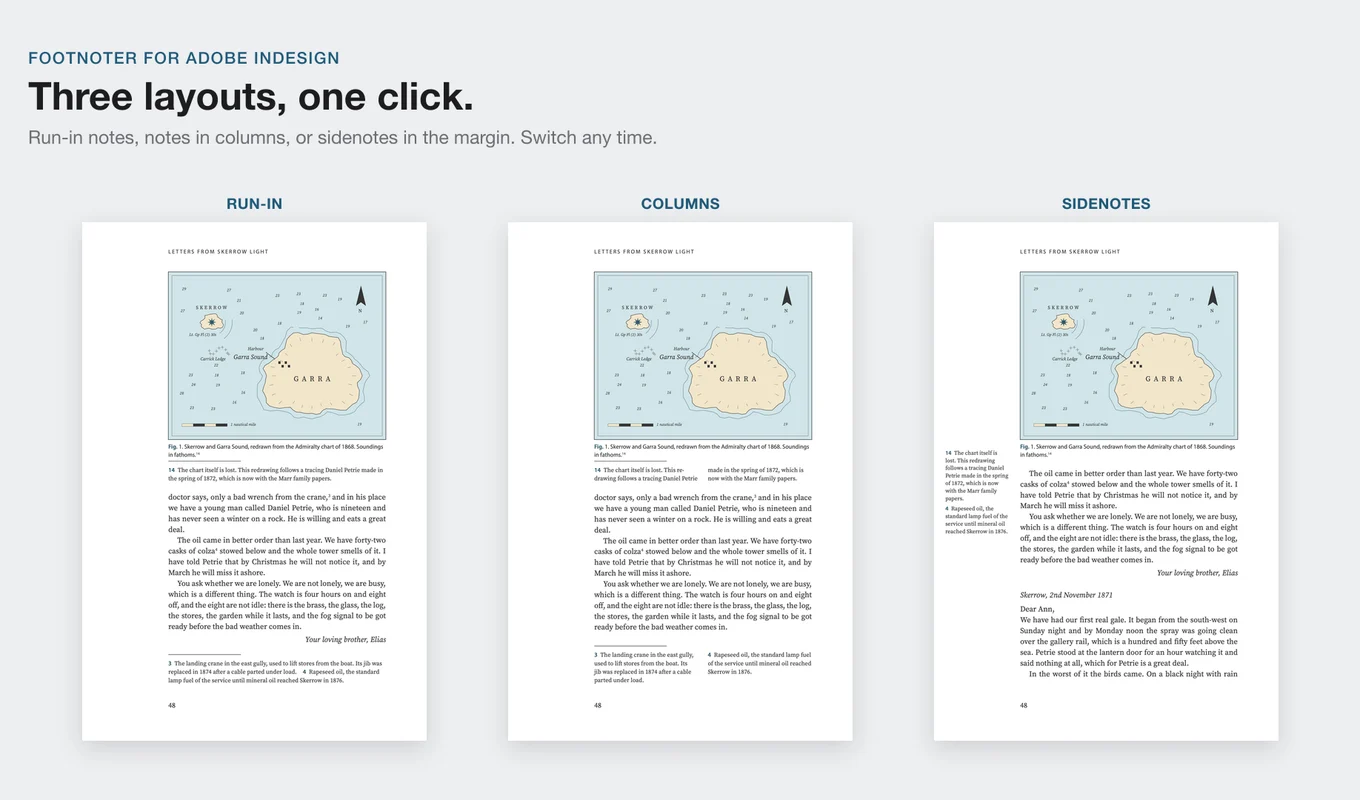
Three layouts, one click
Run-in notes follow each other on the same line. Columns split the notes into one to three balanced columns, with short notes sharing a line. Sidenotes sit in the outside or inside margin, at their reference or stacked, lined up with the text baselines.
Switch between them at any time and click Lay out notes again.
Notes where Adobe InDesign footnotes can't go
Captions and sidebars keep their notes just under them, with the text flowing around. Notes in table cells go at the foot of the table's page. With numbers in reading order, a caption's note takes its number where it is read.
Every note in one list
The Notes tab lists every note with its page. Click one to go to it. Warnings tell you when a page is too full, with a button to show it, and presets save your settings for the next book.
Built for production work
Book designers
Run-in or column notes at the foot of the page, set with your own styles, for novels, biographies and histories.
Academic publishers
Long notes that continue on the next page, notes in captions and tables, and numbers that follow the reading order.
Legal publishers
Dense notes kept on the page of their reference, with a limit on how much of the page they may take.
Annotated editions
Sidenotes in the margin, lined up with the text, for critical editions, commentaries and study texts.
See Footnoter in action
Endnotes at the end of a chapter become notes at the foot of each page, then columns and sidenotes, with captions, sidebars and tables keeping their notes.
 Plays from YouTube (privacy-enhanced mode)
Frequently asked questions
How is Footnoter different from Adobe InDesign's own footnotes?
Adobe InDesign's footnotes can't run in, go in the margin or sit in a table cell, and its endnotes collect at the end of the chapter. Footnoter starts from endnotes and lays each note out on the page of its reference, run in, in columns or as a sidenote, including notes in captions, sidebars and tables.
My document already uses footnotes. Can I still use it?
Yes. Footnoter converts existing footnotes to endnotes in one click and lays them out. Switch off turns them back into footnotes.
What happens when I edit the text?
Click Lay out notes again and only the pages that changed are redone. You can also have the notes laid out again automatically before export and print.
Can I go back to normal endnotes?
Yes. Switch off puts Adobe InDesign's endnotes back exactly as they were.
Do colleagues need Footnoter to open my files?
No. Anyone can open, print or export the document without the plugin. Only laying the notes out again needs Footnoter.
Can I change how the notes look?
Yes. Notes use the paragraph styles Footnoter Notes and Footnoter Sidenotes and the character style Footnoter Number. Edit those styles as usual, and choose the number format, hanging numbers and the divider in the panel.
Does it need an internet connection or an account?
No. Footnoter works offline and makes no network requests. There is no account and no subscription.
Which Adobe InDesign versions are supported?
Adobe InDesign 2025 (version 20.0) or later. The panel follows Adobe InDesign's interface brightness and is available in English, French and German.
Where can I get it, and what does it cost?
Footnoter is sold on Adobe Exchange for a one-time payment of US$49, with no subscription. Install it from its Exchange page and it opens as a panel in Adobe InDesign (Window > Footnoter).
Put your notes on the page
Buy Footnoter once on Adobe Exchange and lay out run-in notes, notes in columns and sidenotes from your Adobe InDesign endnotes.
Need a feature it does not have yet?
We wrote this plugin, so we can extend it, connect it to your systems or build a private version for your team.
Talk to the developersHow we build Adobe pluginsMore from Lingway

DataInk for Adobe InDesign
Native, editable vector charts in InDesign, from your data or your tables.
View Product
Table Refiner for Adobe InDesign
Clean, consistent InDesign tables in three steps, with every change reviewed before it is applied.
View Product
Tables Extractor for Adobe InDesign
Extract tables from PDFs and scans into editable InDesign tables.
View Product