How to Make a QR Code in Adobe Illustrator (Vector, CMYK, With a Logo)
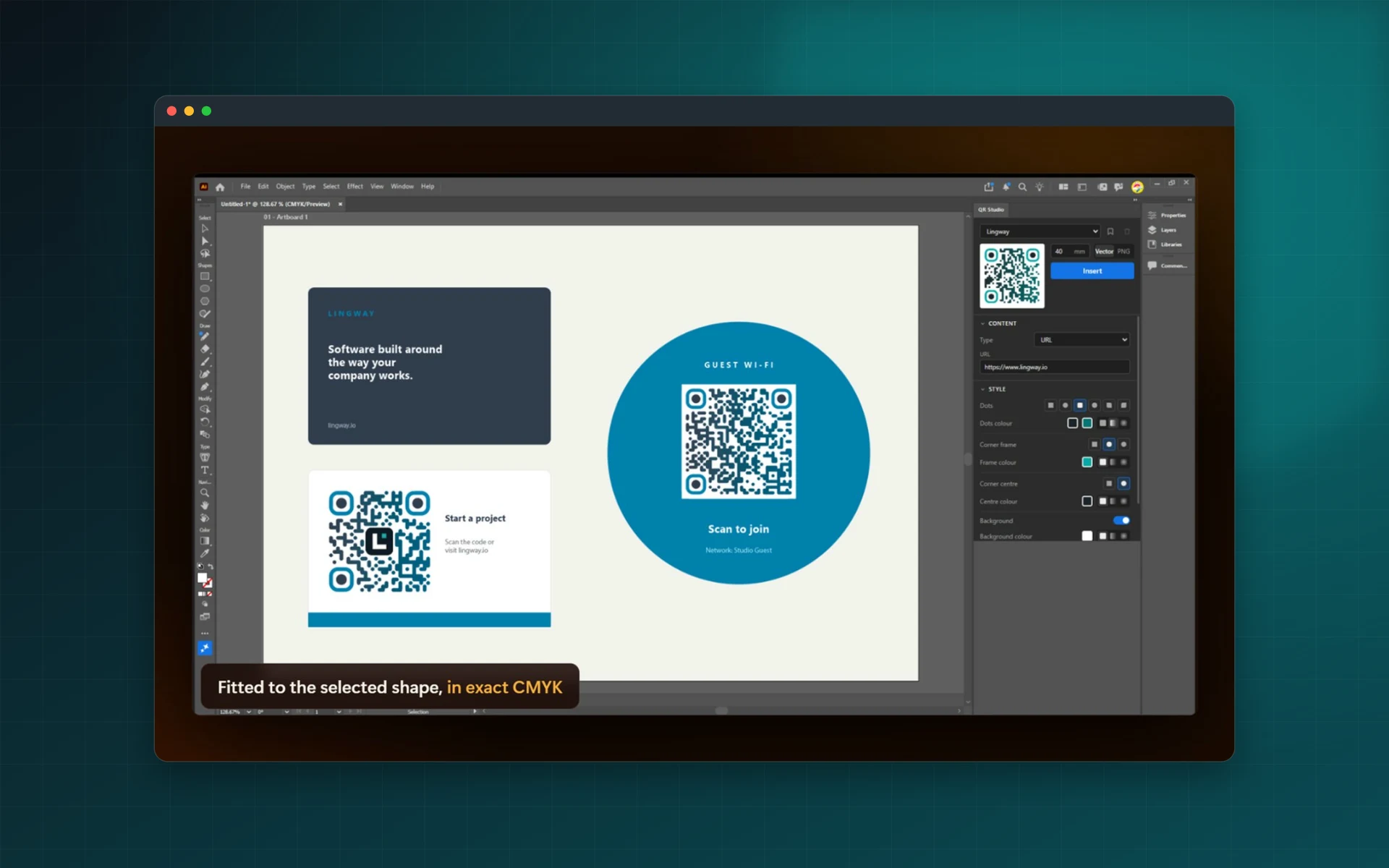
Adobe Illustrator has no QR code tool. InDesign has one, Photoshop doesn’t, and Illustrator users usually detour through a web generator. That works, but it gives you an RGB image or an SVG to clean up, not artwork that belongs in a packaging file. Here are the options, from quickest to cleanest.
Option 1: a web generator, as SVG
Generate the code online, download an SVG (not a PNG) and open or place it in Illustrator.
- Good: fast, free.
- Watch out: the colours are RGB, so recolour to your CMYK swatches. Check that the SVG is clean shapes and not an embedded image. Many free generators route the link through their own short URL, which can stop working; prefer a static code that encodes your link directly.
Option 2: Image Trace
Place a high-resolution PNG and use Image Trace in Black and White mode, then Expand.
- Watch out: tracing rounds corners and merges modules. Small errors can make the code unreadable. Use it only as a last resort.
Option 3: InDesign’s generator
InDesign’s Object > Generate QR Code makes a vector code for a URL, text, email, SMS or business card. Copy it into Illustrator.
- Watch out: one colour, no logo, square modules only.
Option 4: QR Studio, directly on the artboard
QR Studio for Adobe Illustrator creates the code in Illustrator as native vector paths in exact CMYK:
- Open Window > Extensions > QR Studio.
- Choose the content: website, text, email, phone, SMS, Wi-Fi login or vCard contact.
- Style it: six dot styles, custom corners, solid colours or gradients, a coloured or transparent background, and your PNG, JPG or SVG logo. Error correction is raised automatically when you add a logo.
- Select a shape and click Insert: the code is sized and centred on it. With nothing selected, it lands in the centre of the view at the size you set in millimetres.
The result is ordinary paths: recolour, reshape and scale them like any other artwork. In a CMYK document the colours land as exact process values, gradients included. Brand kits save colours, shapes, logo and link for the next code, and a built-in scan check warns about low contrast, inverted colours or a code that won’t scan.
Make sure it scans in print
- Size: at least about 20 mm wide for a short link. Larger for posters read from a distance.
- Contrast: dark modules on a light background. Inverted codes (light on dark) fail on many phone cameras.
- Quiet zone: keep a clear margin around the code, about four modules wide.
- Short content: a shorter link makes a less dense code that scans at smaller sizes.
- Logo: keep it small and centred, and use high error correction.
- Test the proof: scan the printed proof with two or three phones, not the screen.
Going further
- Putting the code on a box, label or bottle? Read QR codes on packaging in Illustrator for size, ink and finish rules.
- For how big the logo can be and which brand colours still scan, read how to add a logo to a QR code in Illustrator.
For InDesign layouts
If the code goes into a brochure or a catalogue, QR Studio for Adobe InDesign places it as a CMYK vector PDF at an exact size. For all the InDesign options, read how to create a QR code in Adobe InDesign.
Sources
- DENSO WAVE, QR Code error correction feature
Frequently asked questions
Does Adobe Illustrator have a QR code generator?
No. Illustrator has no built-in QR code tool. InDesign does (Object > Generate QR Code), and plugins such as QR Studio add one to Illustrator.
How do I make a vector QR code for print?
Create it as vector paths rather than an image, in CMYK, at a size of at least about 20 mm, with dark modules on a light background and a clear margin around it. Test-print it at its final size.
Can I add a logo to a QR code?
Yes, if the code uses a high error correction level. QR codes can lose part of their area and still scan; a logo in the centre uses that margin. Keep the logo small and test the code.
Fahd Jlif is part of the team at Lingway, which makes plugins for Adobe InDesign, Illustrator, Photoshop and After Effects. LinkedIn