Run-in Footnotes, Sidenotes and Notes in Captions in InDesign
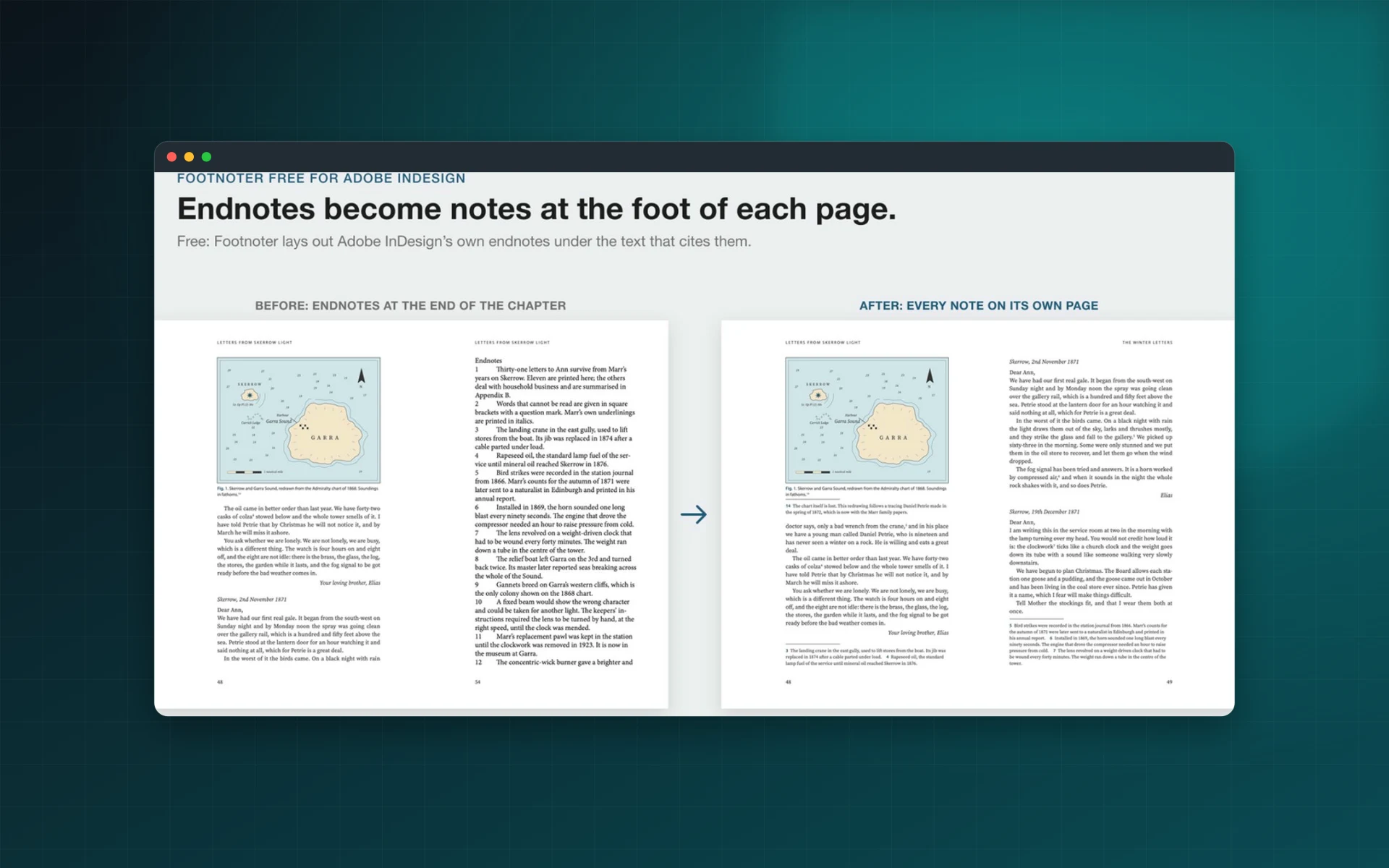
Adobe InDesign has footnotes and endnotes, but books and academic texts often need notes InDesign can’t lay out on its own: run-in notes that share a line, notes in columns, sidenotes in the margin, and notes cited in a caption or a sidebar that should sit next to it. This guide explains the limits and how the Footnoter plugins work around them by starting from endnotes.
What InDesign does on its own
- Footnotes (Type > Insert Footnote) sit at the bottom of the text frame or column that holds their reference, one paragraph per note. They can’t run in on one line, split into balanced columns of their own, or move to the margin.
- Endnotes (Type > Insert Endnote) collect at the end of the story or document. Readers flip back and forth.
For a novel with a few notes, that’s fine. For a history book with 400 short notes, or a critical edition with margin commentary, it isn’t.
The idea: start from endnotes
Endnotes are linked to their references and numbered by InDesign. The Footnoter plugins read those endnotes and set each one on the page of its reference, in the layout you choose. Edit the text, click Lay out notes again, and only the pages that changed are redone. Switch off puts InDesign’s endnotes back exactly as they were.
If your document already uses footnotes, one click converts them to endnotes, and Switch off turns them back.
Run-in notes, free
Footnoter Free sets run-in notes at the foot of each page, under their own rule: each note follows the previous one on the same line, as in many printed books, so the notes take as little space as possible.
- Install Footnoter Free from Adobe Exchange (InDesign 2025 or later).
- Insert your notes as endnotes, or convert existing footnotes.
- Click Lay out notes.
What it handles:
- Every note starts on the page of its reference. A long note continues on the next page.
- Captions and sidebars keep their notes just under them, with the text flowing around.
- Notes in table cells go at the foot of the table’s page.
- Notes use the paragraph style Footnoter Notes and the character style Footnoter Number, so you style them the usual way.
- The Notes tab lists every note with its page, and warns when a page is too full.
Columns and sidenotes, with Footnoter Pro
Footnoter adds the layouts scholarly and illustrated books need:
| Need | Footnoter Free | Footnoter |
|---|---|---|
| Run-in notes at the foot of the page | Yes | Yes |
| Notes in captions, sidebars and tables | Yes | Yes |
| Notes in 1 to 3 balanced columns | Yes | |
| Sidenotes in the outside or inside margin | Yes | |
| Numbers in reading order (a caption’s note numbered where it’s read) | Yes | |
| Number formats 1, 1., 1), [1] and hanging numbers | Yes | |
| Any object as the divider; space above the notes per page | Yes | |
| Lay out again automatically before export and print | Yes | |
| Presets | Yes | |
| Price | Free | $49 once |
Do colleagues need the plugin?
No. Anyone can open, print or export the document. Only laying out the notes again needs Footnoter. Both versions work offline, with no account, and the panel speaks English, French and German.
Sources
- Adobe, Footnotes in InDesign
Frequently asked questions
Can InDesign make run-in footnotes?
Not with its own footnote feature, which sets each footnote as its own paragraph. Footnoter Free, a free plugin, lays out InDesign endnotes as run-in notes at the foot of each page, each note following the previous one on the same line.
How do I make sidenotes or margin notes in InDesign?
InDesign has no sidenote feature; the usual workaround is anchored text frames placed by hand. Footnoter (Pro) lays endnotes out as sidenotes in the outside or inside margin, lined up with the text baselines.
Is there a free footnotes plugin for InDesign?
Yes. Footnoter Free is free on Adobe Exchange. It sets run-in notes at the foot of each page from InDesign's endnotes, including notes cited in captions, sidebars and tables.
Oussama Touzni is part of the team at Lingway, which makes plugins for Adobe InDesign, Illustrator, Photoshop and After Effects. LinkedIn