How to Clean Up Swatches in InDesign: Unused, Duplicates and RGB
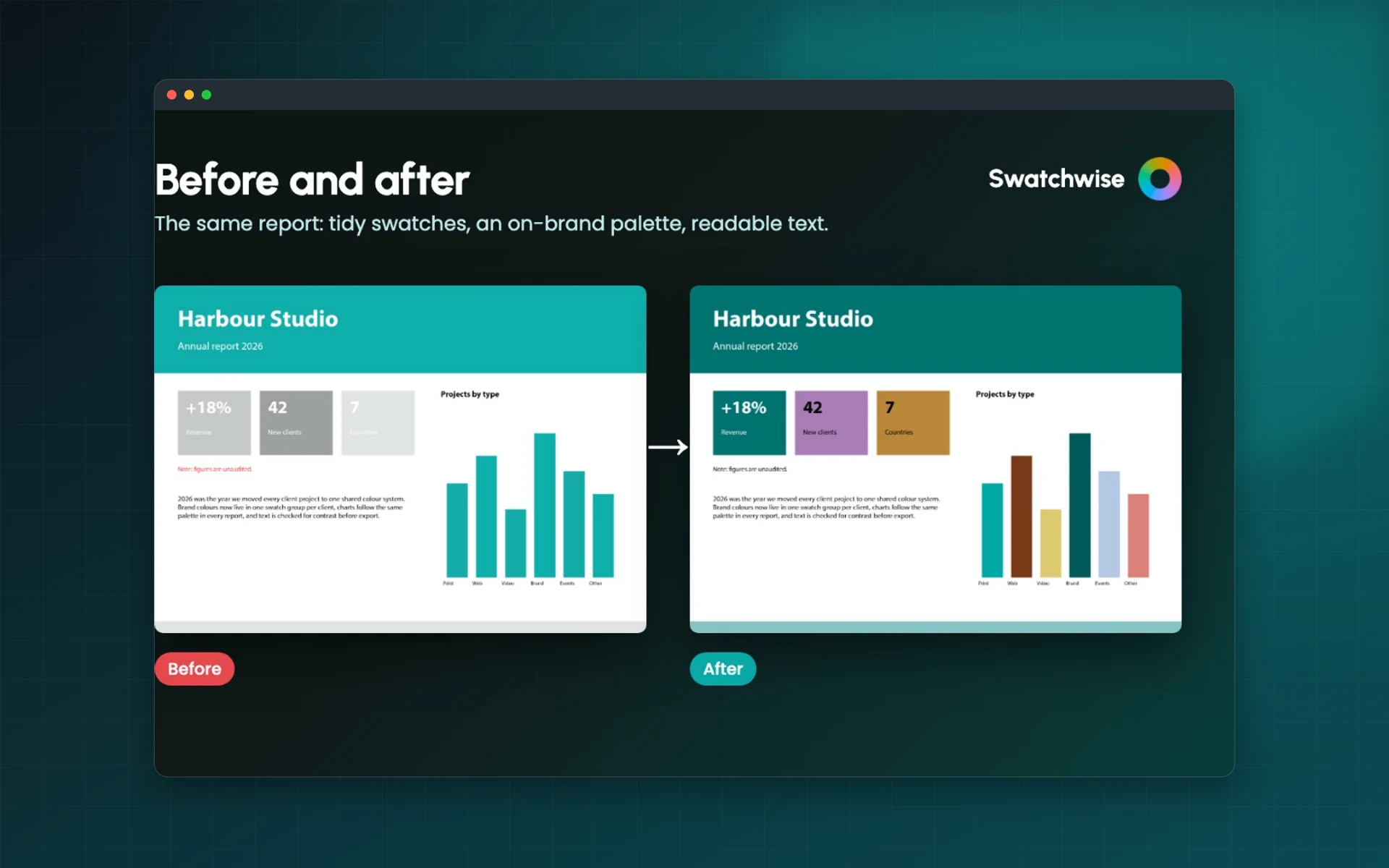
An inherited InDesign file often has 60 swatches for 8 real colours: unused leftovers, near-duplicates such as two slightly different teals, and RGB colours pasted from the web into a print job. Cleaning them up makes the document lighter, the colours consistent and the PDF safer for print. Here is how to do it with InDesign’s own commands, and faster with Swatchwise.
1. Delete unused swatches
Built in: open the Swatches panel menu, choose Select All Unused, then click the trash icon (Delete Swatch).
With Swatchwise: the Clean up tab lists unused swatches and deletes them in one click.
Either way, save a copy first if the file was assembled from other documents: a swatch can look unused in one file and still be needed by a story you’ll paste in later.
2. Merge near-duplicate swatches
Two swatches that are almost the same colour (C100 M0 Y0 K0 and C98 M2 Y0 K0) are the most common reason a “brand teal” prints in two shades.
Built in: select the swatch to keep, Cmd-click (Ctrl-click on Windows) the others, and choose Merge Swatches from the panel menu. Objects that used the others now use the first one. The hard part is finding the look-alikes.
With Swatchwise: it finds look-alike swatches for you and merges each set into one.
3. Convert RGB swatches to CMYK
RGB swatches in a print document are converted at output, sometimes into colours you didn’t expect.
Built in: double-click each RGB swatch, set Color Mode to CMYK and click OK, one by one.
With Swatchwise: it finds every RGB swatch in a print document and converts them to CMYK. It also names unnamed colours, so they show up in the Swatches panel, and exports the swatch list to CSV for a brand audit.
4. Build a clean palette from the brand colour
Once the panel is tidy, rebuild it on purpose. Swatchwise starts from a hex value or the selected object and applies one of eight harmony rules (complementary, split complementary, analogous, triad, tetrad, square, monochrome, shades). It adds the result as named swatches in their own group, in CMYK, RGB or Lab, with optional 80 / 60 / 40 / 20% tints, and imports and exports .ase files.
5. Pick chart colours everyone can tell apart
About one man in twelve has some form of colour vision deficiency. For charts, Swatchwise offers categorical, sequential and diverging palettes and shows each one as people with protanopia, deuteranopia and tritanopia see it, checking that the colours stay distinct.
6. Check text contrast against WCAG
Light text on a brand colour often fails accessibility guidelines. WCAG 2 asks for a contrast ratio of at least 4.5:1 for body text and 3:1 for large text at level AA, and 7:1 and 4.5:1 at level AAA.
Swatchwise checks any text and background pair and shows its ratio and grade, then scans every text frame in the document against the colour behind it and lists the lines that fail. Click a line to go to it.
Summary
| Task | InDesign alone | Swatchwise |
|---|---|---|
| Delete unused | Select All Unused, Delete | One click |
| Merge duplicates | Merge Swatches, after finding them yourself | Finds and merges look-alikes |
| RGB to CMYK | One swatch at a time | All at once |
| Palette from a colour | Color Themes tool, manual | 8 rules, named group, tints, .ase |
| Colour-blind check | No | Protanopia, deuteranopia, tritanopia |
| WCAG contrast | No | Pair check and document scan |
Swatchwise costs $14.99 once on Adobe Exchange, works offline and needs InDesign 2025 (20.0) or later. Everything it makes is ordinary swatches, groups and tints.
Sources
Frequently asked questions
How do I delete all unused swatches in InDesign?
In the Swatches panel menu, choose Select All Unused, then click the Delete Swatch button. Swatches used only in places InDesign doesn't count, such as some placed files, may need checking first.
How do I merge duplicate swatches in InDesign?
Select the swatch to keep, Cmd-click (Ctrl-click) the others, and choose Merge Swatches from the Swatches panel menu. Objects using the merged swatches switch to the first one. Swatchwise finds near-duplicates for you and merges them in one click.
How do I convert RGB swatches to CMYK in InDesign?
Double-click each RGB swatch, set Color Mode to CMYK and click OK. Swatchwise finds every RGB swatch in a print document and converts them together.
Can InDesign check colour contrast for accessibility?
Not on its own. Swatchwise adds a WCAG check: the contrast ratio and AA / AAA grade for any text and background pair, and a scan of every text frame against the colour behind it.
Oussama Touzni is part of the team at Lingway, which makes plugins for Adobe InDesign, Illustrator, Photoshop and After Effects. LinkedIn