How to Add Dimensions in Adobe Illustrator (Sizes, Gaps, Scale Drawings)
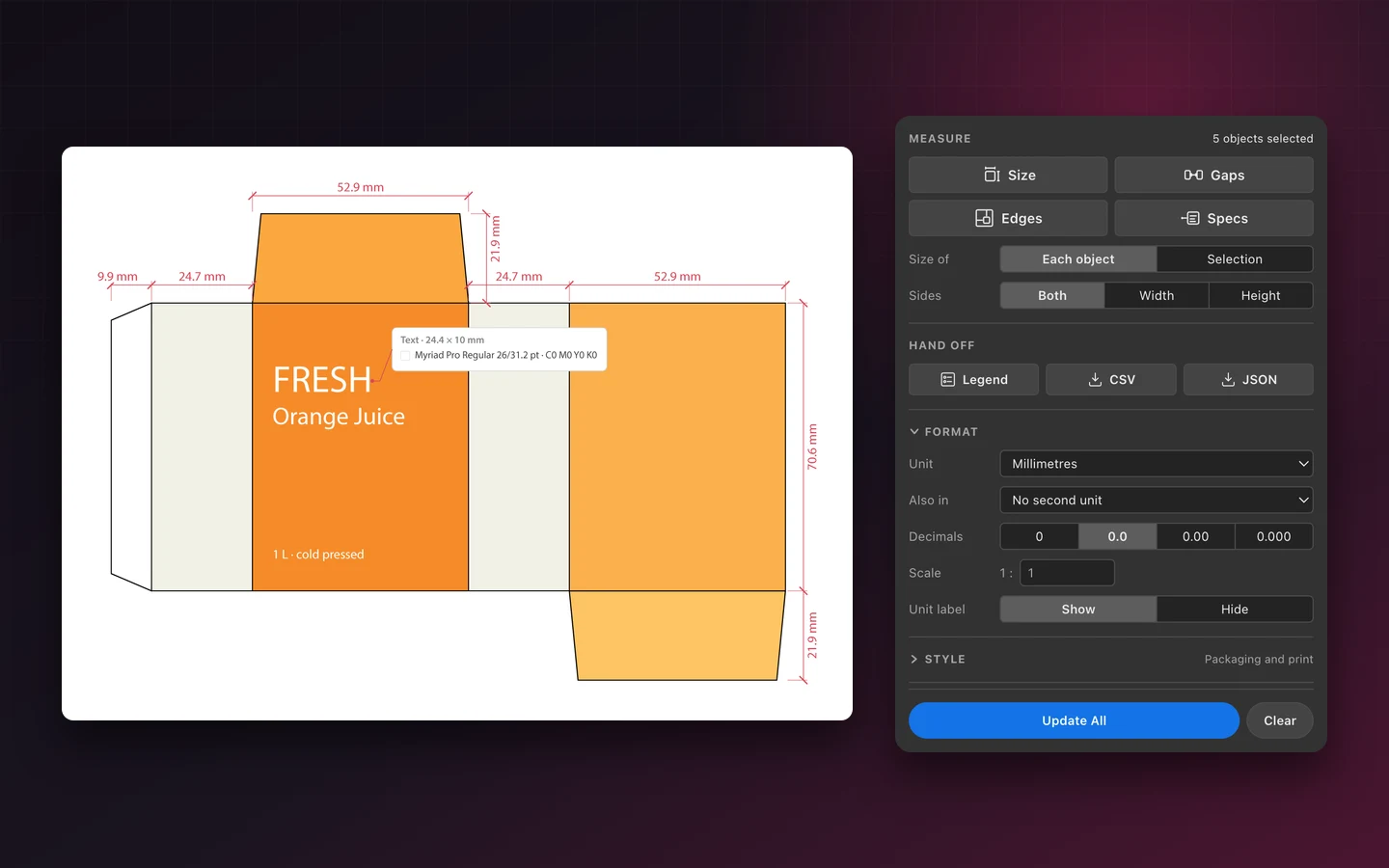
Packaging dielines, signage, floor plans and UI hand-offs all need the same thing: the sizes of objects and the gaps between them, written on the artwork. Illustrator gives you several ways to measure, and one way to annotate. Here they are, and when a plugin like Caliper saves hours.
Measuring: Info panel, Measure tool, Transform panel
- Transform panel (Window > Transform): the width and height of the selection. Read-only on the artwork, nothing is drawn.
- Info panel (Window > Info): the position and size of the selection or the cursor.
- Measure tool (under the Eyedropper): click two points to read the distance and angle in the Info panel.
These tell you the size. They don’t put it on the artwork for a printer or a client.
Annotating: the Dimension tool
Recent versions of Illustrator include a Dimension tool for linear, angular and radial dimensions. It is good for a few measurements: click from one point to another and a dimension line with its value appears.
It gets slow when you need every size and gap on a dieline, a second unit on each label, or a scale drawing where 1 mm on the artboard means 10 cm in reality.
One click for every dimension: Caliper
Caliper measures the selection in one click and draws the results on its own layer:
- Size, Gaps and Edges: the width and height of each object or of the whole selection, every gap between neighbours, and the distance to the artboard’s edges.
- Any unit, two at once: millimetres, centimetres, metres, inches with 1/8 to 1/32 fractions, feet, points and pixels, and a second unit on the same label, such as 120 mm / 4.7 in.
- Drawing scales: 1:10, 1:50, 1:100 or any scale, so labels show the real-world size.
- Spec cards: fonts with size, leading and tracking, fills and strokes, and optionally area, beside the object. Spot colours keep their names.
- Legend and export: one card with every font and colour, and every dimension and spec exported to CSV or JSON.
- Update All: move or resize your artwork, click Update All, and every dimension, card and legend is redrawn.
Labels avoid each other and other lines, snap to whole points, and can be ticks, arrows or dots, with plain text, a white halo or badges. Presets set units and style for packaging, UI hand-off, signage, architecture at 1:100 and imperial fractions.
Your artwork is never changed
Everything Caliper draws lives on a Caliper layer: hide it for the client version, lock it, or clear it in one click. One Undo removes everything a command drew. Clipped groups are measured by their mask, rotated objects by their bounding box, and each object’s artboard is used for distances.
Which to use
| Need | Use |
|---|---|
| Check one size while drawing | Transform or Info panel |
| Two or three dimension lines | Illustrator’s Dimension tool |
| Every size and gap on a dieline or plan, a drawing scale, a spec sheet or a CSV | Caliper |
Caliper needs Illustrator 2021 (25.0) or later on macOS or Windows and costs $59 once on Adobe Exchange.
Frequently asked questions
Does Illustrator have a dimension tool?
Yes. Recent versions of Illustrator include a Dimension tool that draws one linear, angular or radial dimension at a time. Caliper adds one-click dimensions for a whole selection, gaps and distances to the artboard, drawing scales, two units per label, spec cards and CSV or JSON export.
How do I show real-world sizes on a scaled drawing in Illustrator?
Set a drawing scale. In Caliper, choose a scale such as 1:10, 1:50 or 1:100 and every label shows the real-world size, for plans, signage and large-format work.
Can I export the dimensions to a spreadsheet?
With Caliper, yes: every dimension and spec exports to CSV or JSON, for a quote, a spreadsheet or a developer hand-off.
Oussama Touzni is part of the team at Lingway, which makes plugins for Adobe InDesign, Illustrator, Photoshop and After Effects. LinkedIn