by Lingway Team
How to Translate an InDesign Document Without Breaking the Layout
Translating the words in an InDesign file is the easy part. The hard part is everything around them: paragraph and character styles, tables, anchored objects, overset text and brand terms that must stay the same on every page. This guide compares the three common ways to do it and shows where each one goes wrong.
Method 1: copy and paste
You copy each text frame into a translation tool, paste the result back and repair the formatting.
- Good for: a postcard, a single flyer.
- Where it breaks: local formatting is lost on paste (bold words, coloured prices, superscripts), frames are skipped, and nothing guarantees that the same term is translated the same way twice.
- Time: it grows with every text frame. A 40-page brochure can take a day before any proofreading starts.
Method 2: export IDML and use a translation tool
You export the document as IDML, translate it in a CAT tool and open the translated IDML in InDesign.
- Good for: teams that already work with a translation agency and translation memories.
- Where it breaks: the round trip. Designers and translators work in different tools, late text changes mean exporting again, and the designer still has to fix overset text afterwards.
Method 3: translate inside InDesign
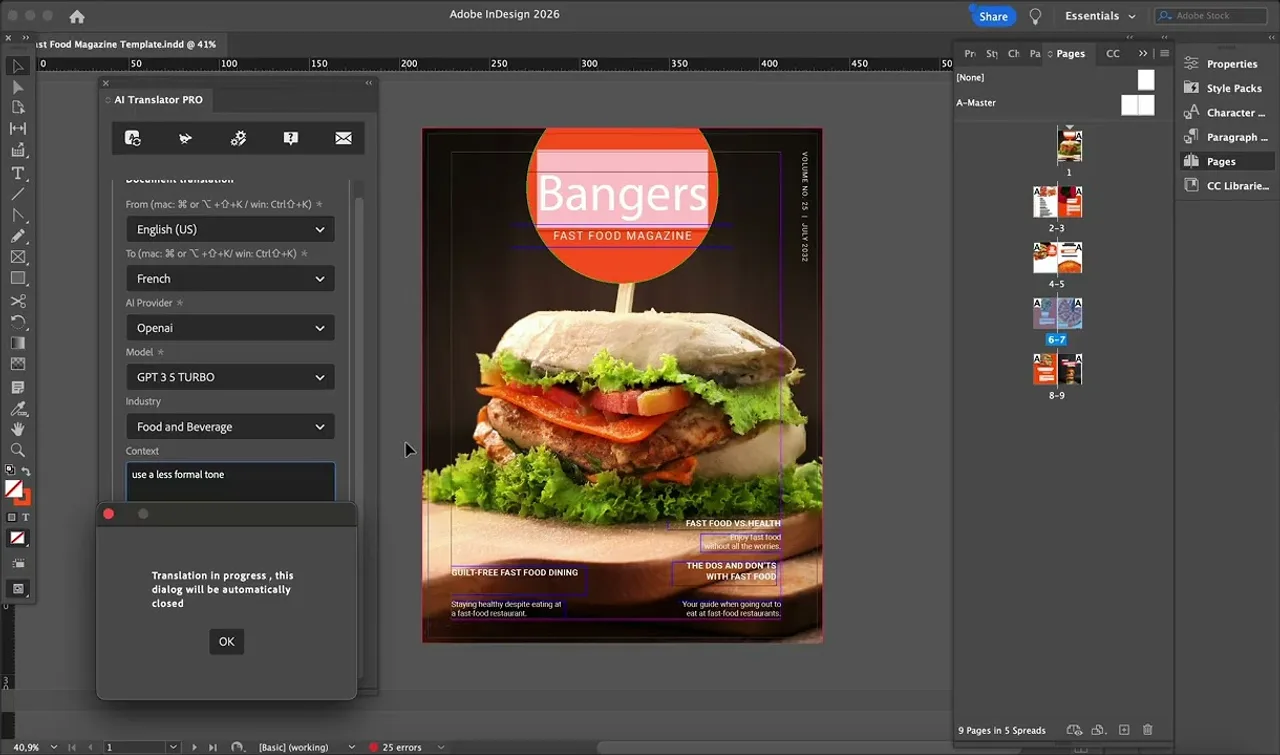
A plugin translates the stories in place, so the text never leaves the layout.
This is the approach we built Translator PRO for. It sends the text to DeepL and writes the translation back into the same frames, keeping paragraph styles, character formatting and document structure. A glossary lets you fix how product names and technical terms are translated. For whole projects, Translator PRO Batch Edition translates many INDD, IDML and ICML files in one run. If you prefer AI models and need context such as tone or industry, AI Translator PRO works the same way with the AI provider of your choice.
Five things to check whichever method you use
- Leave room for longer text. German and French often run 15 to 30 percent longer than English. Check headings, buttons and table cells first.
- Use styles, not manual formatting. Text formatted with paragraph and character styles survives translation far better than text formatted by hand.
- Fix your terminology before you start. Decide how product names, units and legal phrases are translated and put them in a glossary.
- Check that your fonts cover the target language. Missing glyphs show up as pink highlights in InDesign. Polish, Czech, Greek and Cyrillic are the usual culprits.
- Have a native speaker proofread the final layout, not just the text. Line breaks and hyphenation can change the meaning.
Which method should you choose?
For one-off, single-page jobs, copy and paste is fine. If an agency owns your translation process, IDML is the standard exchange format. If your own team produces multilingual catalogues, manuals or brochures regularly, translating inside InDesign removes the most manual work, because the layout never has to be rebuilt.
Go deeper
- How to translate an InDesign file with DeepL
- How to translate an IDML file with DeepL
- InDesign batch translation: translate multiple documents at once
- How to fix overset text after translation
- DeepL or AI models for InDesign translation
Have a multilingual workflow that none of these fits? Tell us about it. Building tools for exactly this kind of problem is what we do.