by Lingway Team
How to Fix Overset Text After Translating an InDesign Document
You translate a finished English layout into German, open it, and red plus signs appear on frames all over the document. The text no longer fits. This is overset text, and it is the most common problem after translating an InDesign document. Here is why it happens and how to deal with it efficiently.
Why translated text is longer
English is compact. Most European languages need more characters to say the same thing, and the shorter the text, the bigger the relative growth. A one-word button label can double in length, while a long paragraph grows much less.
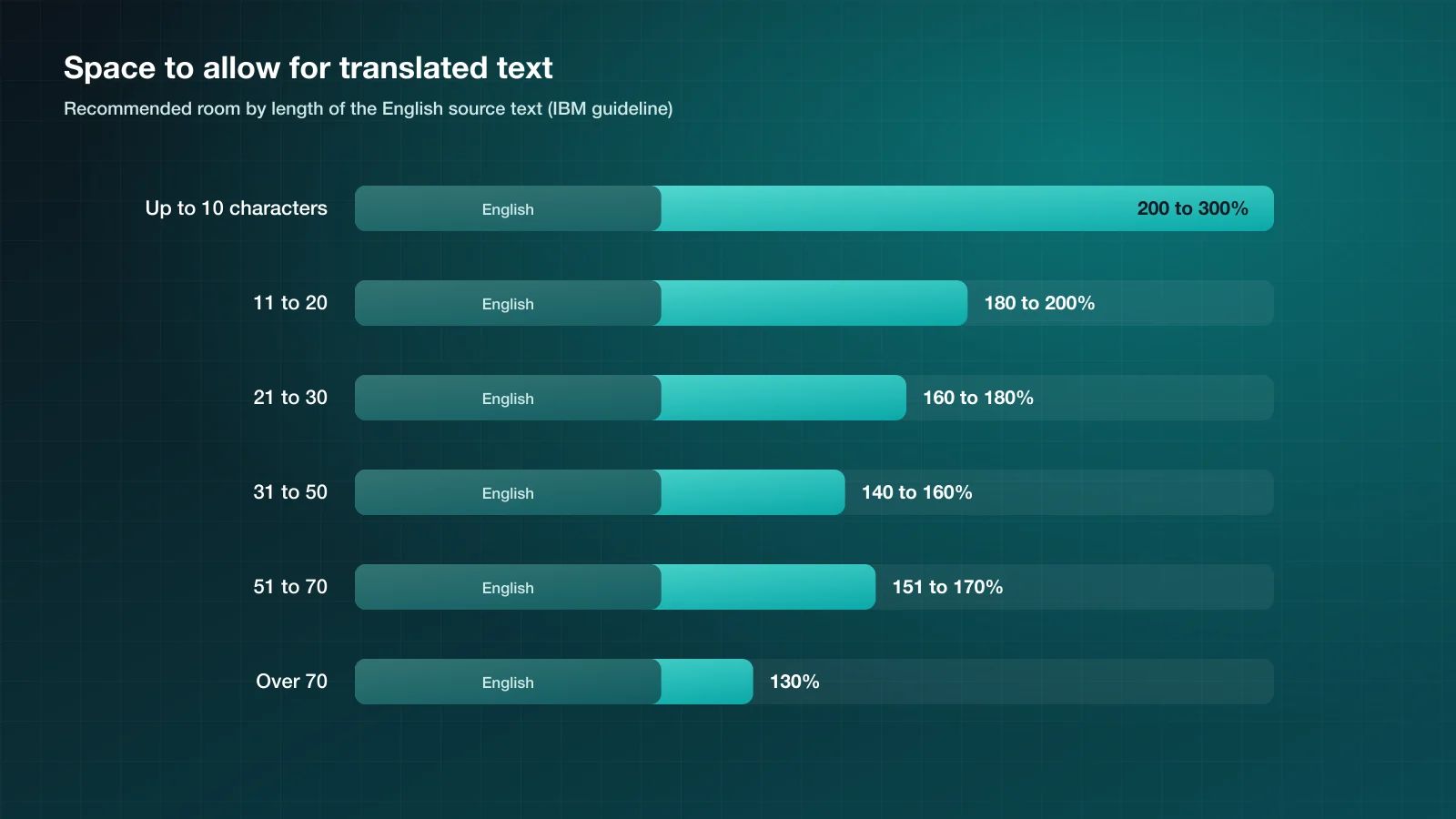
IBM’s globalization guidelines, which the W3C also cites, give these allowances for text translated from English:
| English text length | Space to allow |
|---|---|
| Up to 10 characters | 200 to 300% |
| 11 to 20 characters | 180 to 200% |
| 21 to 30 characters | 160 to 180% |
| 31 to 50 characters | 140 to 160% |
| 51 to 70 characters | 151 to 170% |
| Over 70 characters | 130% |
In practice this means headlines, captions, table cells and buttons break first. Body text usually needs 10 to 35 percent more room, depending on the language. Some languages, such as Chinese or Japanese, become shorter.
Find every overset frame
Do not hunt for red plus signs page by page.
- Preflight panel. Open Window > Output > Preflight. The default profile reports overset text and lists each frame with its page. Double-click an entry to jump to it.
- Story Editor. Select a frame and press Ctrl+Y (Windows) or Cmd+Y (Mac). Text that does not fit is marked with an overset line, so you can see how much is hidden.
Seven ways to make the text fit
Start with the gentlest fix and stop when it fits.
- Shorten the translation. Often the best fix. A translator or native speaker can usually say the same in fewer words, especially in headlines.
- Set the right language. Assign the target language to the text in the Character panel or in your paragraph styles. Hyphenation follows the language, and correct hyphenation alone recovers space in German or Dutch.
- Let frames grow. Use Object > Text Frame Options > Auto-Size for captions and labels that can extend in one direction.
- Thread frames and enable Smart Text Reflow. For long documents, threaded frames with Smart Text Reflow (Preferences > Type) add pages as the text grows.
- Tighten tracking slightly. A small negative tracking value across a paragraph is invisible. Large values are not.
- Reduce the size in the style. Change the paragraph style, not individual paragraphs, so the document stays consistent. Half a point is often enough.
- Adjust the layout. Widen a column, shrink an image or move an element. It is the last resort and sometimes the right one.
Avoid horizontal scaling of type. Squeezed letters are easy to spot and look cheap.
Design for translation from the start
If you know a document will be translated, build room in before the first translation:
- Leave 20 to 30 percent of white space in text frames in the English master.
- Avoid text inside images. It cannot be translated in InDesign.
- Give table columns generous widths and avoid fixed row heights.
- Keep headlines to one line with space to spare.
- Use paragraph styles everywhere, so a single change adjusts a whole language version.
- Check that your fonts cover every target language.
Where translation tools help
Translation plugins do not make German shorter, but they change where the time goes. When the text is translated in place, you see the overset frames immediately and fix them in the same session. With Translator PRO for Adobe InDesign the styles and formatting are preserved, so the only repair left is the fit. If you prefer AI models, AI Translator PRO lets you add an instruction such as keeping headlines short.
Checklist
- Run Preflight and list the overset frames.
- Fix headlines and table cells first.
- Set the text language for correct hyphenation.
- Apply style-level changes before local ones.
- Run Preflight again until it is clean.
- Have a native speaker read the final pages.
More on the translation step itself: how to translate an InDesign file with DeepL and InDesign batch translation.