by Lingway Team
InDesign Batch Translation: Translate Multiple Documents at Once
Translating one InDesign document is a task. Translating a product range of forty brochures into six languages is a project, and the method that worked for one file collapses under the repetition. Batch translation means sending a set of files through the same translation settings in one run. This article explains how to set that up.
When batch translation makes sense
- A catalog split into one file per chapter or product family.
- A series of data sheets that share a template.
- A magazine or book where each article is a separate InCopy story.
- The same document set translated again after every product update.
If you open, translate, save and close more than a handful of files, the manual steps cost more time than the translation itself.
INDD, IDML and ICML: which files can be batched?
| Format | What it is | In a batch |
|---|---|---|
.indd | The native InDesign document | Has to be converted to IDML for translation |
.idml | InDesign Markup Language, an XML package of the whole document | Can be translated directly |
.icml | InCopy Markup Language, a single story | Can be translated directly |
ICML deserves a note. In an InDesign and InCopy workflow, each story is exported as an .icml file that editors work on while designers keep the layout. Translating the ICML files updates the text in the layout without anyone touching the .indd. You export stories from InDesign with Edit > InCopy > Export.
Prepare the files once
Batch runs multiply mistakes as efficiently as they multiply work. Before you start:
- Use one template. Shared paragraph and character styles make every file behave the same way.
- Build the glossary first. Agree on the translation of product names, features and units, and load them into a glossary before the first run. Fixing terminology across forty translated files is slow.
- Decide the tone. Pick formal or informal address per language and keep it for the whole project.
- Leave room. Give text frames space to grow or thread them. See fixing overset text after translation.
- Work on copies. Keep the source files untouched and name the output per language.
Running a batch
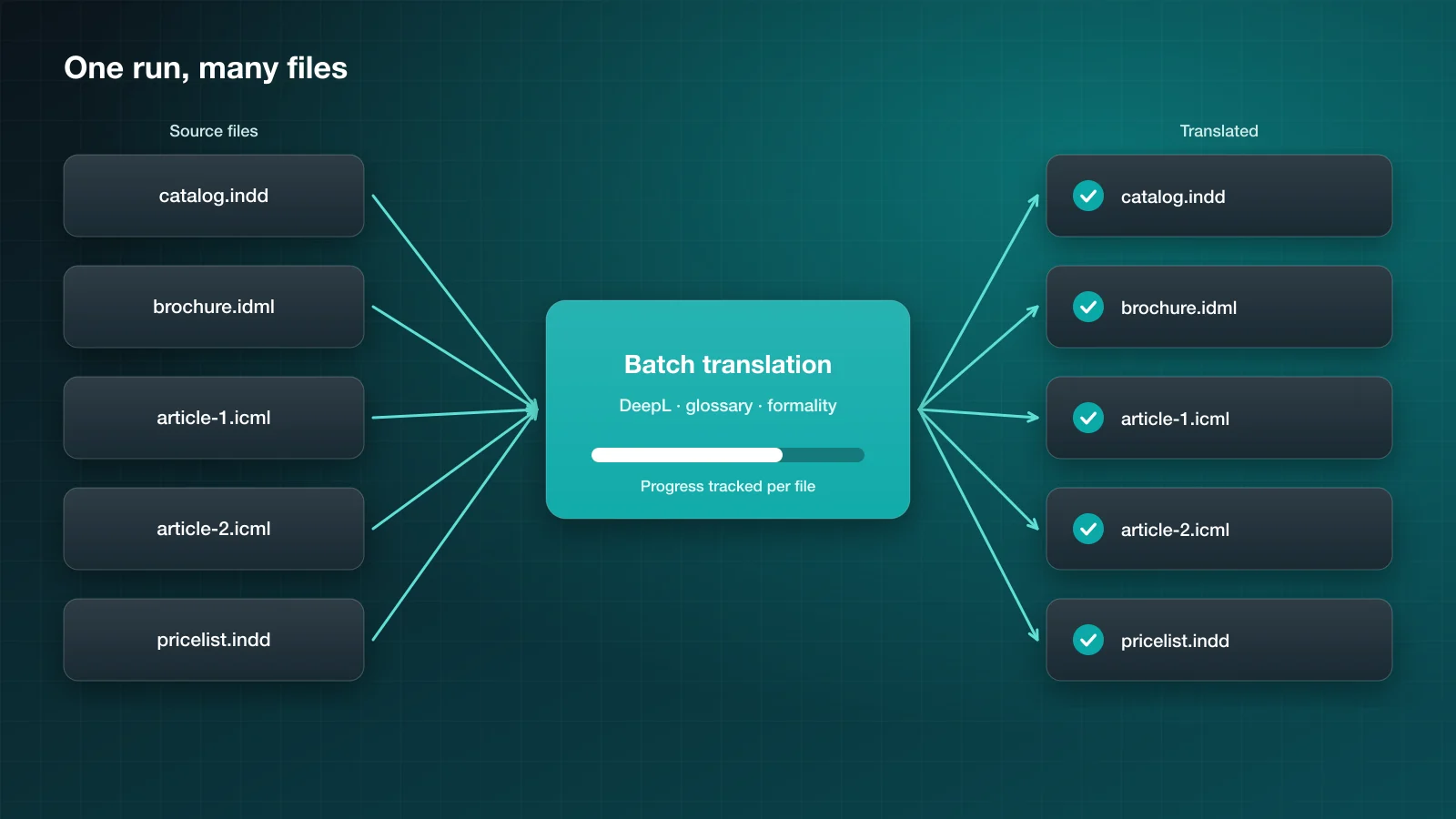
Translator PRO Batch Edition is our plugin for this job. A run looks like this:
- Add the
.indd,.idmland.icmlfiles to translate. - Choose source and target languages, a glossary and the formality level.
- Start the batch. InDesign documents are exported to IDML automatically; ICML files are translated and overwritten in place, so the InCopy workflow keeps working.
- Follow the Progress tab, which shows status, warnings and errors for each file.
The translation itself is done by DeepL through your own API key, Free or Pro. Glossaries can be created from CSV files inside the plugin.
After the batch
A batch gives you translated files, not finished ones. Plan a pass through each:
- Overset text in every document. The Preflight panel shows it per file.
- Tables, where column widths rarely fit the new text.
- Headlines, which are short, visible and the most likely to need a human rewrite.
- Cross-references, tables of contents and indexes, which need updating in the new language.
How much time does it save?
The translation was never the slow part. What a batch removes is the handling: opening, exporting, uploading, downloading, importing and saving each file. For a set of files that share settings, that handling drops to choosing the files once.