by Lingway Team
How to Turn a Scanned Table into an Editable Table in InDesign
A supplier sends a price list as a scanned PDF. A client sends a photo of a printed specification sheet. The data is right there on the page, but you cannot select it, so someone retypes it cell by cell. That is slow, and every retyped number is a chance for an error.
Table OCR solves this. Here is how it works and how to get a clean result.
What table OCR actually does
Ordinary OCR recognises characters and gives you a block of text. Table OCR goes a step further: it detects rows, columns and cell boundaries, so the result is a table and not a paragraph with numbers in it. That structure is what makes the output usable in a layout.
From scan to InDesign table
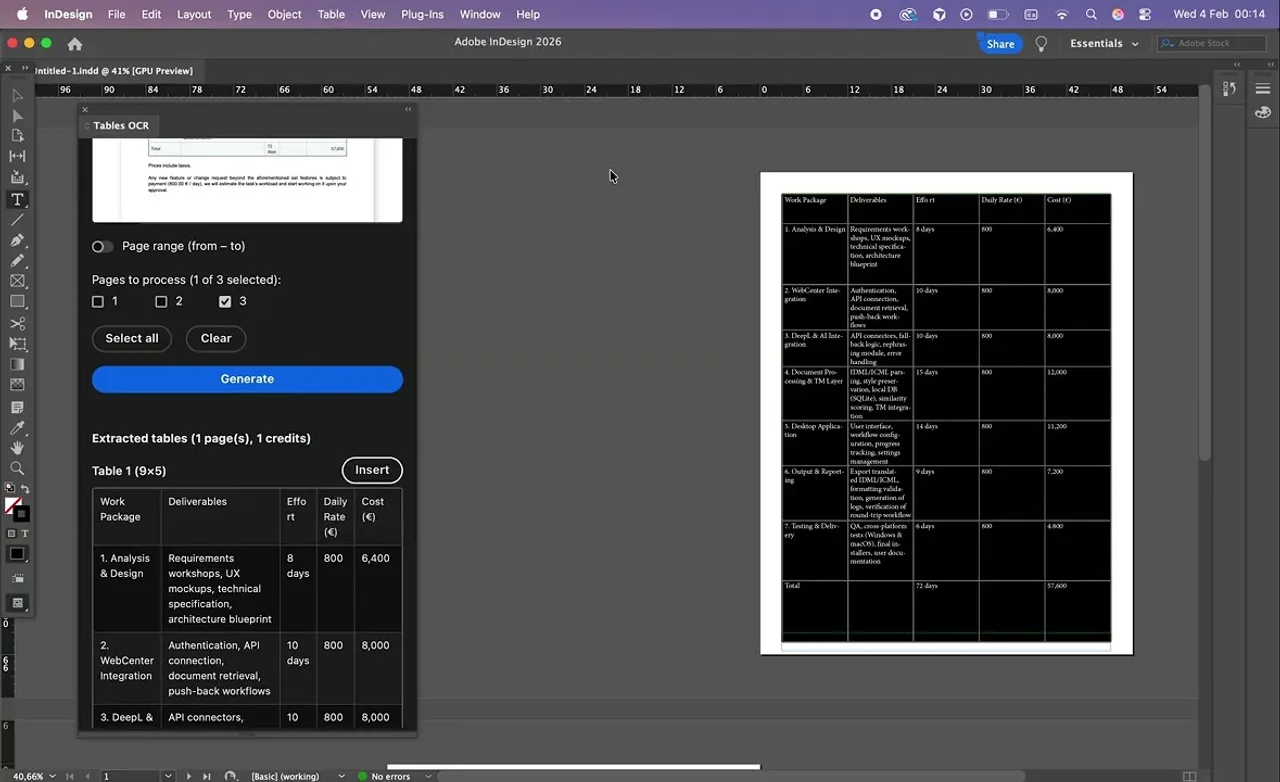
With our Tables Extractor plugin the steps are short:
- Open the panel in InDesign and choose the PDF or image.
- Select the pages you want to process.
- Review the extracted table in the preview.
- Insert it. The result is a native InDesign table, so you can apply your own table and cell styles.
The same extraction is available where your team works: Tables Extractor for Jira and Confluence.
How to get clean results
- Start from the best source you have. A PDF exported from the original file beats a scan, and a scan beats a phone photo.
- Scan straight and at a reasonable resolution. 300 dpi is a good baseline. Skewed pages are the most common cause of shifted columns.
- Crop to the table. Headers, footers and surrounding text add noise.
- Watch merged cells and multi-line cells. These are the hardest structures to detect. Check them first in the preview.
- Proofread the numbers. OCR can confuse
0andO,1andl, or a decimal comma and a point. Compare totals with the source where you can.
After the import
Because the result is a real table, the rest is normal InDesign work: apply a table style, set column widths, and link it to your paragraph styles. If the same table is updated regularly from a spreadsheet, consider linking the data instead of importing it again. Sheet Sync keeps InDesign tables and text frames in sync with Google Sheets, Excel or CSV files.
Dealing with documents that no standard tool reads well, such as forms, invoices or technical data sheets? Talk to us. We build custom extraction and automation tools.