How to Use Tables Extractor
Tables Extractor is a doc action for monday.com workdocs. It extracts structured tables from PDFs and images using AI-powered OCR, so you can paste them directly into your documents.
Open the App
Open any workdoc in monday.com. Click the "+" button to add a new block, or select text and open the toolbar. Choose "Tables Extractor" from the list of doc actions. The app opens in a panel on the right side of your screen.
Upload a File
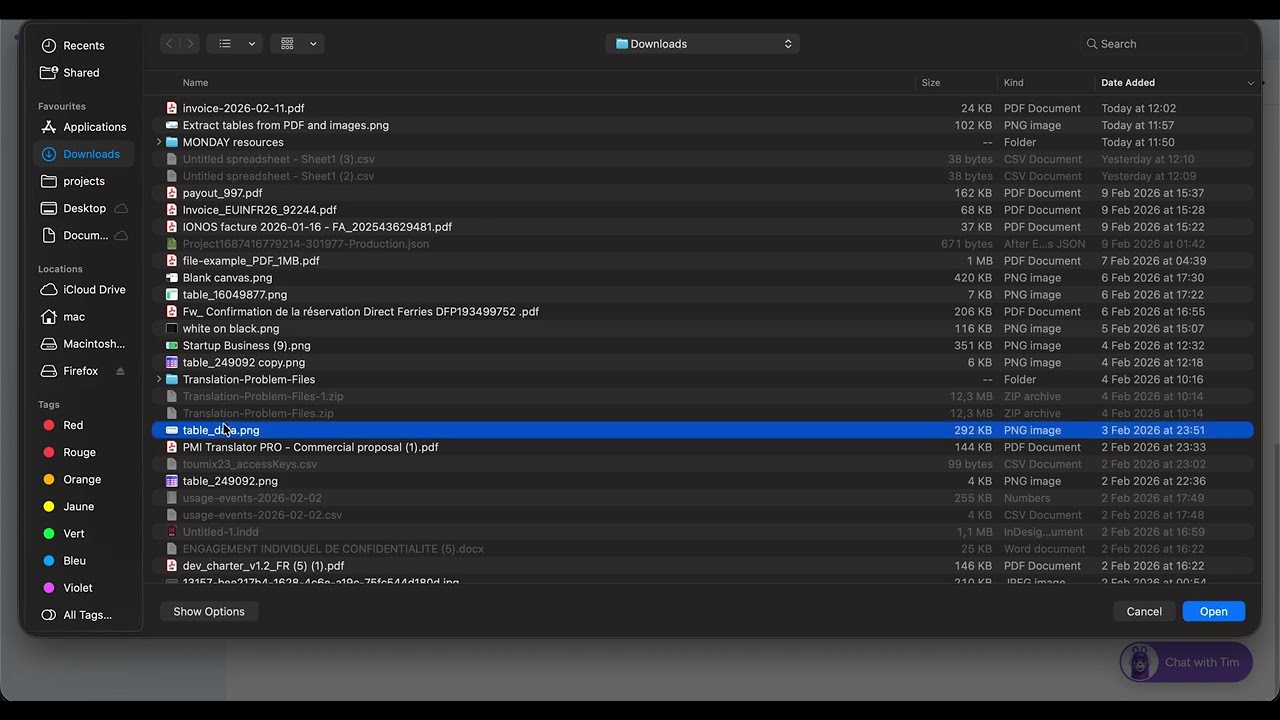
Click the upload zone to select a file from your computer. Supported formats: PNG, JPEG, and PDF (multi-page supported).
Select Pages (PDF only)
For PDF files, the app renders thumbnail previews of every page. Click individual pages to select or deselect them — selected pages are highlighted in blue. You can also switch to Range mode using the toggle, then enter a From and To page number. Only selected pages will be processed (and charged credits).
Extract Tables
Click the "Extract tables" button. The app sends your selected pages to the server, where AI-powered OCR analyzes the content and detects table structures. This typically takes a few seconds.
Review Results
Once extraction is complete, the app displays all detected tables with their row and column structure preserved. Each table shows its dimensions (e.g., "5 rows x 4 columns") and a confidence indicator.
Copy & Paste
Click "Copy" on any individual table, or "Copy all" to copy every detected table at once. Then click into your workdoc and paste (Ctrl+V / Cmd+V). The table appears as a fully formatted, editable table in your workdoc.
Tips
- Higher resolution scans produce better extraction results.
- For best results with PDFs, ensure the document contains actual text (not just scanned images of text).
- One credit is consumed per page processed, even if no tables are found on that page. Select only the pages you need.
Video Tutorial
Watch a quick walkthrough of Tables Extractor in action.
Need help? Contact us at contact@lingway.io.