by Lingway Team
How to Generate Barcodes in Bulk in Adobe Illustrator from CSV or Excel
Packaging and label designers often receive the same request: a spreadsheet with a few hundred product numbers, and a deadline. Illustrator has no built-in barcode tool, so the usual workaround is an online generator, one code at a time, placed by hand. This guide shows a faster route and the rules that keep the result scannable.
Why barcodes should be vector
A barcode is read by measuring the width of its bars. A raster image that is scaled or resampled can blur those edges. A vector barcode stays sharp at any size and separates cleanly for print, which is why printers ask for vector artwork.
Know which barcode you need
- EAN-13 and UPC-A: retail products scanned at the till.
- Code 128 and GS1-128: logistics, cartons and pallets.
- ITF-14: outer cases.
- QR code and Data Matrix: links, serial numbers and small parts.
If the barcode is for retail, the numbers must come from your GS1 allocation. A generator creates the symbol; it does not issue the number.
Generating barcodes from a spreadsheet
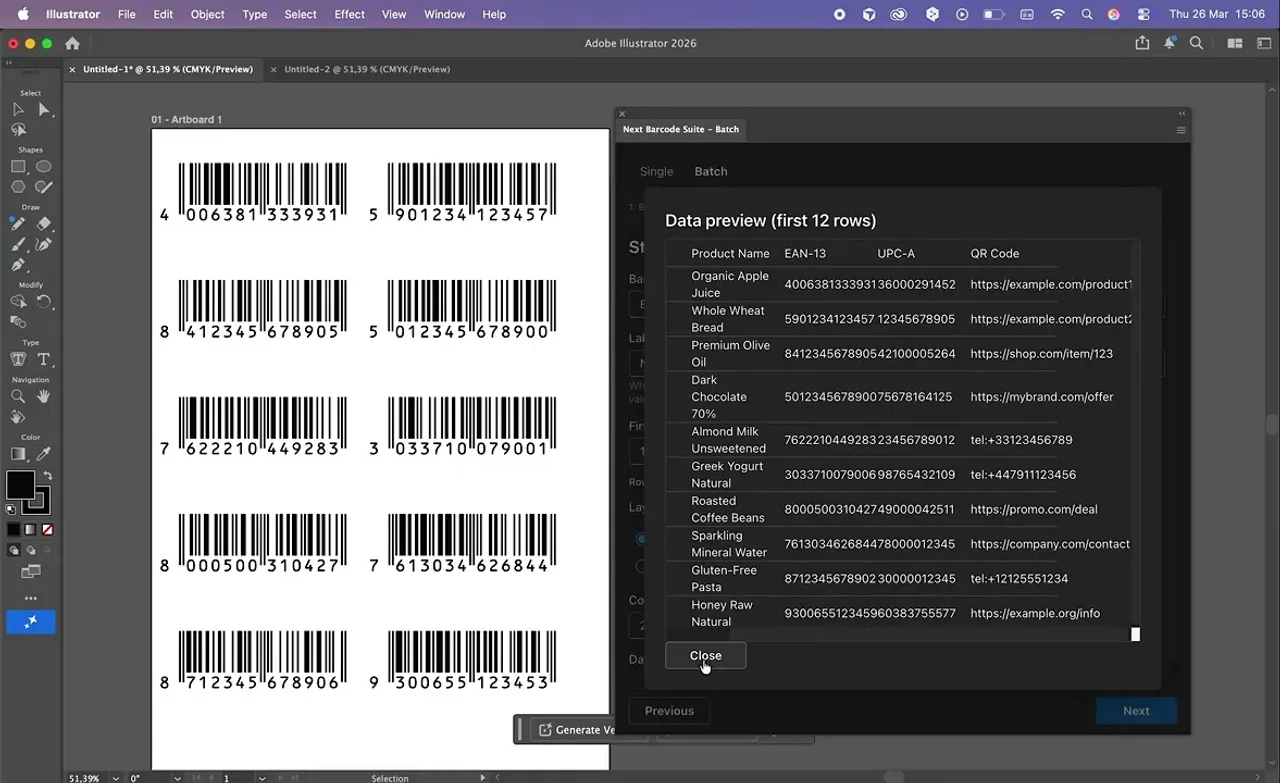
With Next Barcode Suite - Batch Edition the whole list is created in one run:
- Prepare a CSV or Excel file with one row per product. Keep the codes in a column formatted as text, so leading zeros are not lost.
- Open the plugin in Illustrator and load the file.
- Choose which column contains the code and which barcode type to use. More than 159 formats are supported.
- Check the preview of the first rows, then generate. Each barcode is placed as editable vector artwork.
Need a single code instead of a batch? The standard Next Barcode Suite for Illustrator inserts one barcode or QR code at a time, and versions exist for InDesign and Photoshop too.
Mistakes that make barcodes fail
- No quiet zone. The empty margin left and right of the bars is part of the symbol. Do not let text or a box edge enter it.
- Scaling too far. For EAN and UPC symbols, GS1 allows roughly 80 to 200 percent of the nominal size. Smaller than that and many scanners struggle.
- Low contrast. Dark bars on a light background. Red bars are invisible to most scanners, because the scanner light is red.
- Cutting the height. Truncated bars scan less reliably at the till. Only shorten them when the packaging leaves no choice.
- Leading zeros dropped by Excel.
0123456789012becomes123456789012if the column is numeric. Format the column as text before you type or paste.
Always test before printing
Print a proof at final size on the real material and scan it with an actual scanner, not only a phone app. For retail packaging, ask your printer or GS1 organisation about verification.
Do you need barcodes generated from another source, such as a product database or an ERP export? We build custom integrations for exactly that.