par Lingway Team
How to Translate an InDesign File with DeepL
DeepL is one of the most used machine translation engines for European languages, and Adobe InDesign is where most catalogs, brochures and manuals are laid out. The two do not talk to each other out of the box. This guide shows the three practical ways to translate an InDesign file with DeepL, with the steps for each and the problems you should expect.
What you need first
- A DeepL account. The web translator is enough for pasted text. For file uploads through the API or for a plugin you need a DeepL API key. DeepL API Free includes 500,000 characters per month; DeepL API Pro is billed by usage.
- A clean InDesign document. Text formatted with paragraph and character styles translates far better than text formatted by hand. Fix overset text and missing fonts before you start, not after.
Method 1: copy the text into DeepL
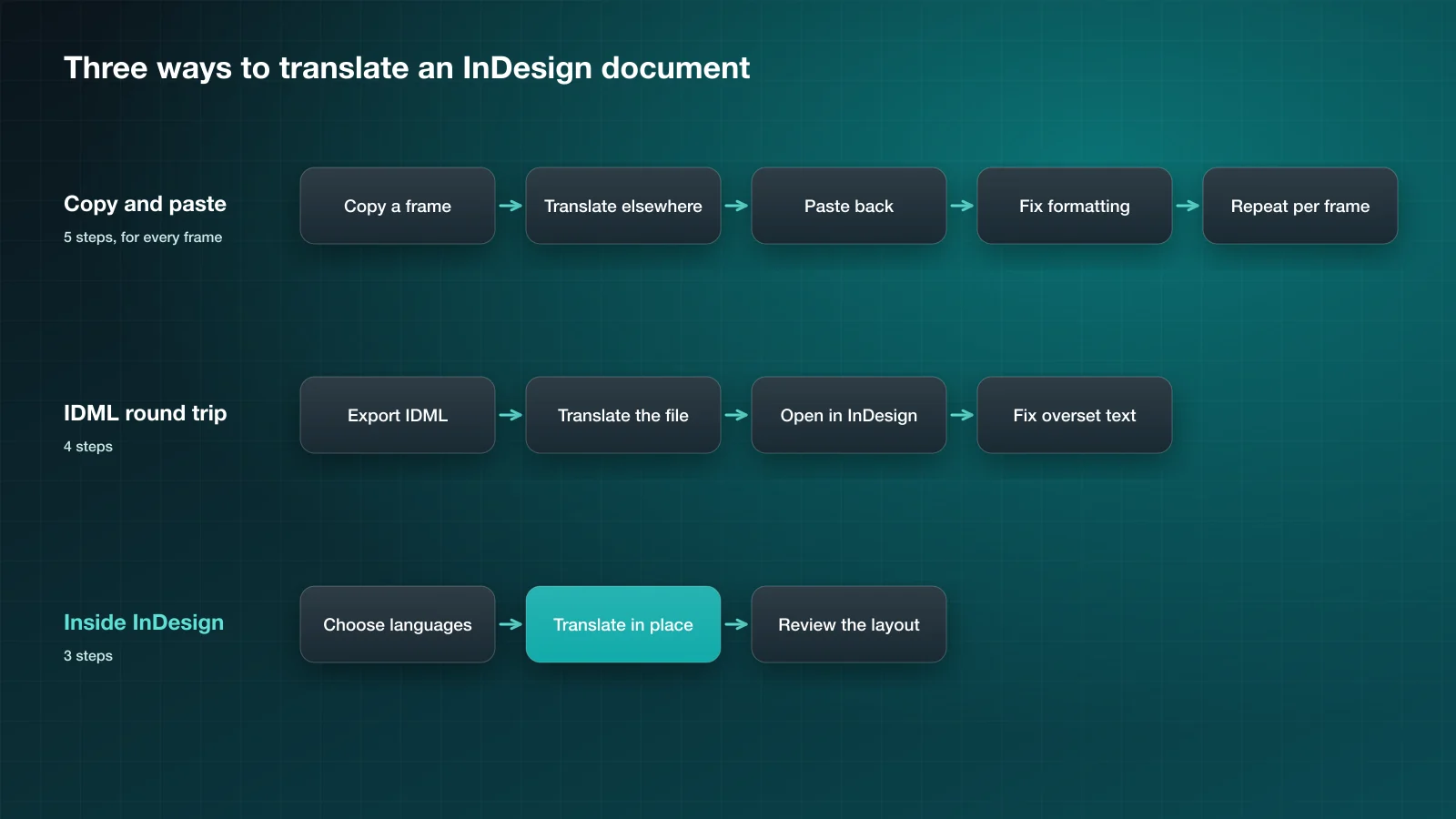
- Select the text in a frame and copy it.
- Paste it into the DeepL translator and choose the target language.
- Copy the translation and paste it back into the frame.
- Reapply any formatting that was lost: bold words, coloured prices, superscripts.
This works for a business card or a single page. It does not scale: every frame is a separate round, local formatting is lost on paste, and nothing keeps terminology consistent between frames.
Method 2: export IDML and translate the file
IDML is InDesign’s open, XML-based file format. The DeepL API accepts .idml files for document translation, with a limit of 10 MB and 500,000 characters per file on free plans and 30 MB and 1 million characters on paid plans.
- In InDesign choose File > Save As and pick InDesign CS4 or later (IDML).
- Send the
.idmlfile to DeepL’s document translation, choosing source and target language. - Download the translated
.idmland open it in InDesign. - Check every page for overset text and fix the layout.
The result keeps your styles and structure, because DeepL only rewrites the text inside the file. The drawbacks are the round trip itself and the lack of control per document: you work outside InDesign, and each change to the source means exporting again. We cover this route in detail in how to translate an IDML file with DeepL.
Method 3: translate inside InDesign
A plugin connects InDesign to the DeepL API, so the text is translated in place and never leaves the layout.
With Translator PRO for Adobe InDesign the steps are:
- Open the panel and enter your DeepL API key once.
- Choose the source and target languages.
- Optionally pick a glossary and a formality level.
- Translate. The translated text replaces the original in the same frames, with paragraph styles, character formatting and layout preserved.
Working in the document has two advantages over the file route. You see the result immediately, in context, and you can keep working on the layout between translations. For projects with many files, Translator PRO Batch Edition runs the same translation over a whole set of INDD, IDML and ICML files.
Settings worth using
- Glossaries. A DeepL glossary fixes the translation of product names and technical terms. Without one, the same term can be translated in two ways in the same catalog.
- Formality. For languages that distinguish formal and informal address, such as German, French, Italian and Spanish, DeepL can lean one way or the other. Decide this once per brand.
- Source language. Set it explicitly. A glossary only applies when the language pair is known.
What to check after translating
- Overset text. Translated text is usually longer than English. See how to fix overset text after translation.
- Fonts. Make sure the font has the characters of the target language. Polish, Czech, Greek and Cyrillic are the usual trouble spots.
- Language attribute. Set the text language in InDesign so hyphenation and spell-check follow the new language.
- Numbers, units and dates. Machine translation can leave decimal separators and date formats in the source convention.
- A human read-through. Have a native speaker review the final layout, especially headlines and legal text.
Which method should you use?
| Copy and paste | IDML file | Inside InDesign | |
|---|---|---|---|
| Keeps formatting | No | Yes | Yes |
| Works in the layout | No | No | Yes |
| Glossary support | Manual | With the API | Yes |
| Good for | One page | Occasional documents | Regular production |
If you translate InDesign documents regularly, translating inside InDesign removes the most manual work. For a broader comparison that also covers working with a translation agency, read how to translate an InDesign document without breaking the layout.